
How to Install Safe Exam Browser and Access Assessment
This guide provides a step-by-step process for installing the Safe Exam Browser (SEB) and accessing assessments on the Turiyaskills platform. It simplifies the setup, ensuring users can securely complete their online assessments without confusion. By following the instructions, users can efficiently navigate the installation and verification process, enhancing their exam experience. Viewing this guide is essential for anyone looking to ensure a smooth and secure assessment process.
Overview
Safe Exam Browser (SEB) is a secure testing environment that prevents unauthorized access to other applications and websites during assessments. This ensures exam integrity and provides a controlled testing environment for candidates.
Assessment Security Modes
We provide two modes: You can choose one of them.
We will make recruiters life better soon when we migrate the SEB online without requiring PC/Laptop Installations, but that little while away and it also comes at a premium as infra costs more.
Available Modes:
- Strict Mode (SEB) → for high-stakes exams
- Light Mode (Browser-only) → for smaller/low-stakes tests
Important Considerations
Strict Mode (SEB):
- Strict Mode uses Safe Exam Browser which is a third-party tool which shall be downloaded and used. So there will be installation related hiccups as candidates come with different configurations of laptops. Common ones will work while exceptional ones will have issues.
- If SEB poses issues as it requires coordination efforts when multiple candidates take SEB based tests from different locations - a pre-install and pre-check round could be prompted to avoid major problems during exam.
Alternative Option:
- Else choose the easier option of going simply with Browser-only options without enforcing strict monitoring.
Step-by-Step Process
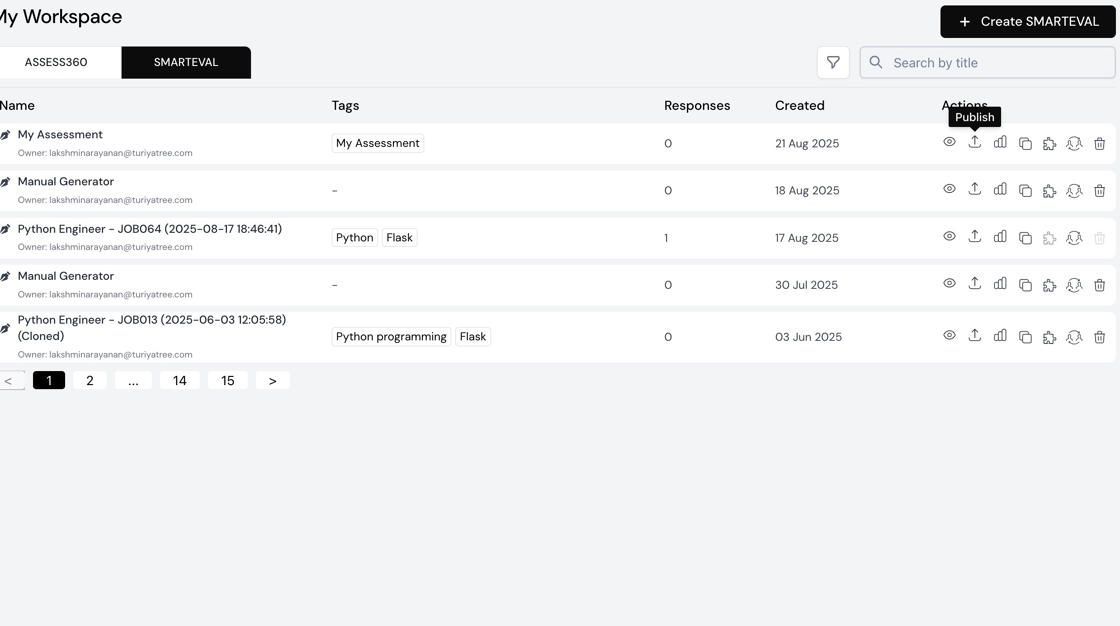
1. Navigate to SMARTEVAL Assessment
Go to the Turiyaskills SMARTEVAL platform and access your assessment dashboard.
2. Click on Publish Icon
In the actions section of the dashboard, click on the publish icon to access assessment distribution settings.

3. Enable Safe Exam Browser
Toggle the Safe Exam Browser option to enable secure assessment mode.

4. Read SEB Instructions
Click on the "?" icon to access detailed instructions on how to use Safe Exam Browser.

5. Review SEB Instructions
Carefully read through the Safe Exam Browser instructions to understand the requirements and setup process.

6. Set Attempt Number
Configure the number of attempts allowed for the assessment as required.
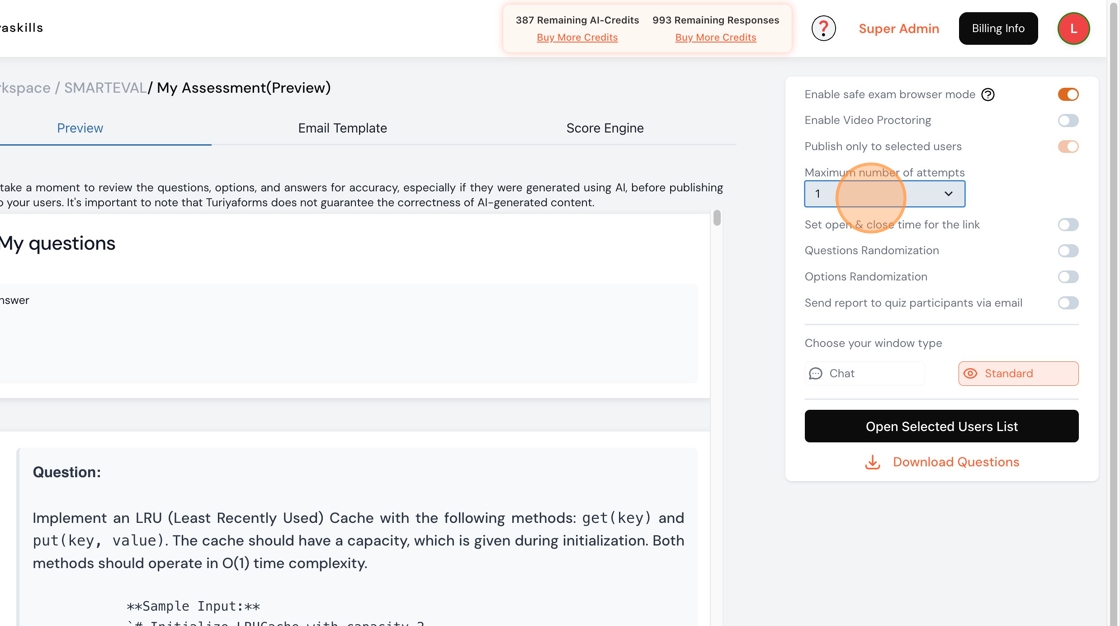
7. Open Selected Users List
Click "Open Selected Users List" to access the candidate distribution interface.

8. View Users List
In the distributions list, click on "View List" to see the complete users list for assessment distribution.

9. Select User for Assessment
Select the specific user to send the SEB assessment instructions and link.
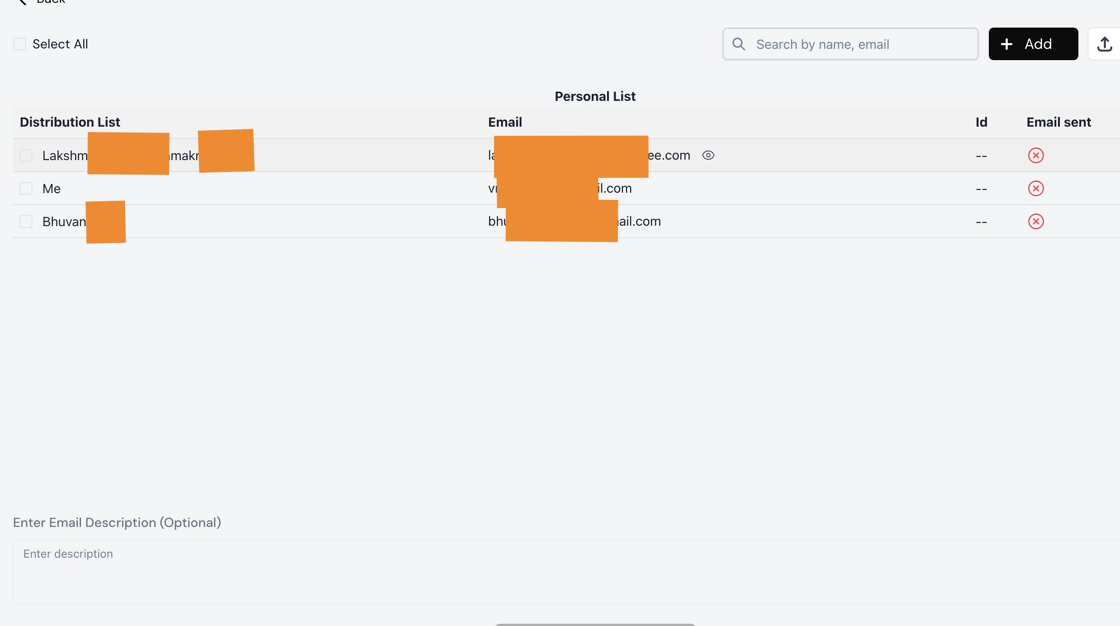
10. Send Email Invitation
Click "Send Email" to distribute the assessment invitation with SEB instructions.

Assessment Access Process (Candidate Side)
11. Check Email Inbox
Switch to your email inbox to find the assessment invitation.
12. Open Assessment Invitation
Click on "Invitation to Complete Online Assessment" email.

13. Access Assessment
Click "Access Assessment" button in the email to proceed.

14. Get OTP Verification
Click "Get OTP" to receive the verification code for assessment access.

15. Return to Email Inbox
Switch back to your email inbox to retrieve the OTP.
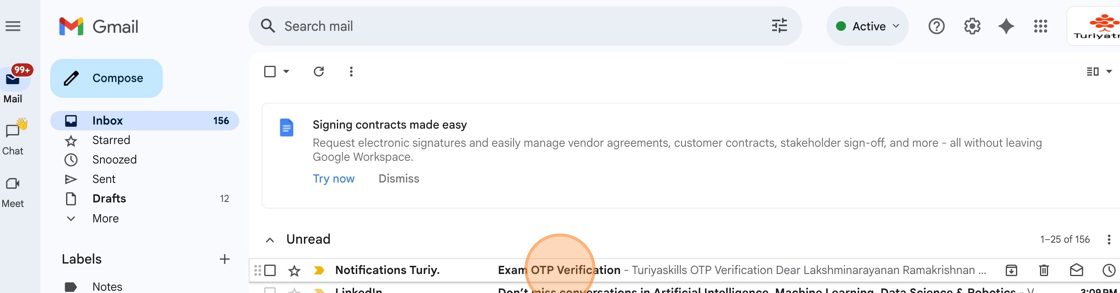
16. Access Inbox
Click "Inbox" to view new messages.

17. Open OTP Email
Click "Exam OTP Verification" to access the verification code.
18. Return to Turiyaskills
Switch back to the Turiyaskills assessment tab.
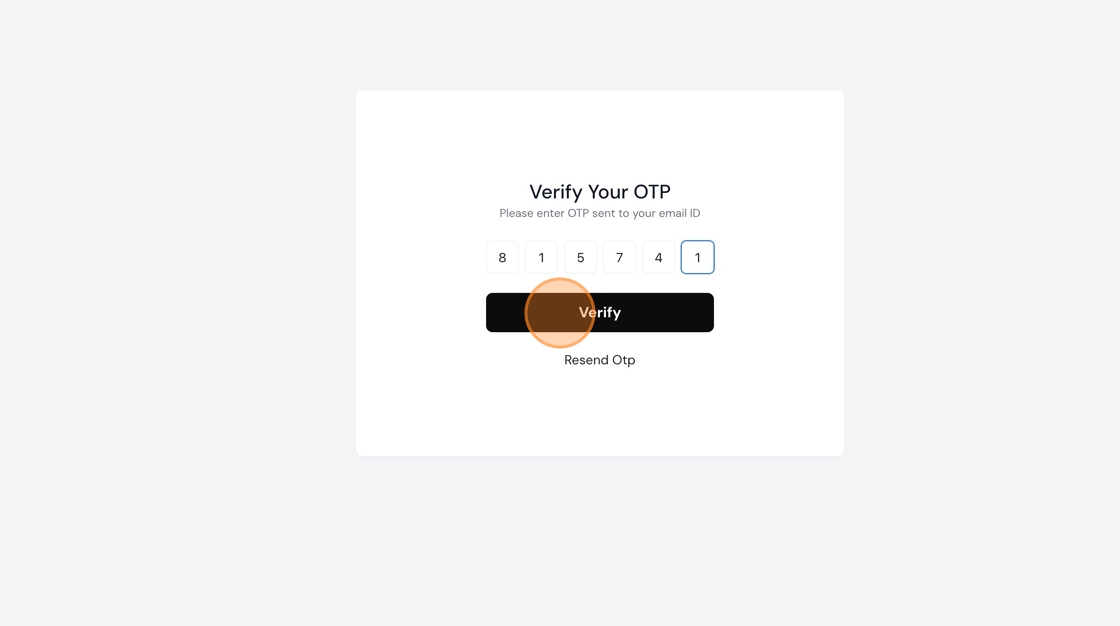
19. Enter OTP Code
Type the received OTP code (e.g., "815741") in the verification field.
20. Verify OTP
Click "Verify" to confirm the OTP and proceed to the SEB setup.
Safe Exam Browser Installation
21. Read SEB Setup Guide
Review the comprehensive SEB Setup Guide to "Install Safe Exam Browser" properly.

22. Download Safe Exam Browser
Click "Click here." in Step 1 to navigate to safeexambrowser.org and download SEB.

23. Select Operating System
Choose either Windows or Mac version to download the appropriate "Safe Exam Browser" for your system.

24. Return to Turiyaskills
Switch back to the Turiyaskills assessment tab.
25. Download SEB Configuration File
Click the download icon in Step 3 to download the .SEB file that will run the assessment in the Safe Exam Browser environment.
Important Notes
🔒 Security Features
- Browser Restrictions: SEB prevents access to other applications and websites during the exam
- Controlled Environment: Ensures exam integrity through secure testing conditions
- Photo Capture: May include candidate photo verification during the assessment
📋 Requirements
- Compatible Device: Windows or Mac computer with SEB installed
- Stable Internet: Reliable internet connection for assessment completion
- Email Access: Active email for OTP verification and instructions
⚠️ Troubleshooting Tips
- Installation Issues: Ensure you download the correct version for your operating system
- OTP Problems: Check spam/junk folders if OTP email is delayed
- SEB Configuration: Make sure to download and use the specific .SEB file provided
- Technical Support: Contact platform support if you encounter installation difficulties
Best Practices
- Pre-Installation: Install Safe Exam Browser before the scheduled assessment time
- Test Run: Perform a test run to ensure SEB is working correctly
- Backup Plan: Have technical support contact information readily available
- Environment Setup: Ensure a quiet, private space for the assessment
- System Check: Verify camera and microphone functionality if required
For additional support with Safe Exam Browser setup, please contact our technical support team or refer to the Assessment App Features documentation.