Steps on How to Share your Jobs Postings
(https://scribehow.com/shared/Steps_on_How_to_Share_your_Jobs_Postings__sOK0ZJCvTruKD3HHSKTu8g)
This guide provides a comprehensive walkthrough for updating company settings and effectively managing job postings on the Turiyaskills platform. It covers essential features like uploading resumes, importing candidates from external networks, and customizing job postings for better visibility. By following this guide, users can streamline their hiring process, enhance candidate engagement, and ensure a professional presentation of job opportunities. It's an invaluable resource for anyone looking to optimize their recruitment efforts.
- Navigate to https://app.turiyaskills.co/top1/dashboard
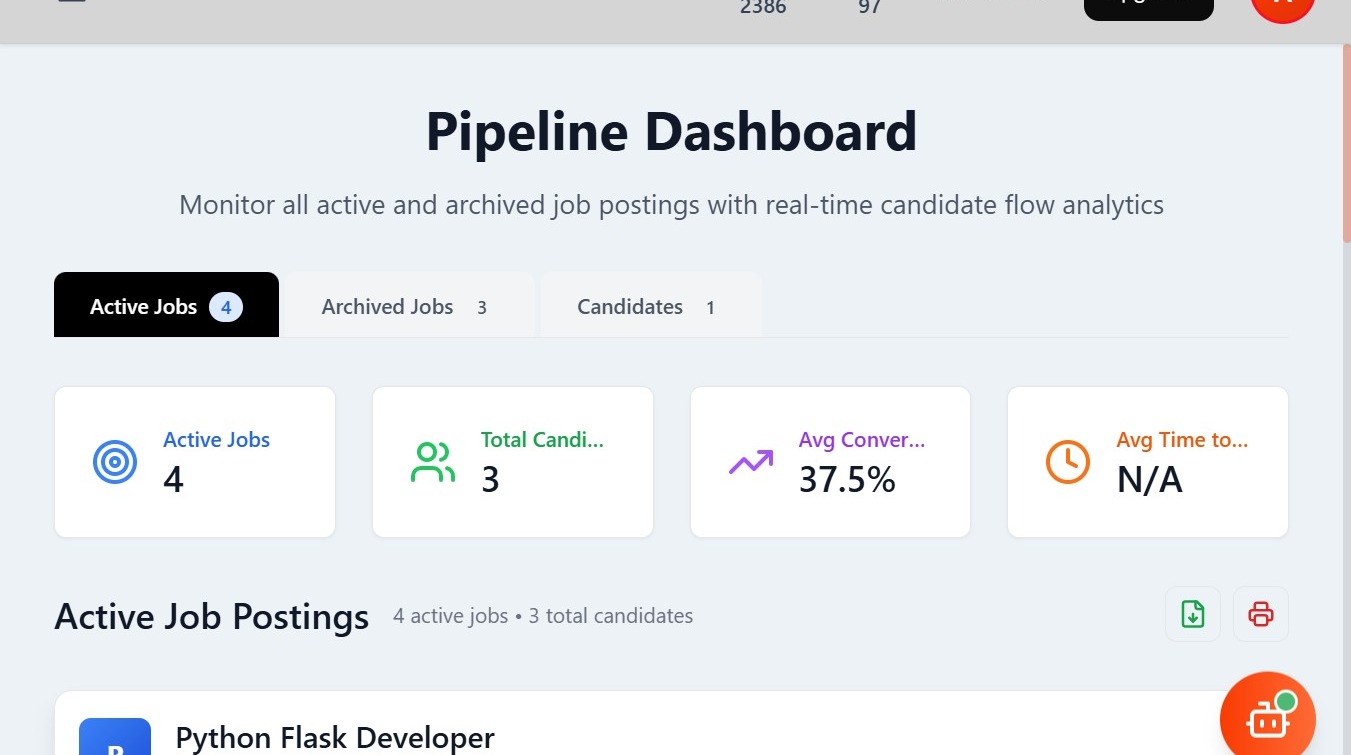
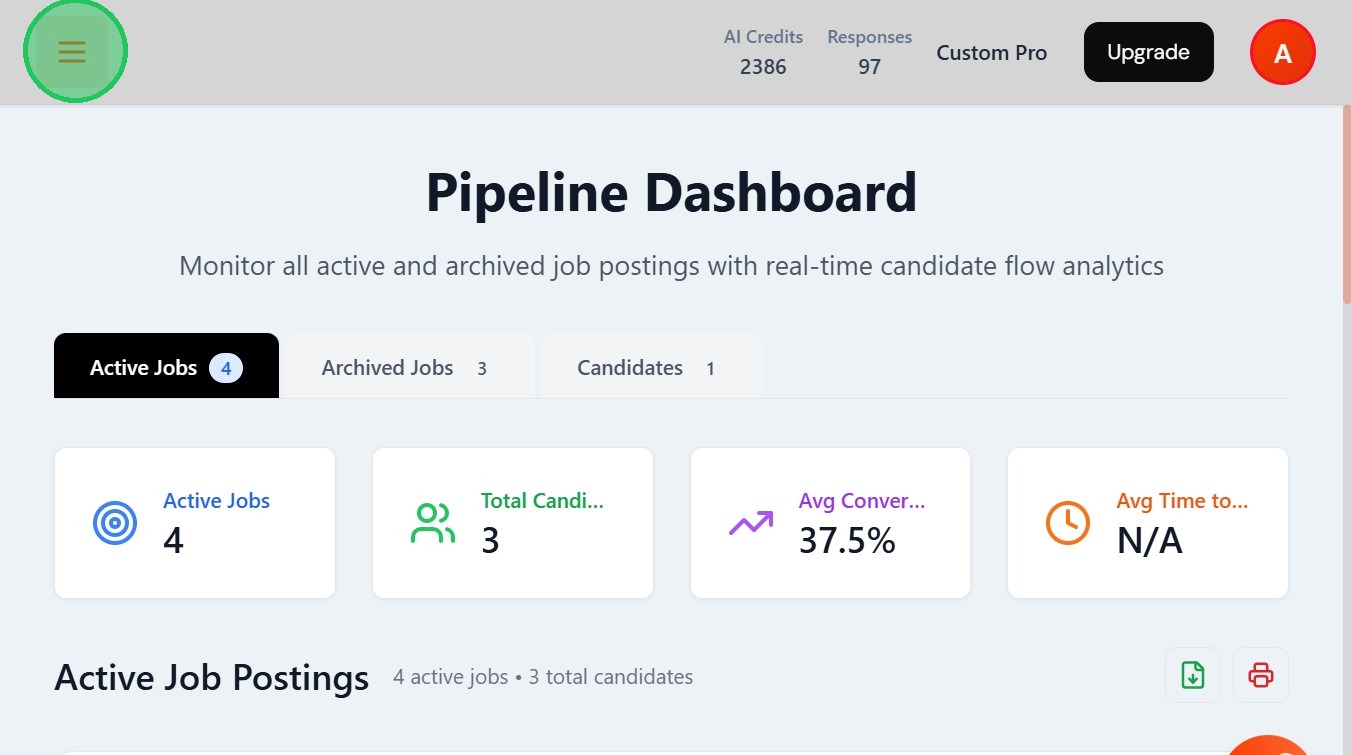
- Click the menu bar
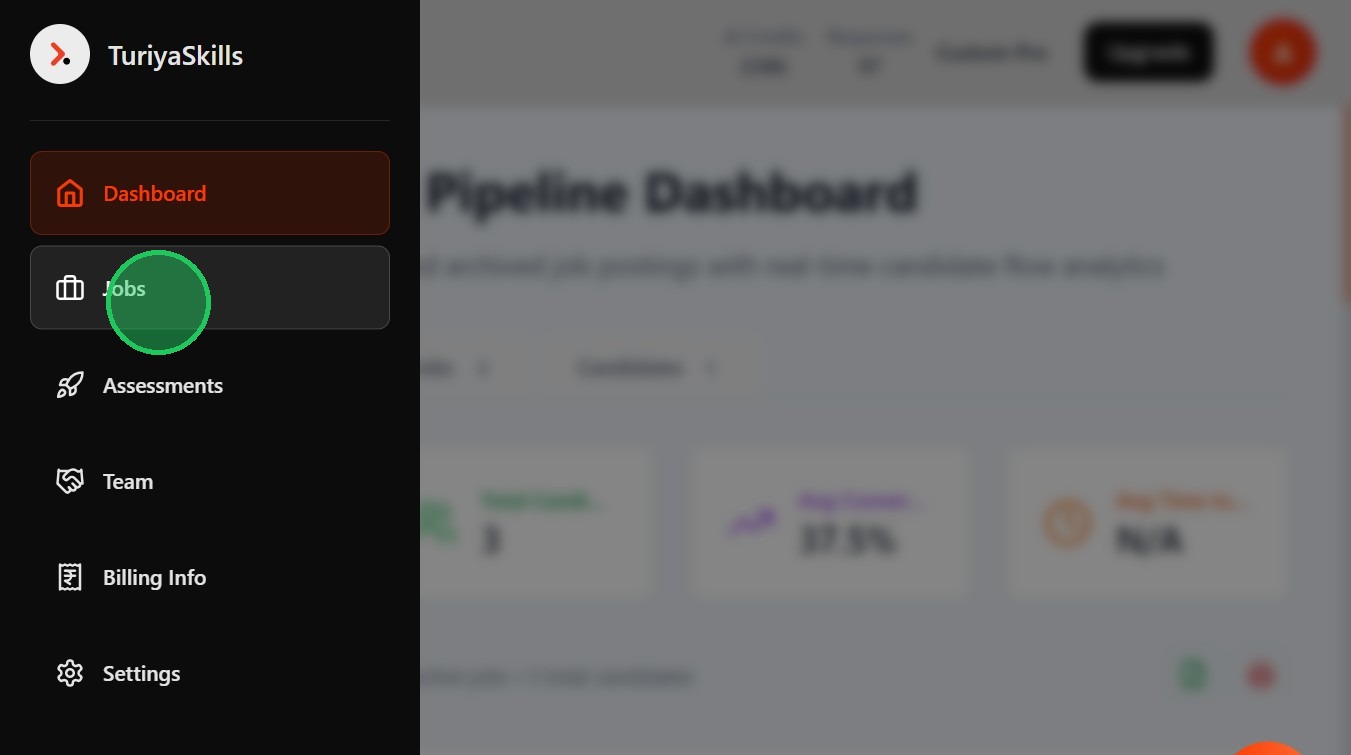
- Click "Jobs"
- Select the View Candidates feature of your required job
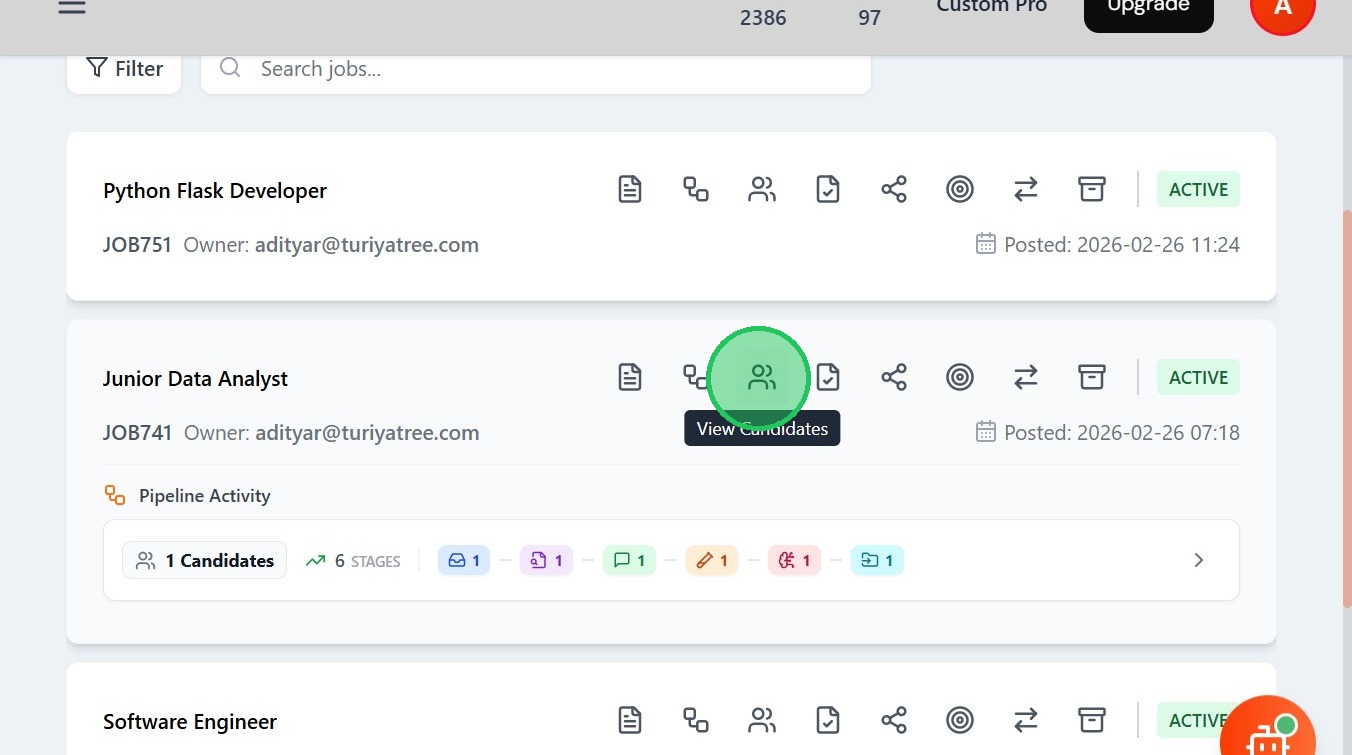
- You are directed to Candidates Resume for resume uploading and Job posting
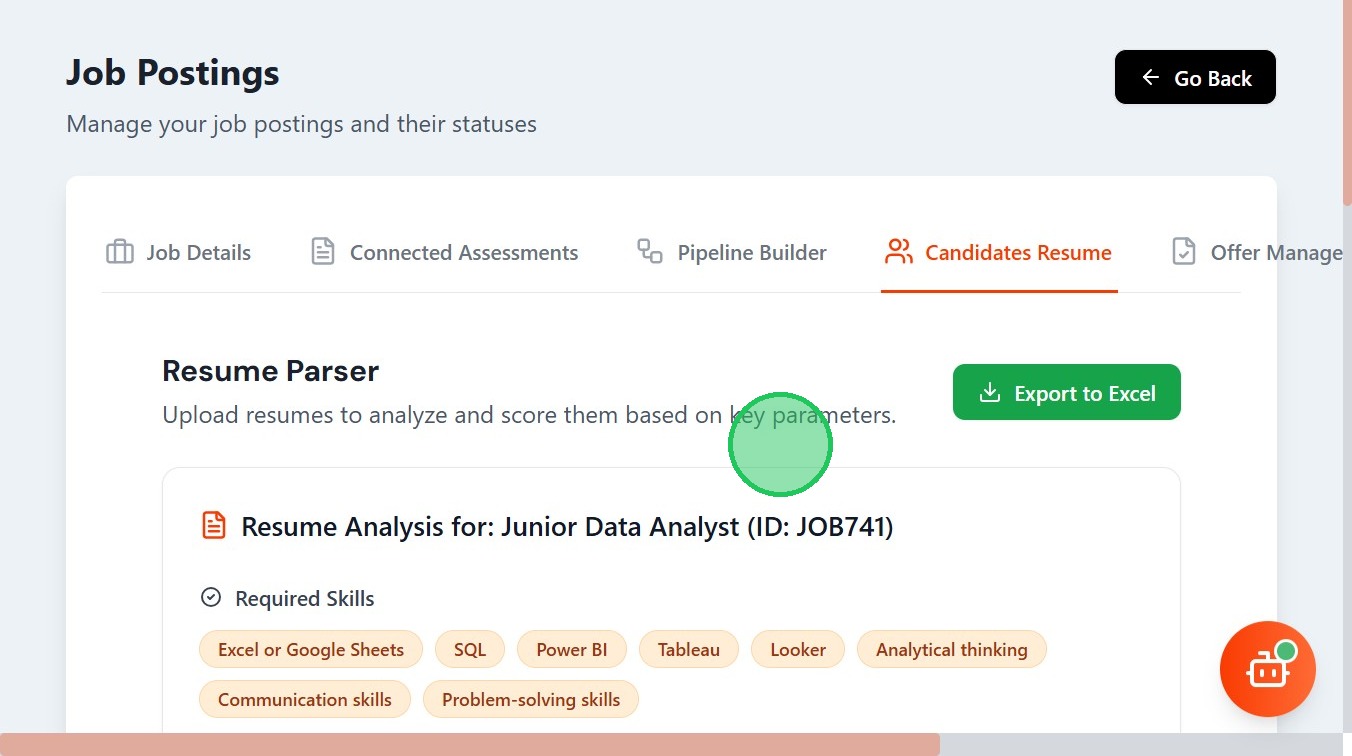
- To manually add resumes, Click Upload Resumes

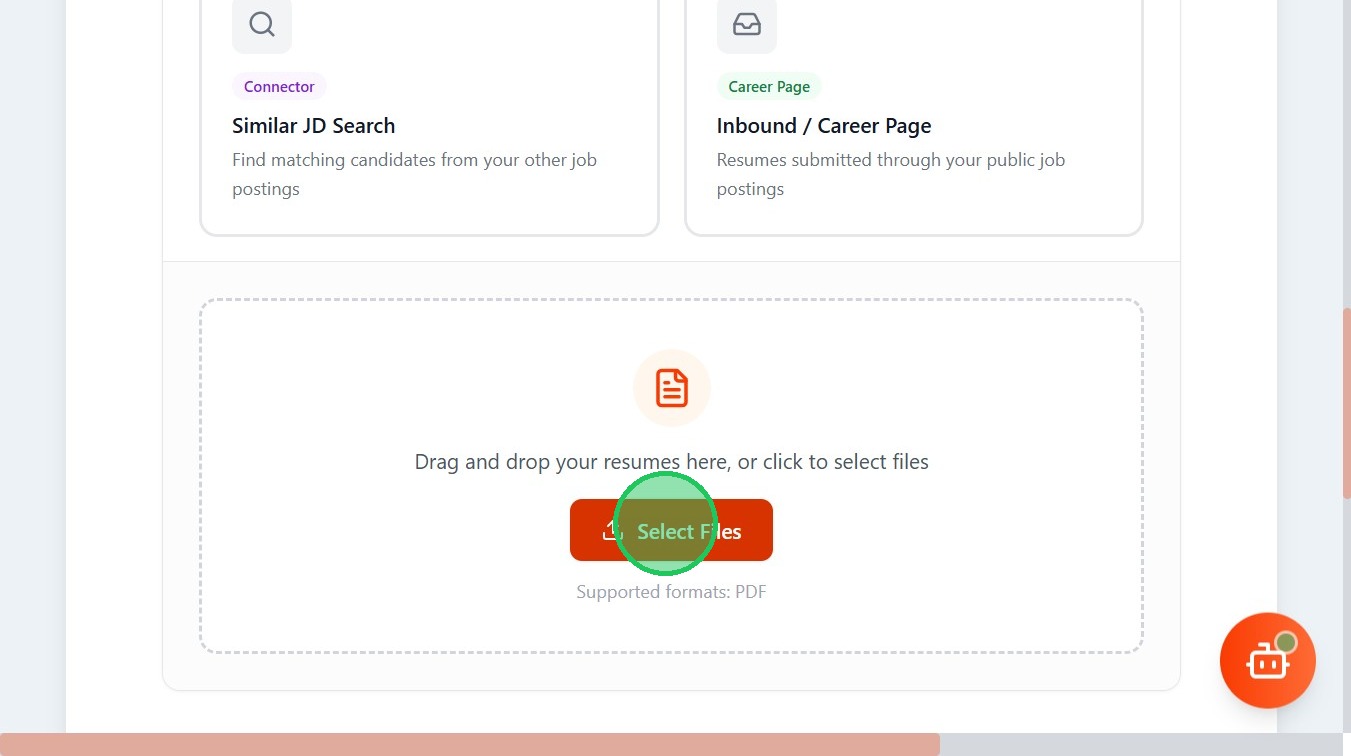
- Click "Select Files" and upload your resume
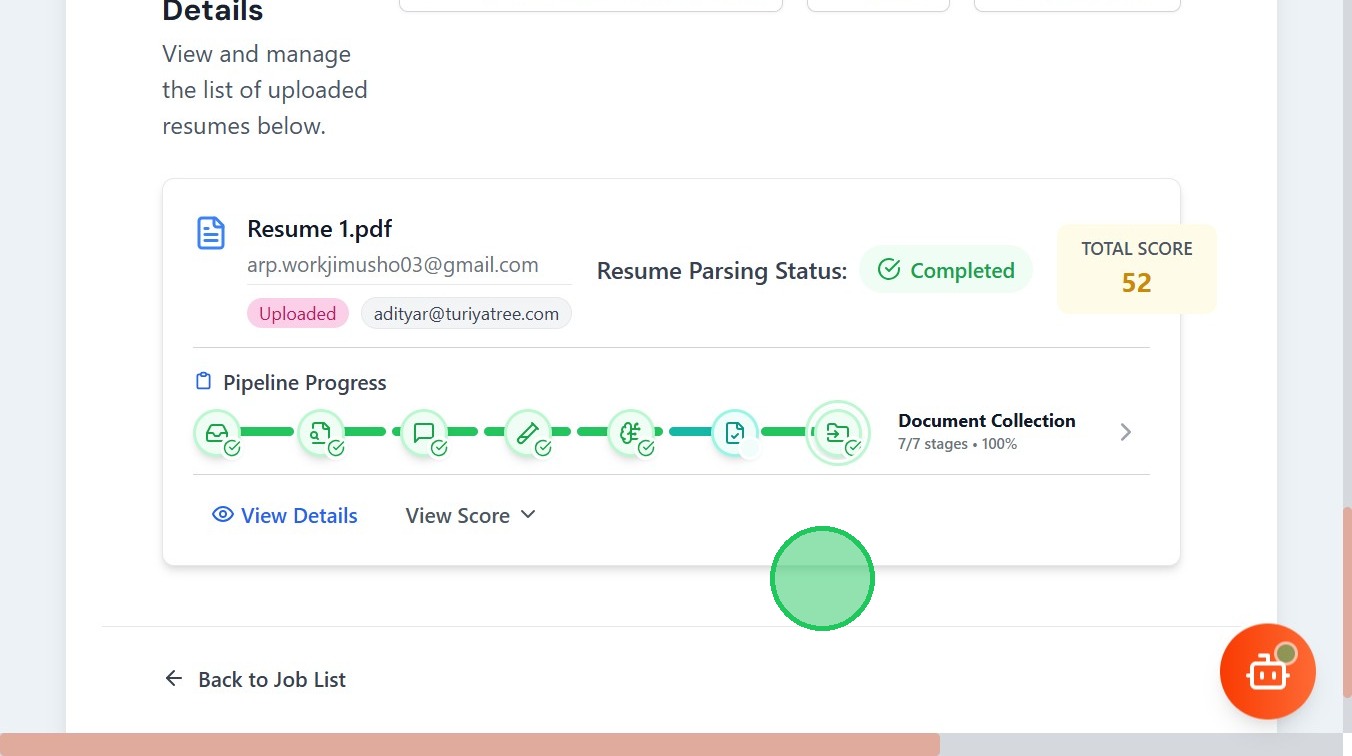
- Your Resume will be Parsed and will a pathflow like this
- Second Method is to get Candidates from external networks, now Click "ContactOut Import"

- Click ContactOut People Search
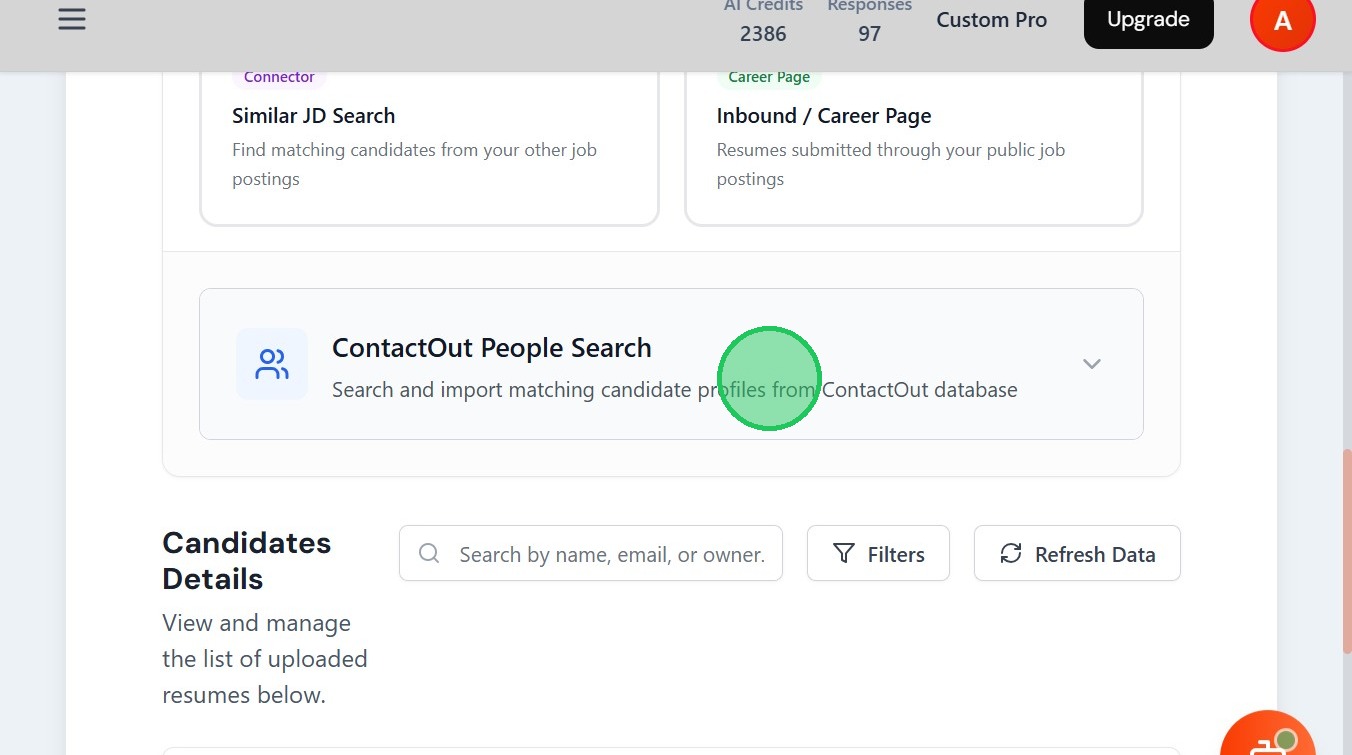
- You need a API key from the external network to access the database.
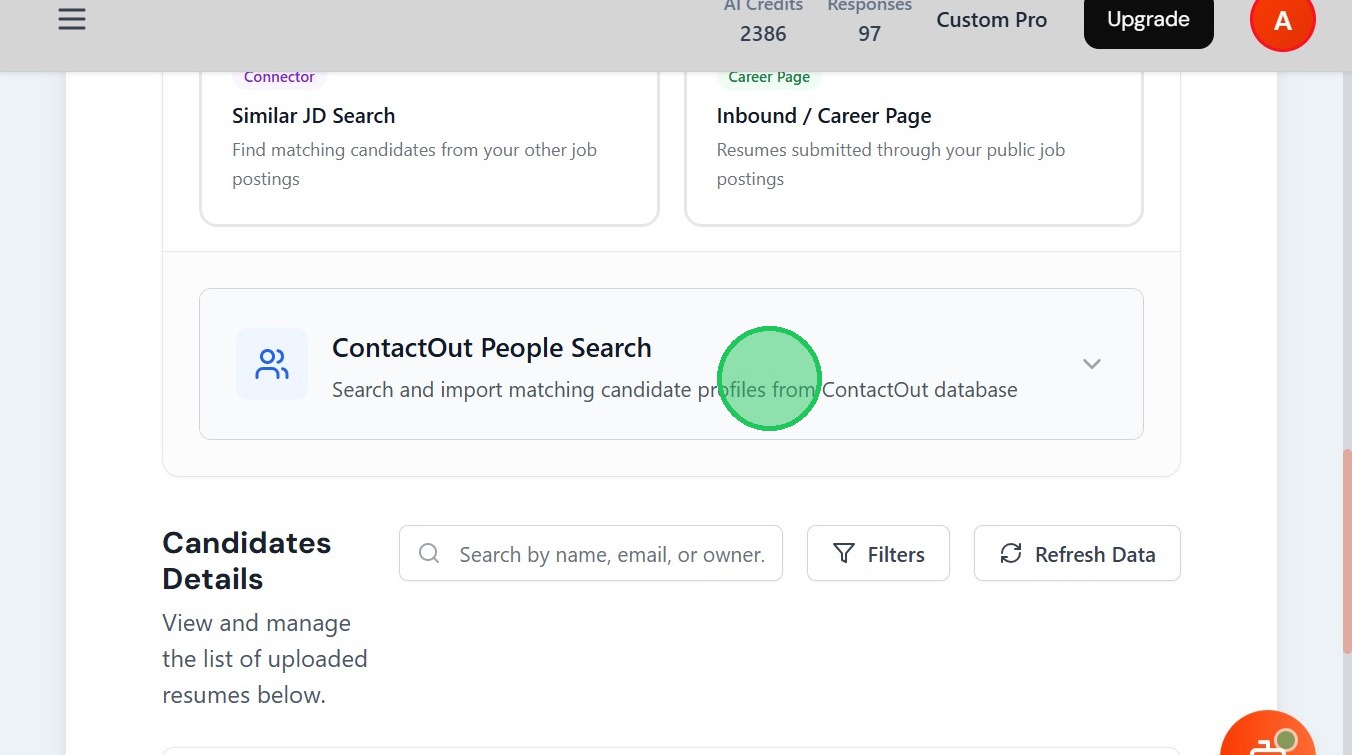
- Click Email for API Key to get your API key. Follow the blue box instructions for help

- The next method is to search candidates in your database, now Click "Similar JD Search"
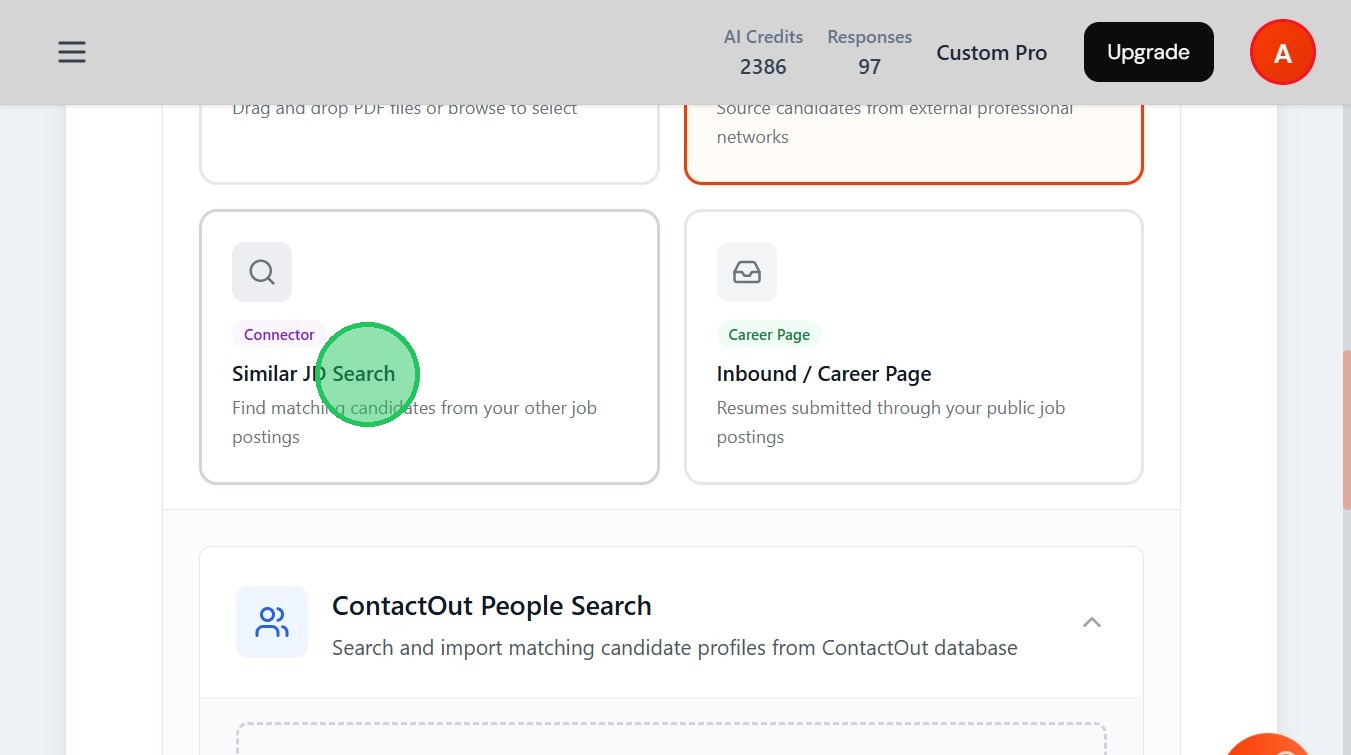
- Click "Search Matching Profiles from Similar JDs"
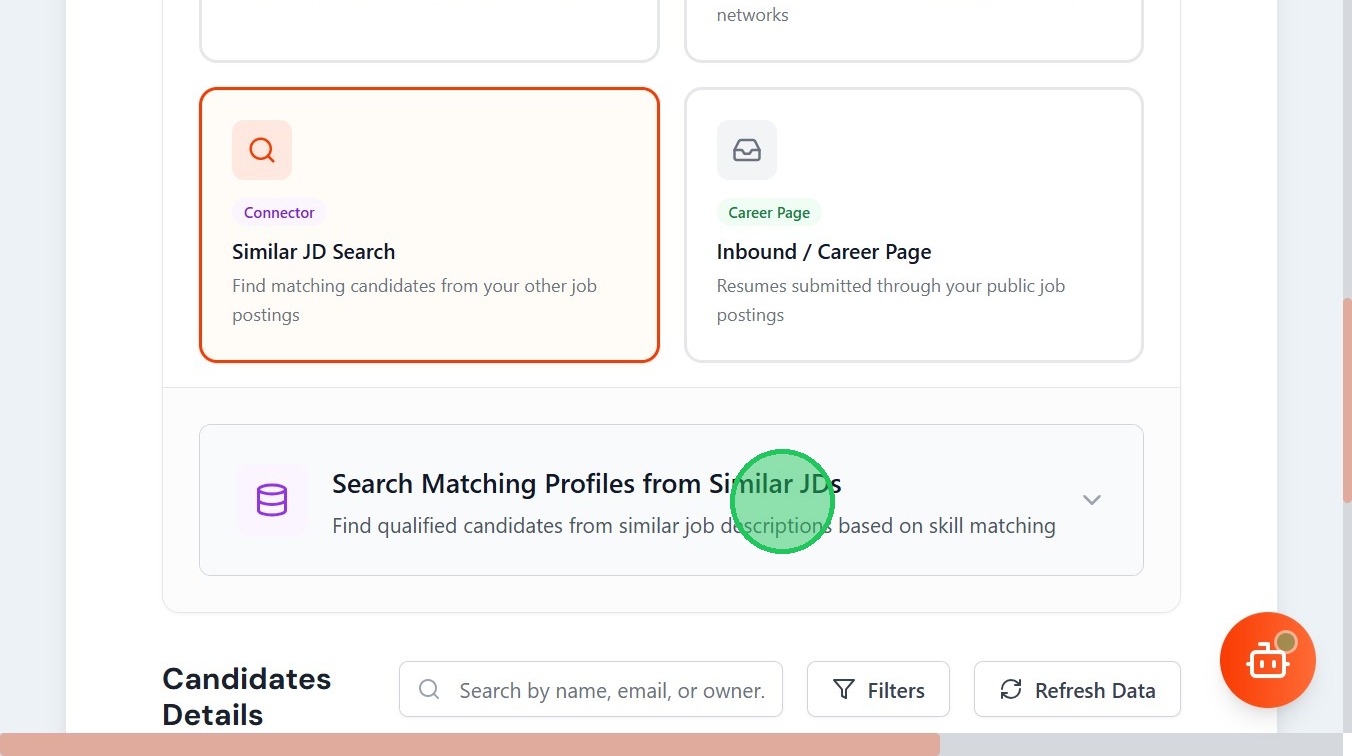
- You will get all the job descriptions and candidate matching with them
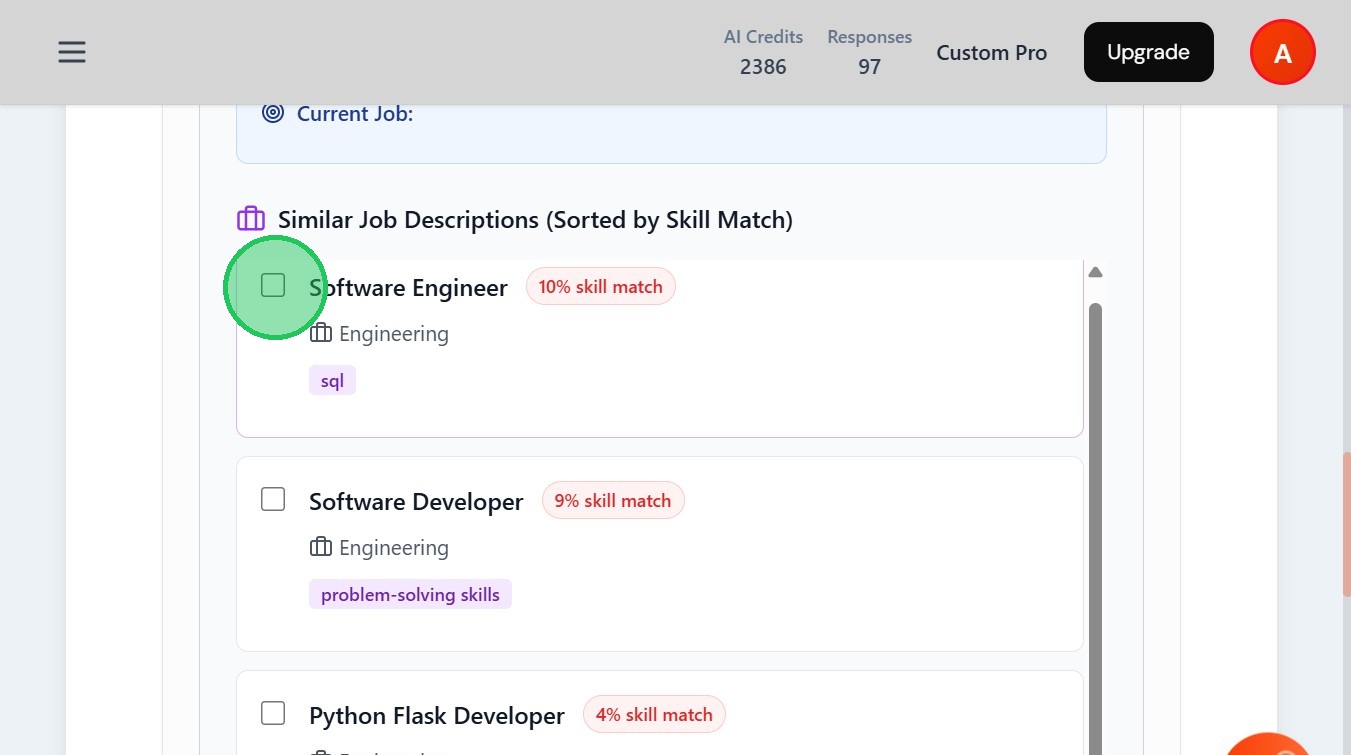
- Select the Job Description you want to post
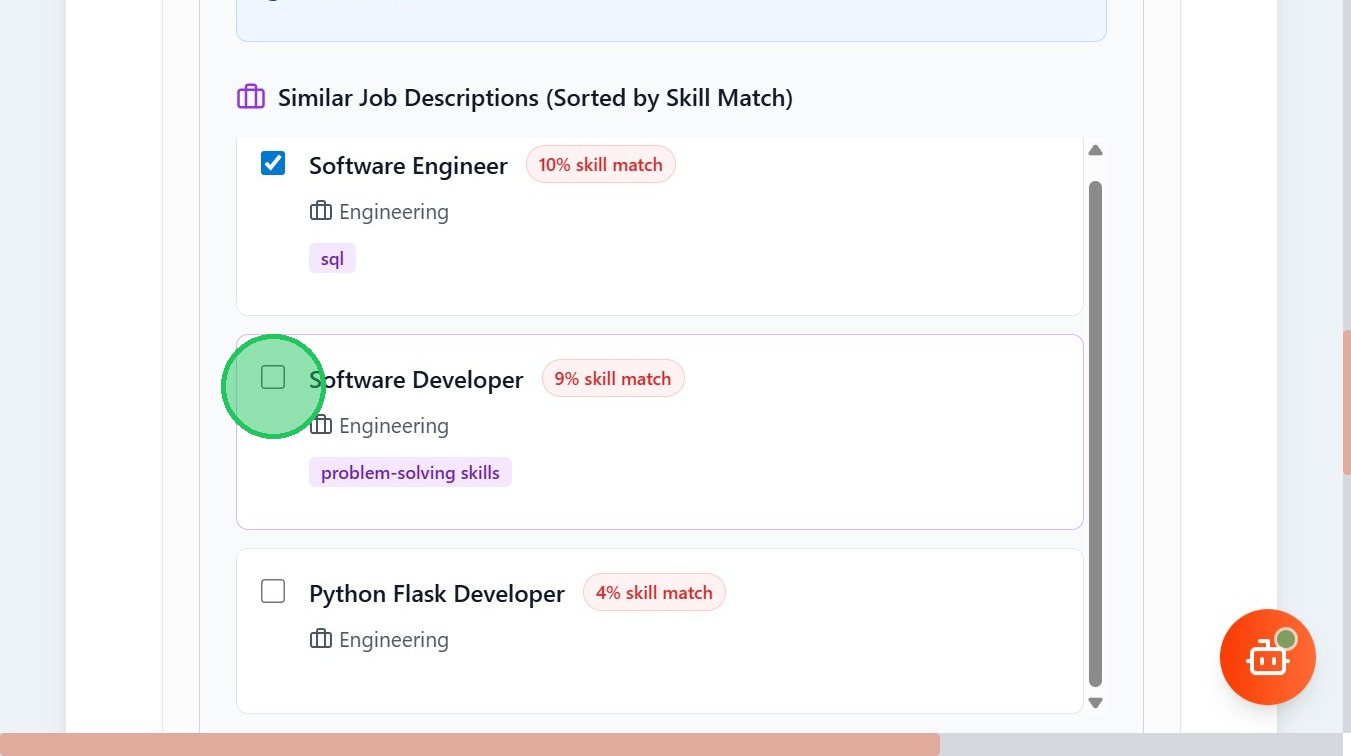
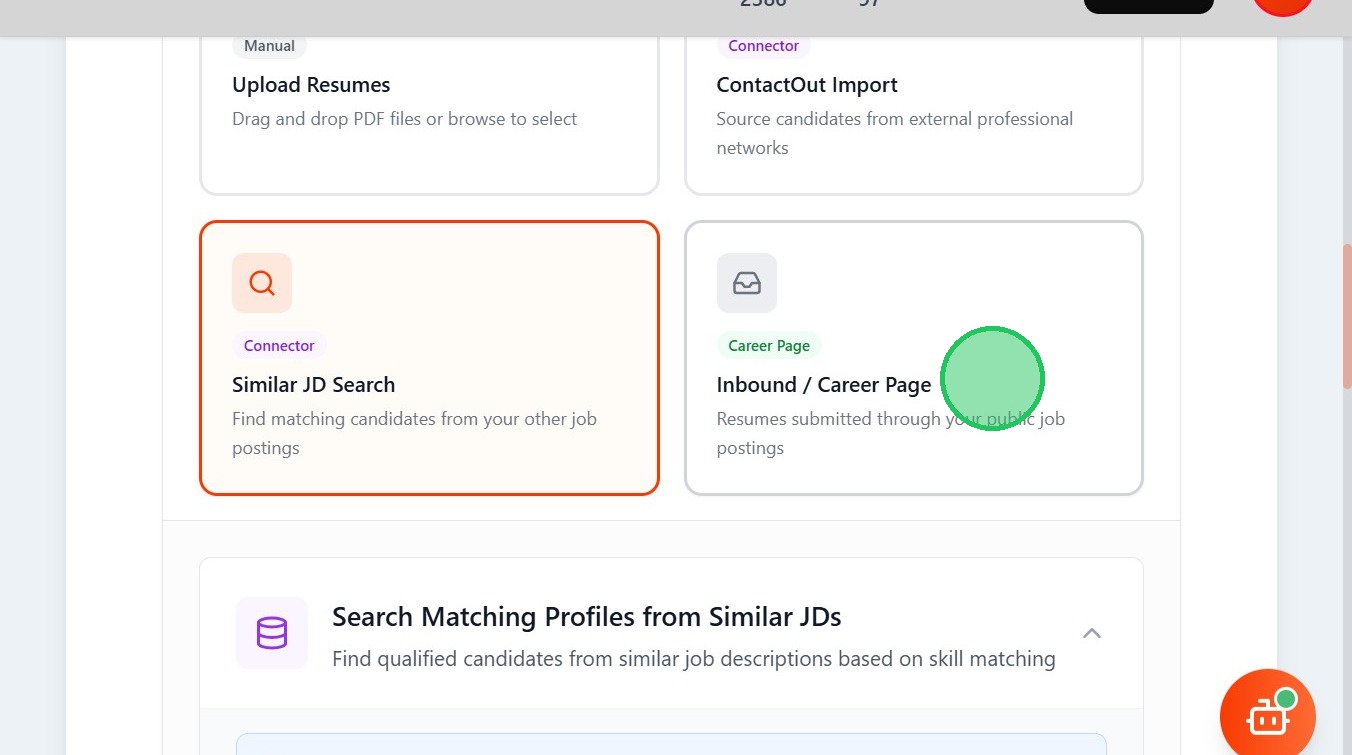
- The other way is Career Page , where you upload your job in website, app, etc and get responses from the site link
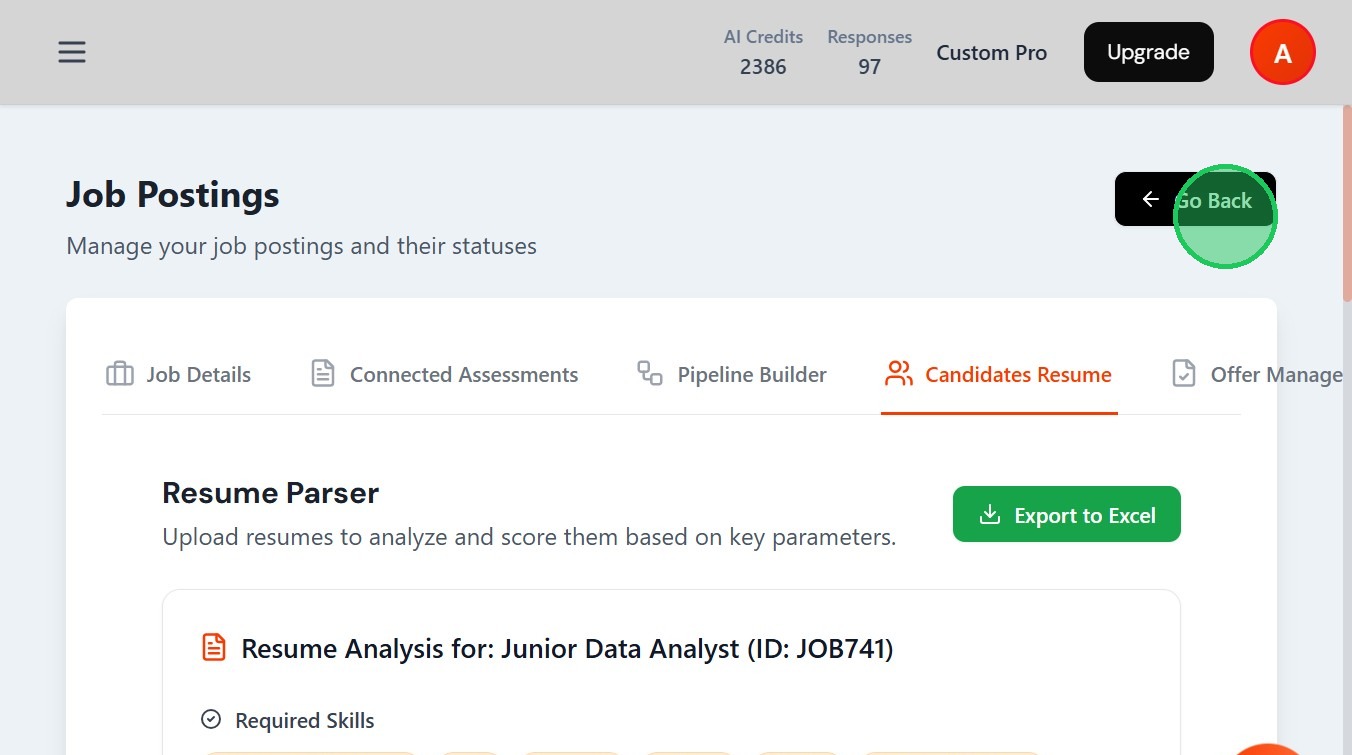
- To Do this, Click "Go Back"
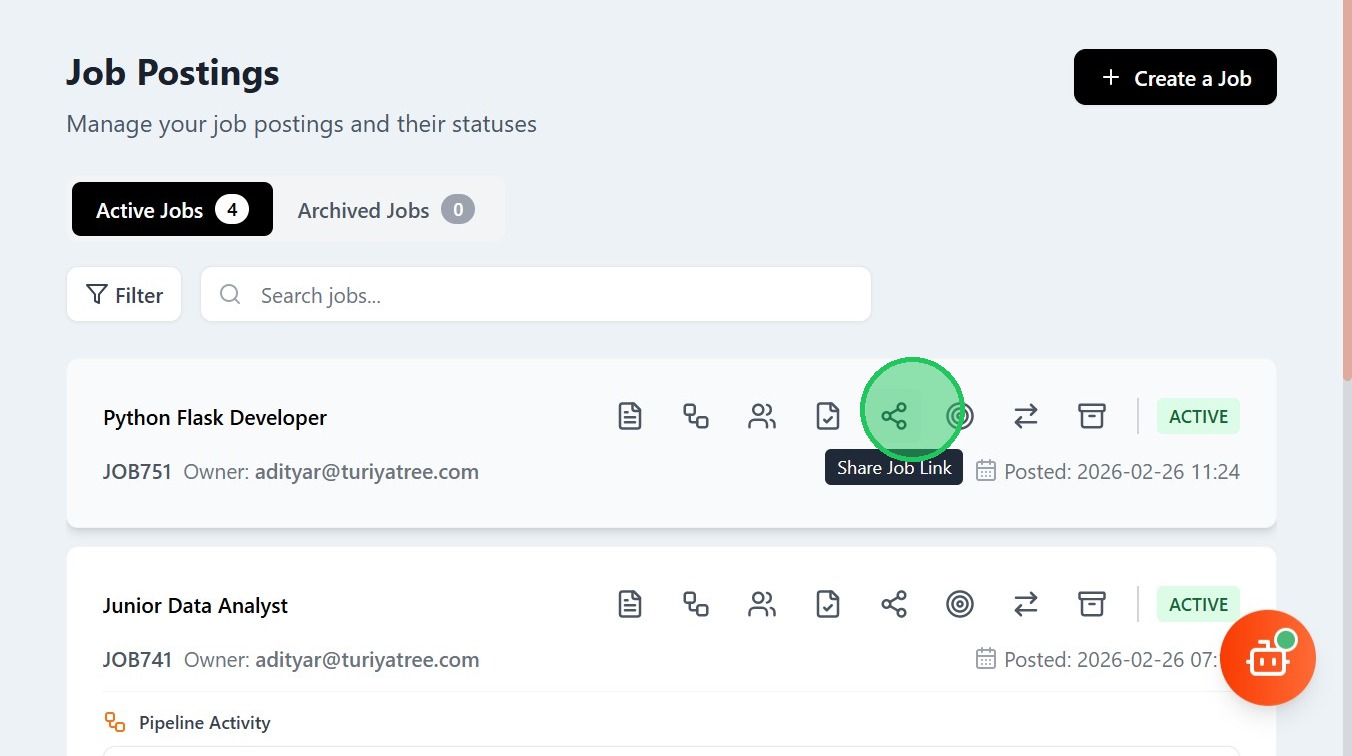
- Click Share Job Link in your Job Post
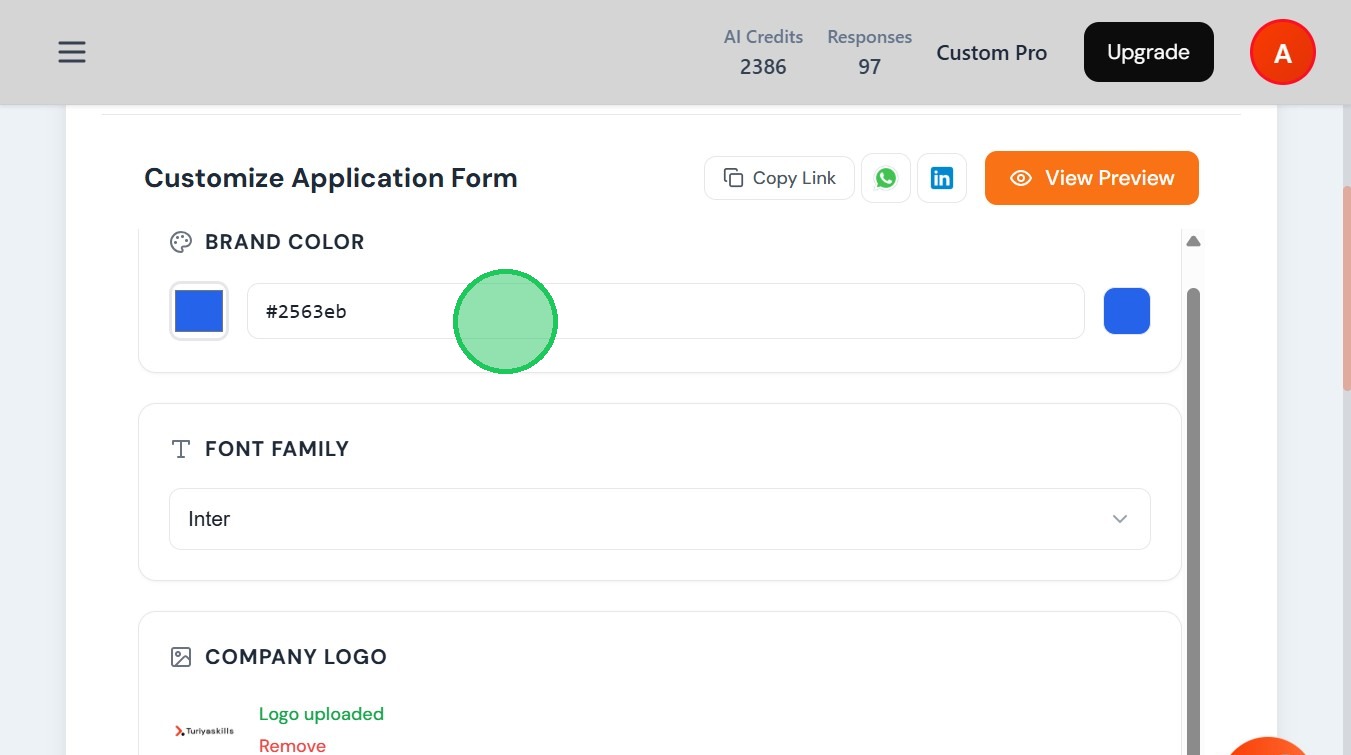
- You can customize your form link, Select your color
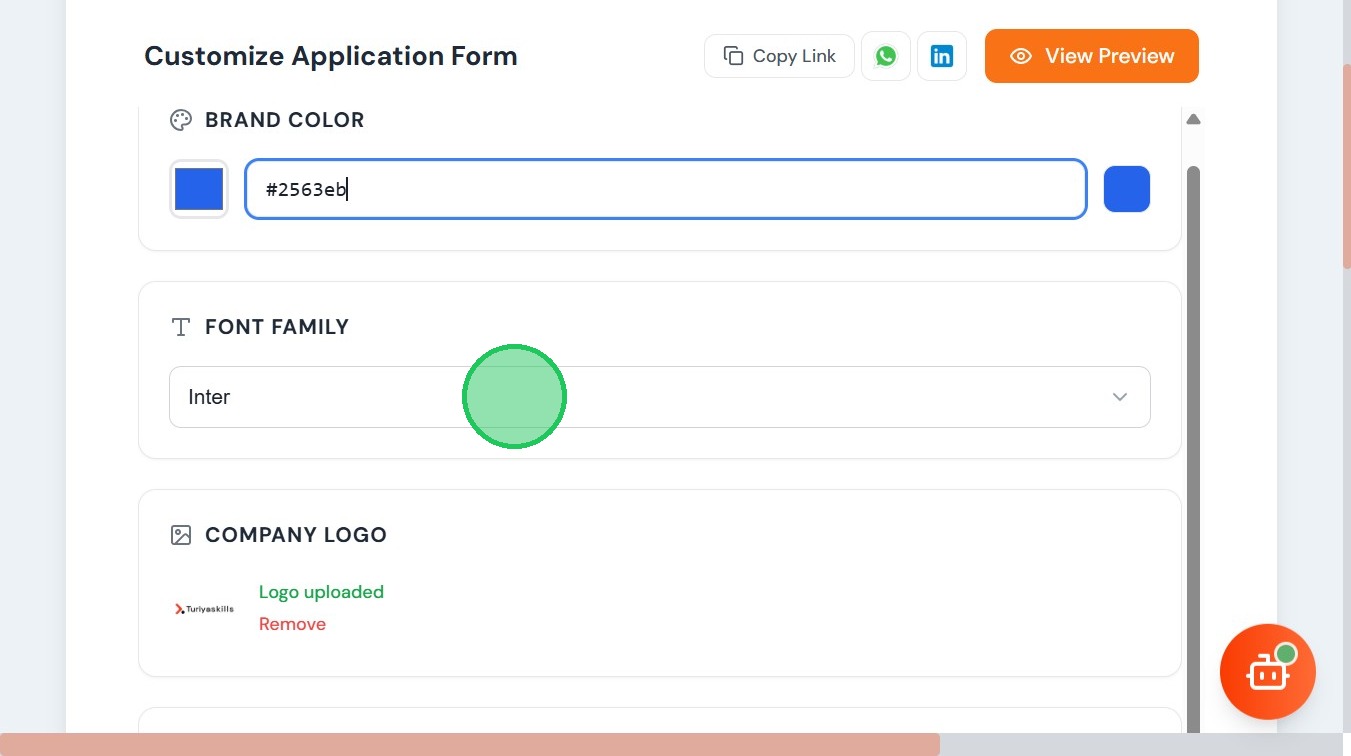
- Choose your Font Family
- Upload your Company Logo
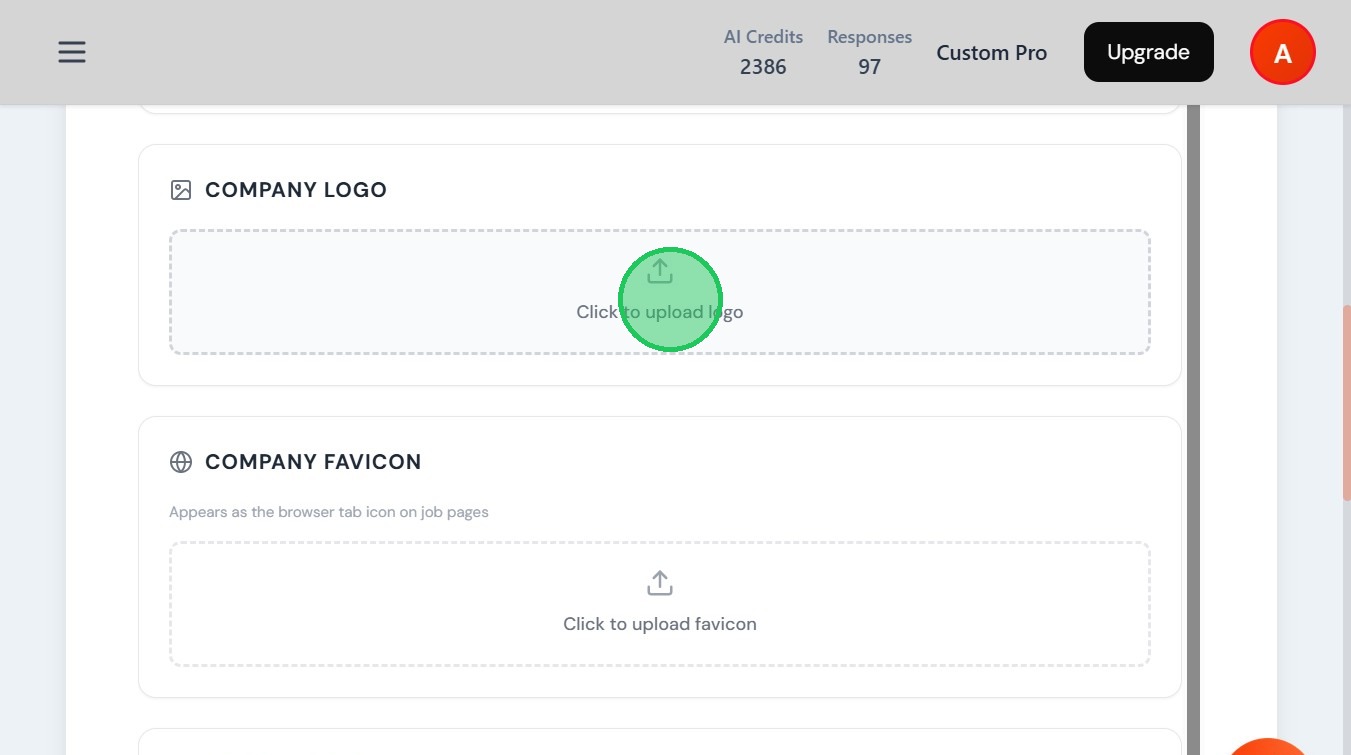
- upload the Company favicon
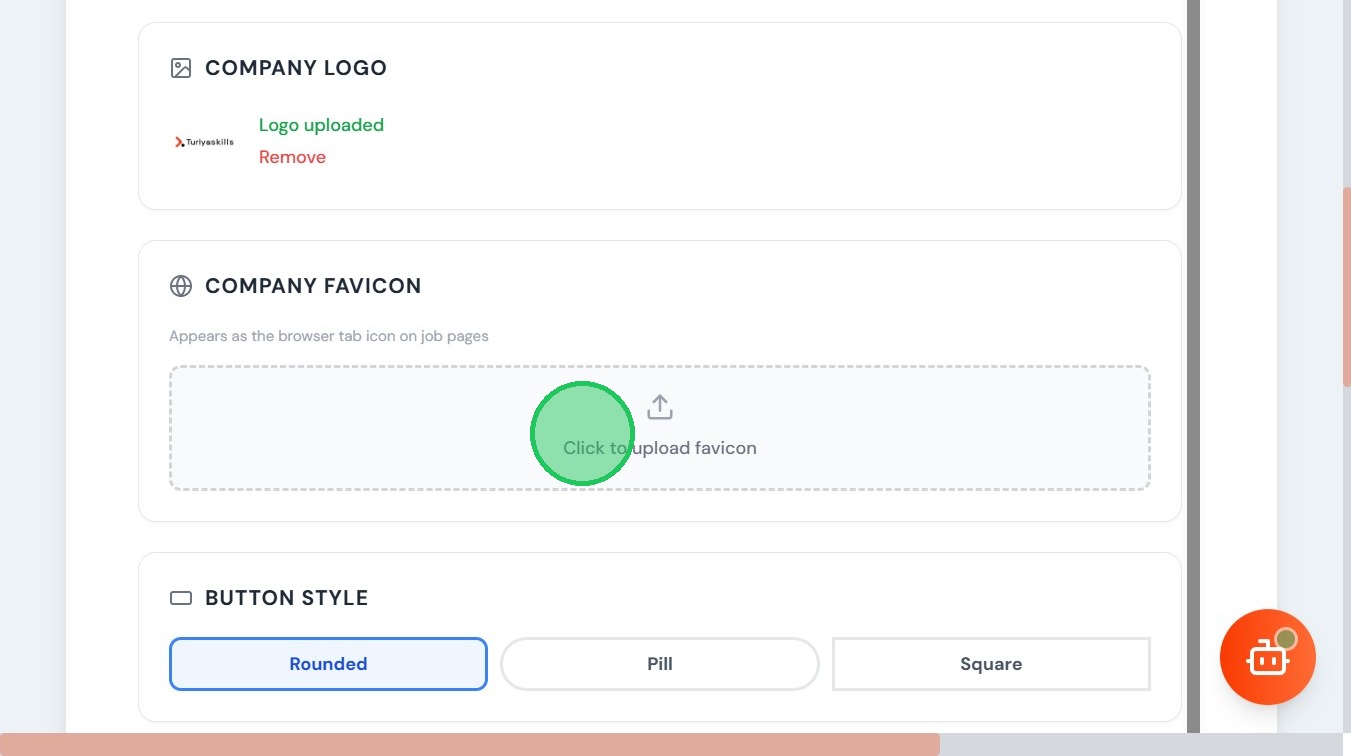
- Select Button Style

- You can also modify your context
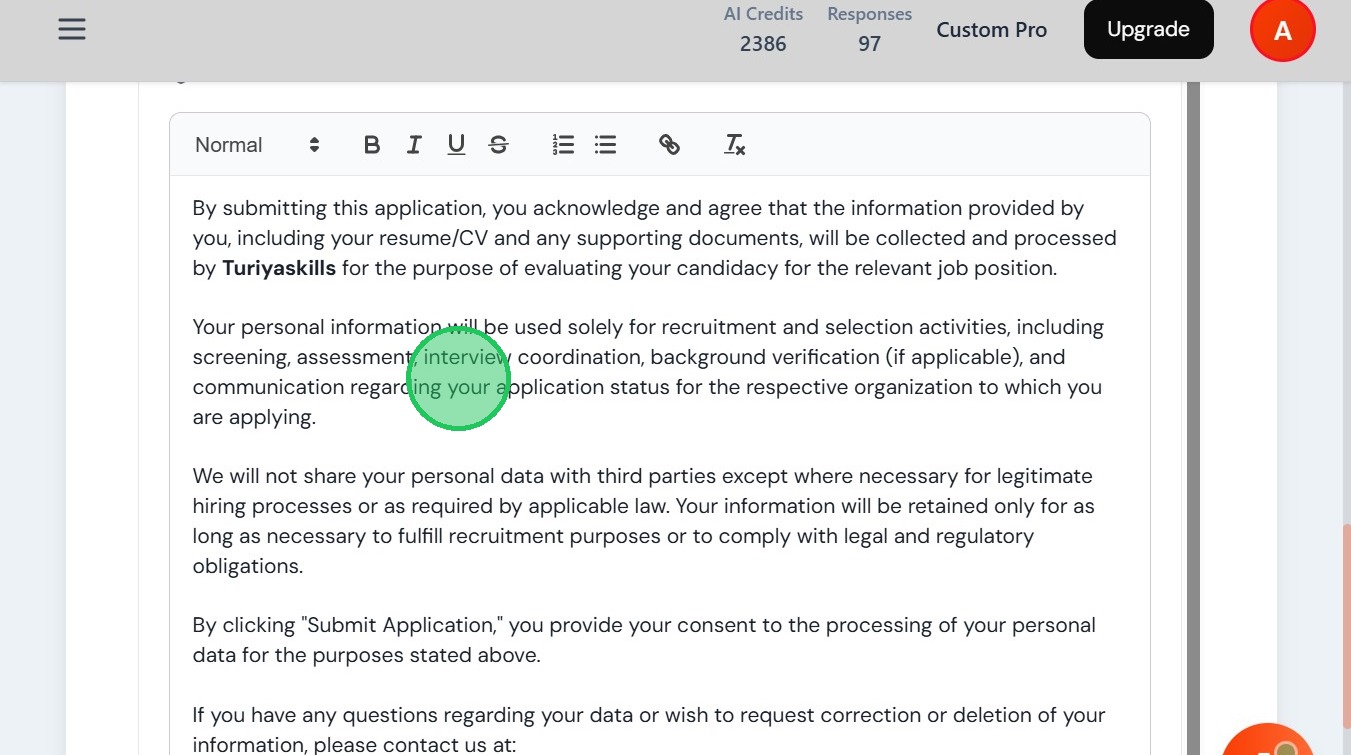
- Click "Save" to save your job post

- To view your Job Post preview, Click "View Preview"

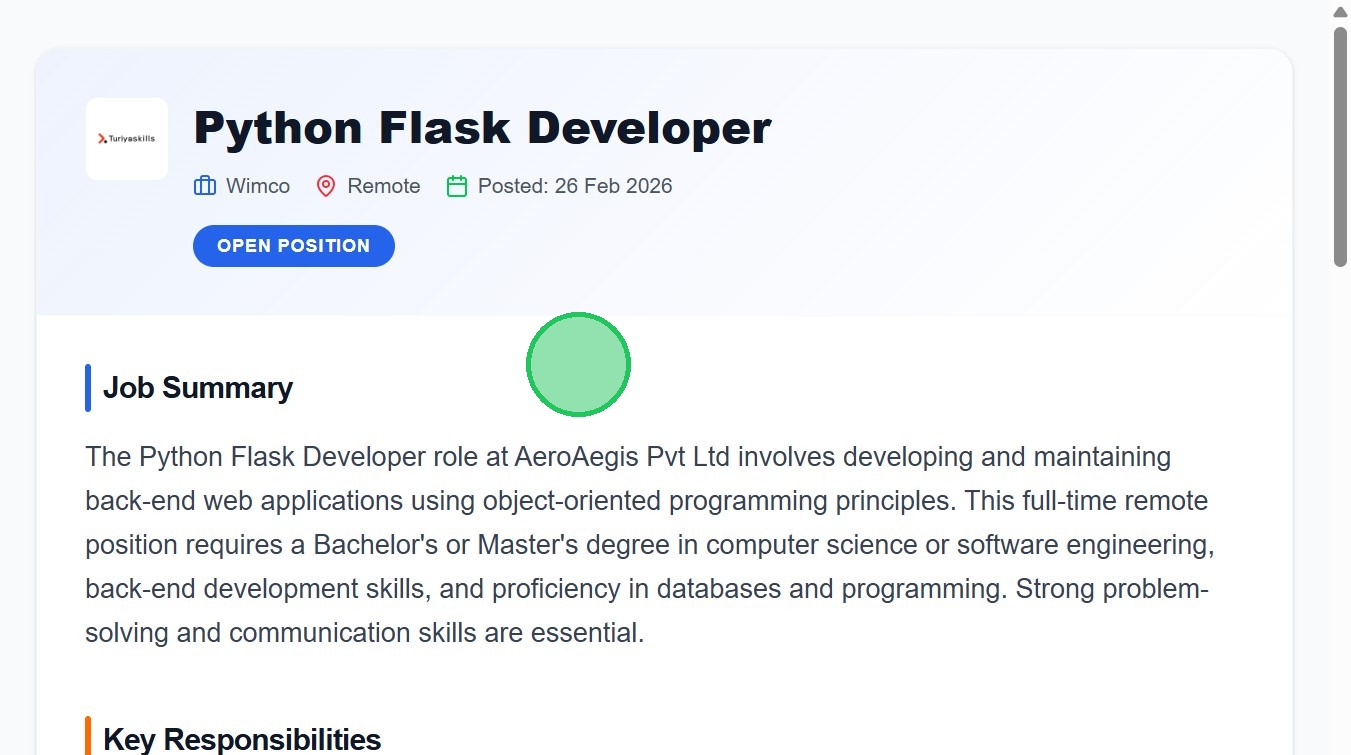
- This is the Job Post which will be sent

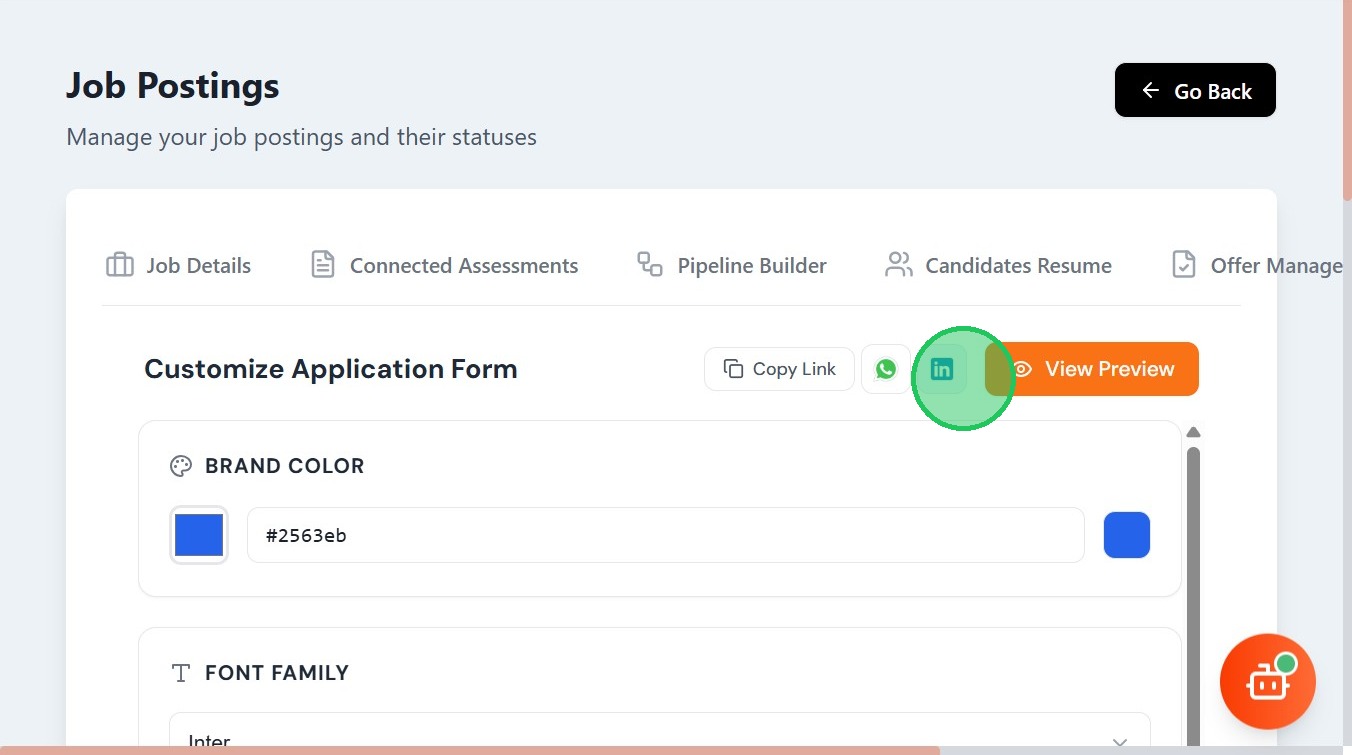
- You can share your job link in whatsapp by clicking the whatsapp logo

- You can share your job link in linkedin by clicking the LinkedIn logo
- Click "Copy Link" to copy your job post link to share with others
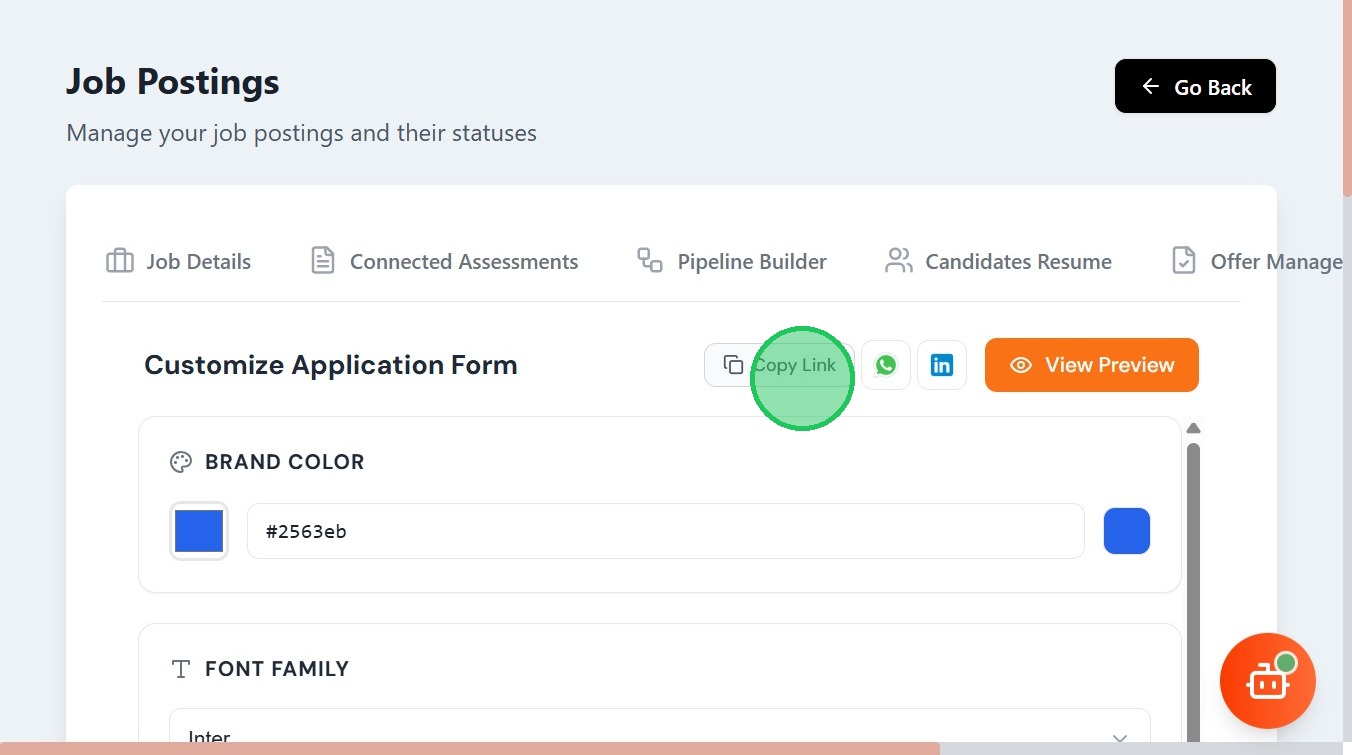
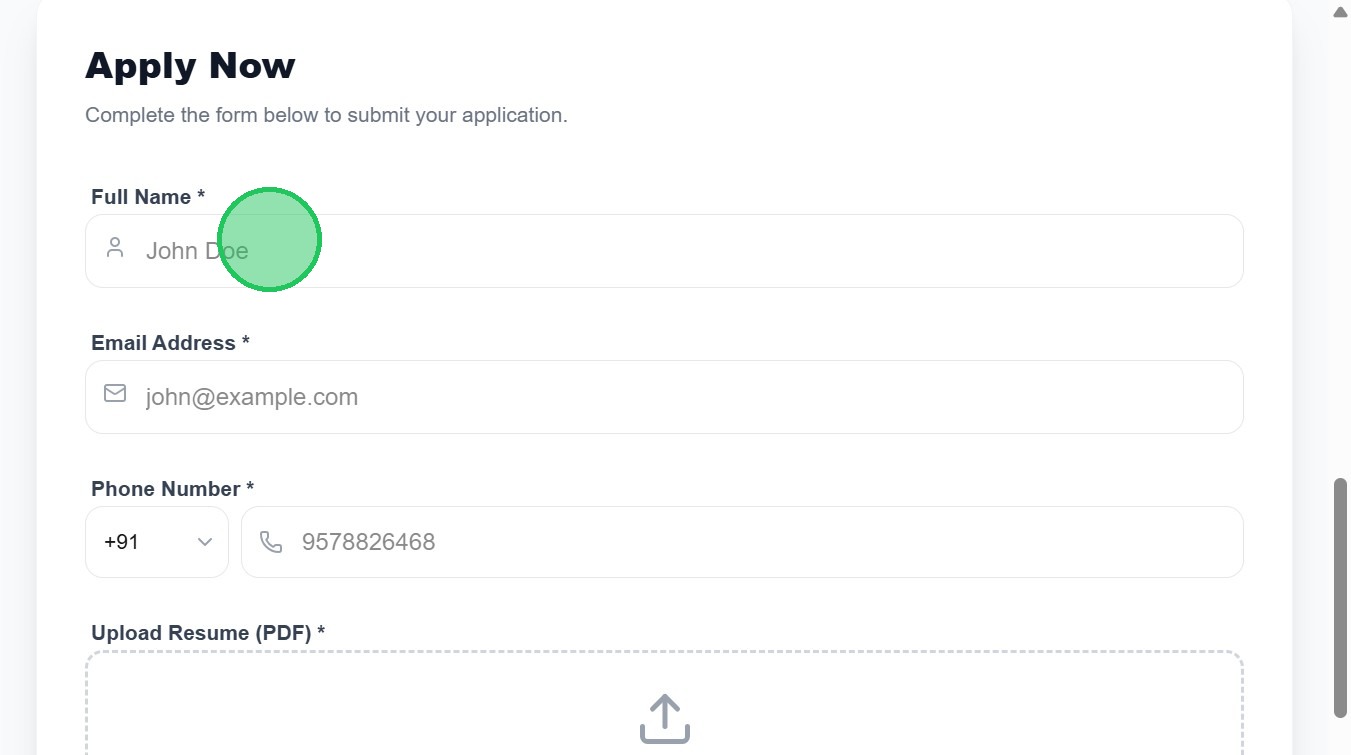
- In the Link, read all details and fill the fields given
- Enter your Name
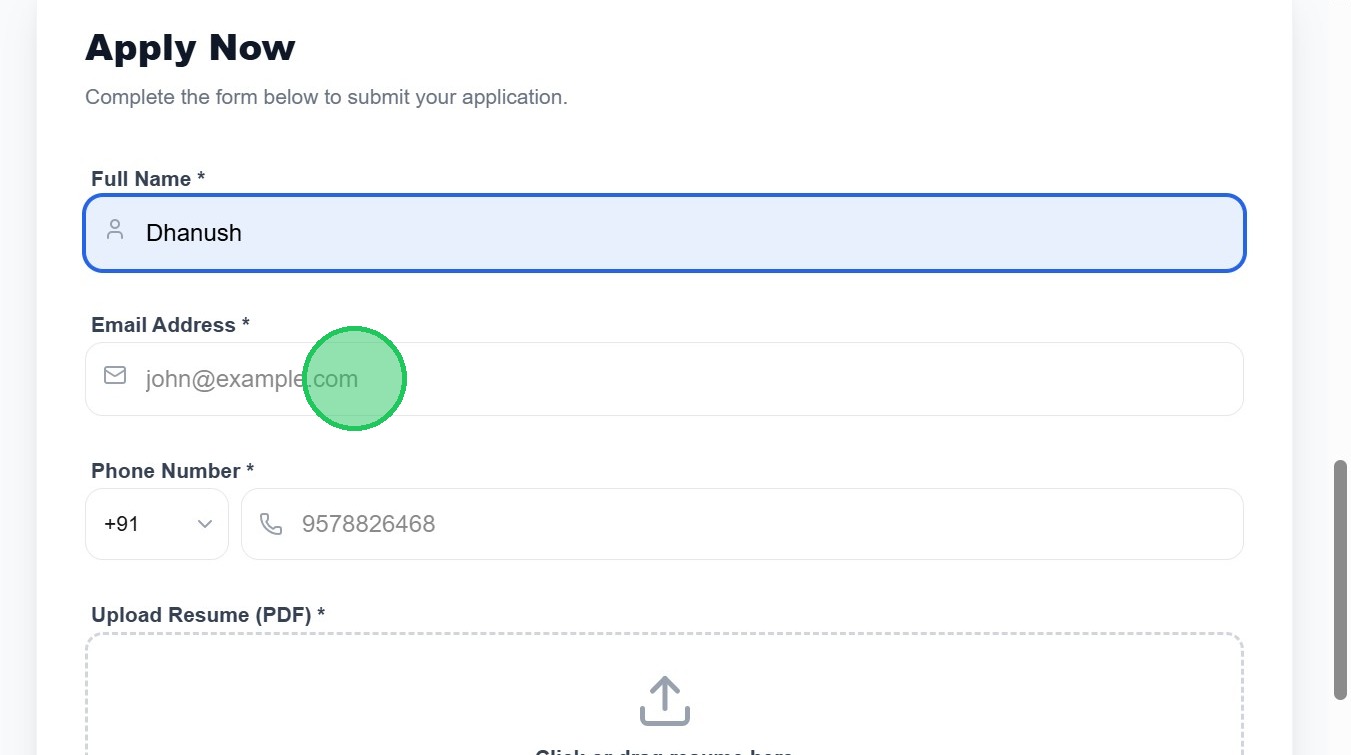
- Give your email Id
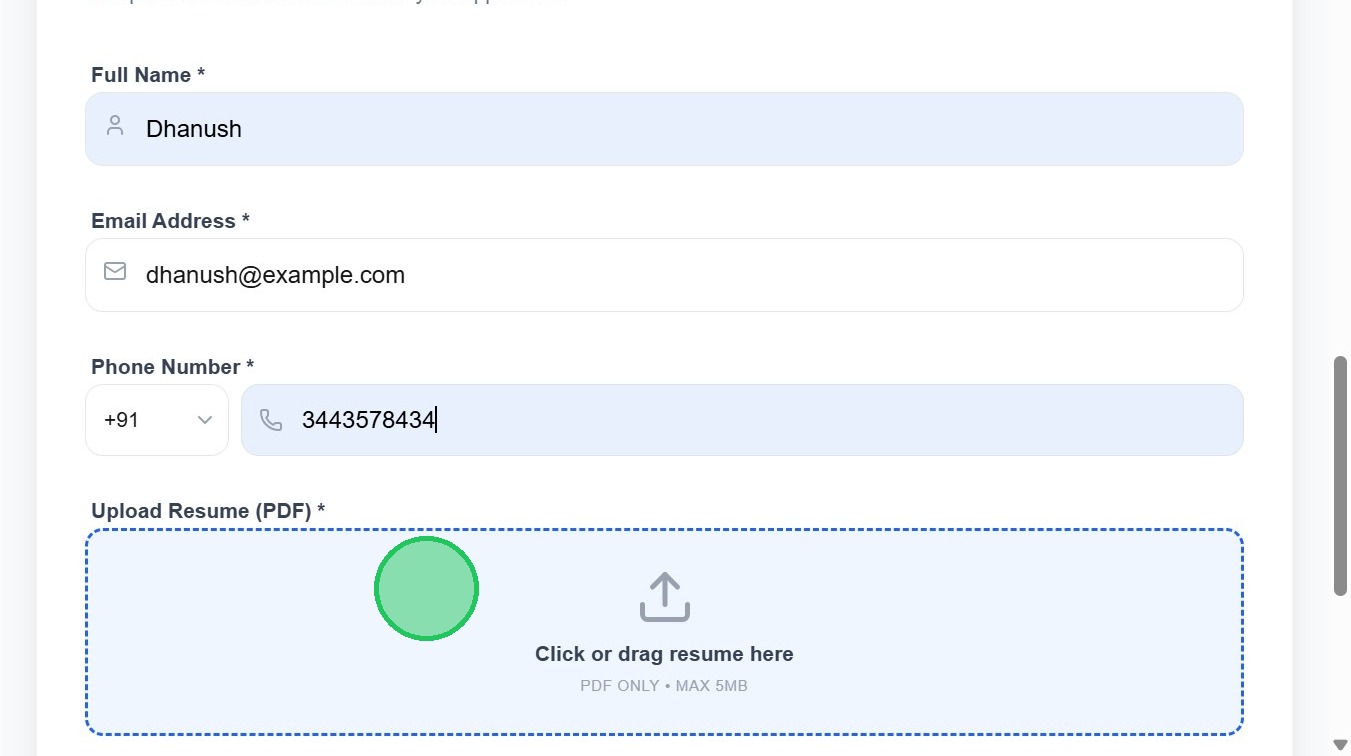
- Enter your Phone number for contact

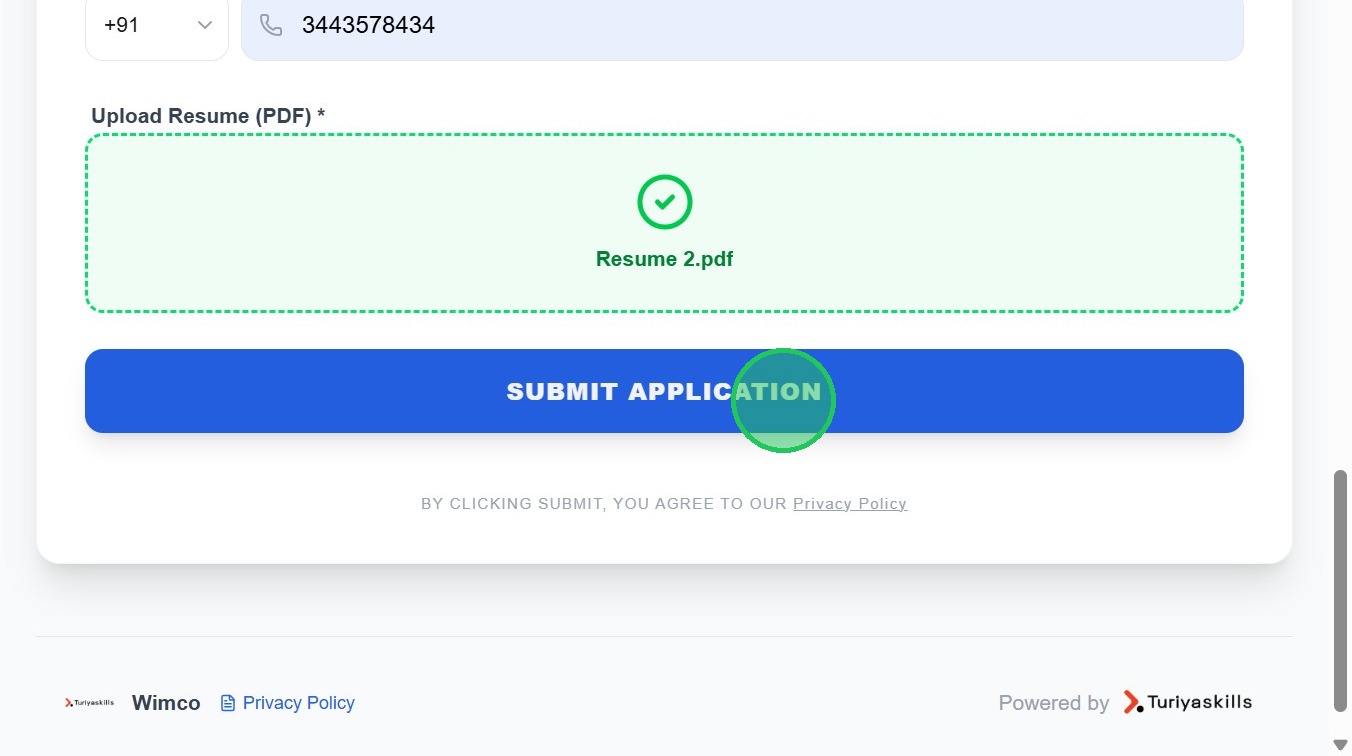
- Upload your resume
- Click "Submit Application"
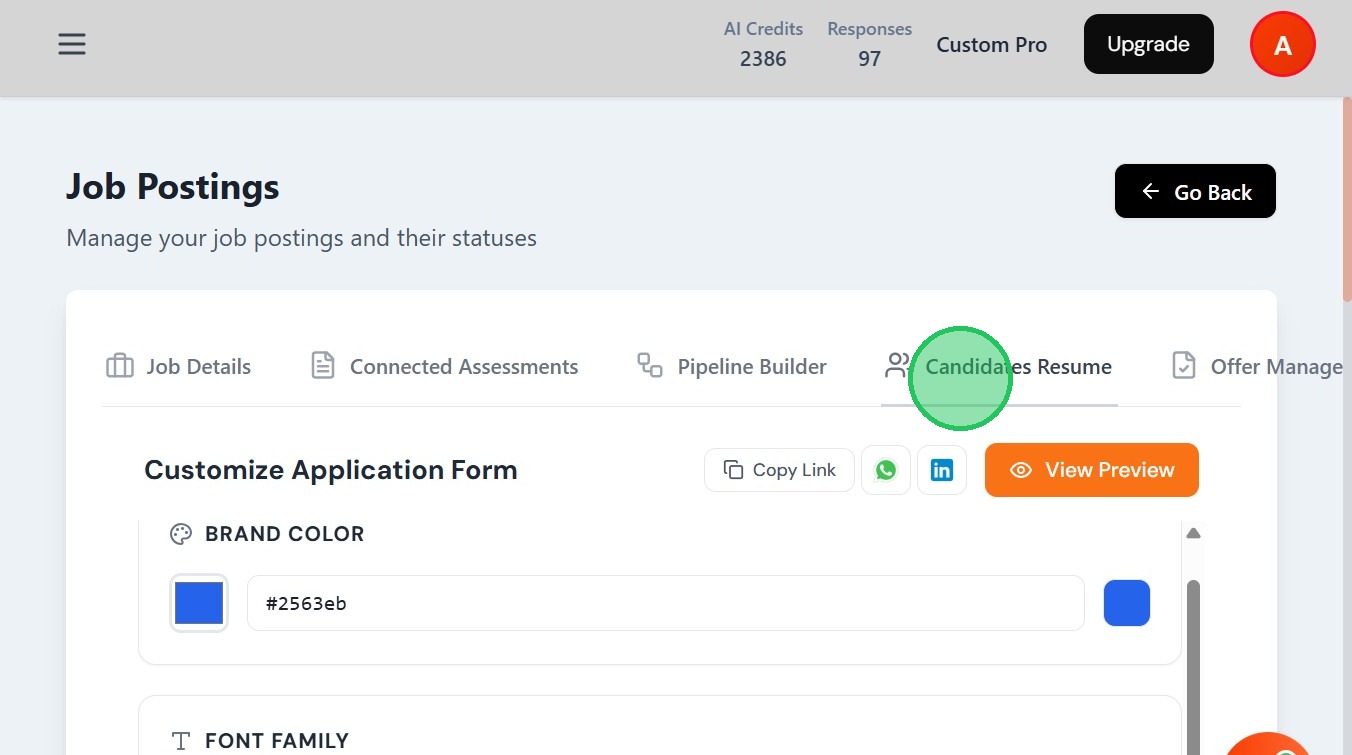
- When a candidate submits the website post, to view the submissions , Navigate to "Candidates Resume"
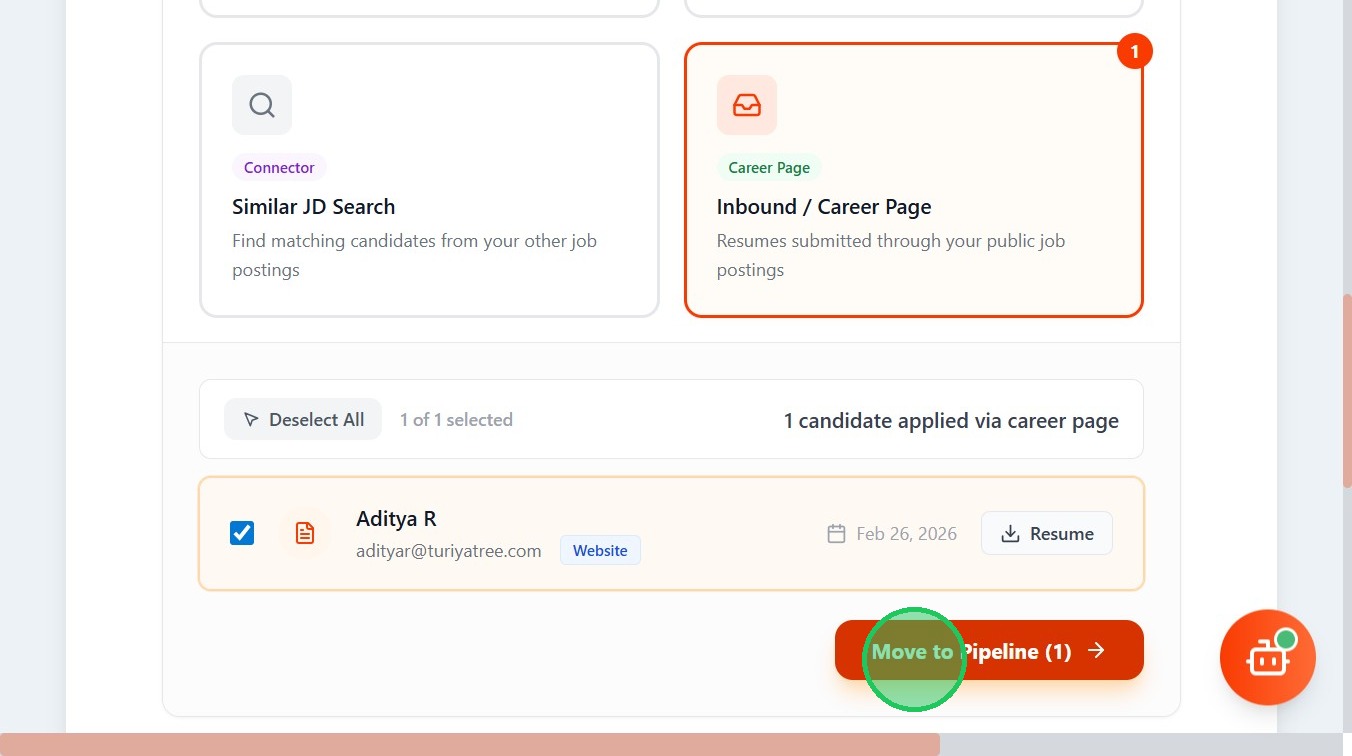
- Click "Inbound / Career Page"
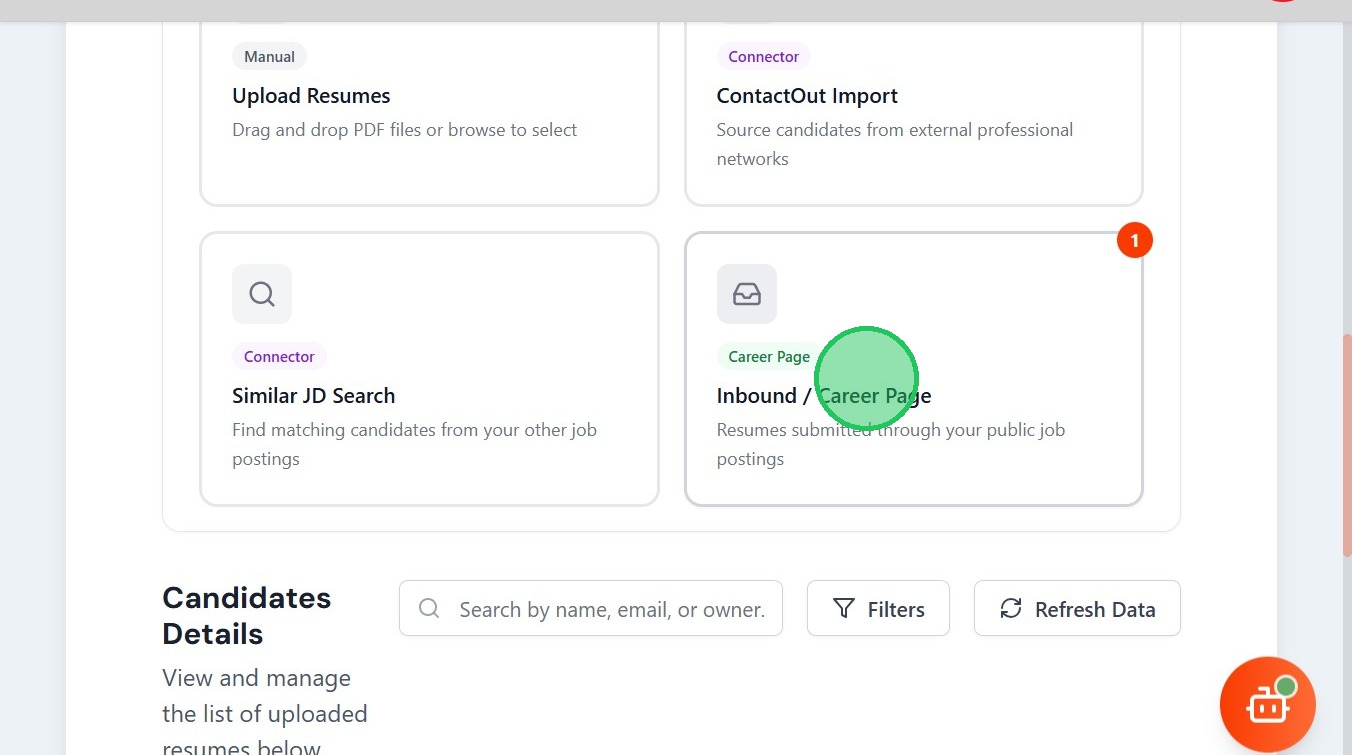
- You will the list of Candidates application submissions

- According to your needs, you can select and push the candidate into the Pipeline process.