
How to Navigate the Features of Turiyaskills
This guide provides a comprehensive overview of how to effectively utilize the features of the Turiyaskills app, making it essential for users looking to streamline their recruitment process. It covers everything from job creation and resume parsing to team management and billing, ensuring users can maximize the app's capabilities. By following this guide, users can enhance their hiring efficiency and make informed decisions with AI-generated assessments and detailed analytics. It's a valuable resource for anyone aiming to optimize their recruitment strategy.
Getting Started
1. Login to Turiyaskills App
Navigate to the Turiyaskills App and login with your credentials.
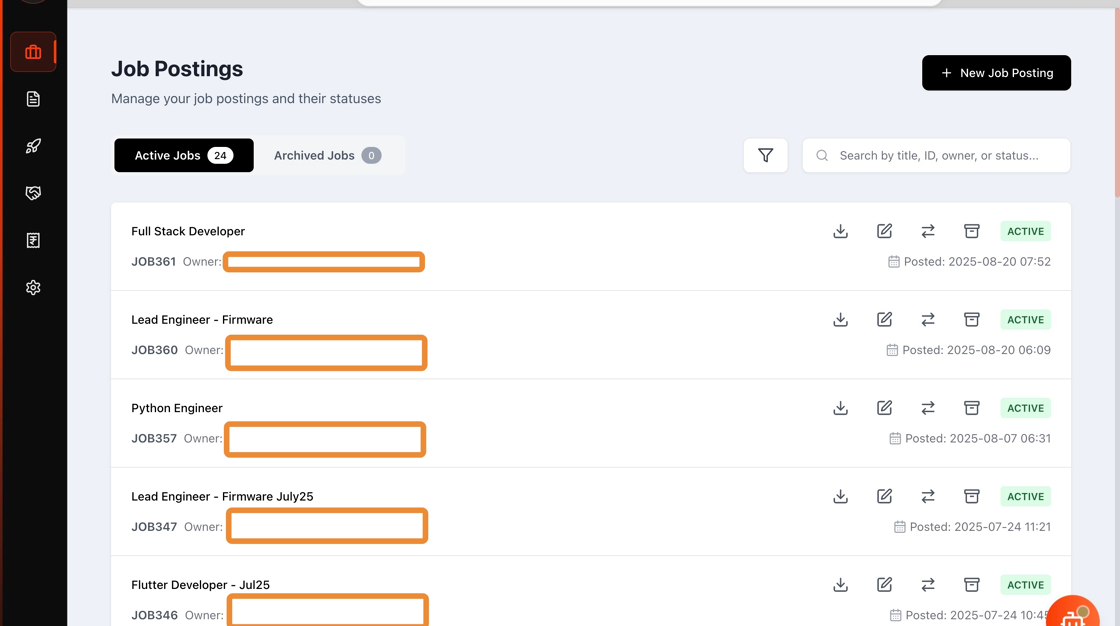
2. Access the Dashboard
Click on the Turiyaskills icon to load the main Dashboard page where you can access all features.

Core Features Navigation
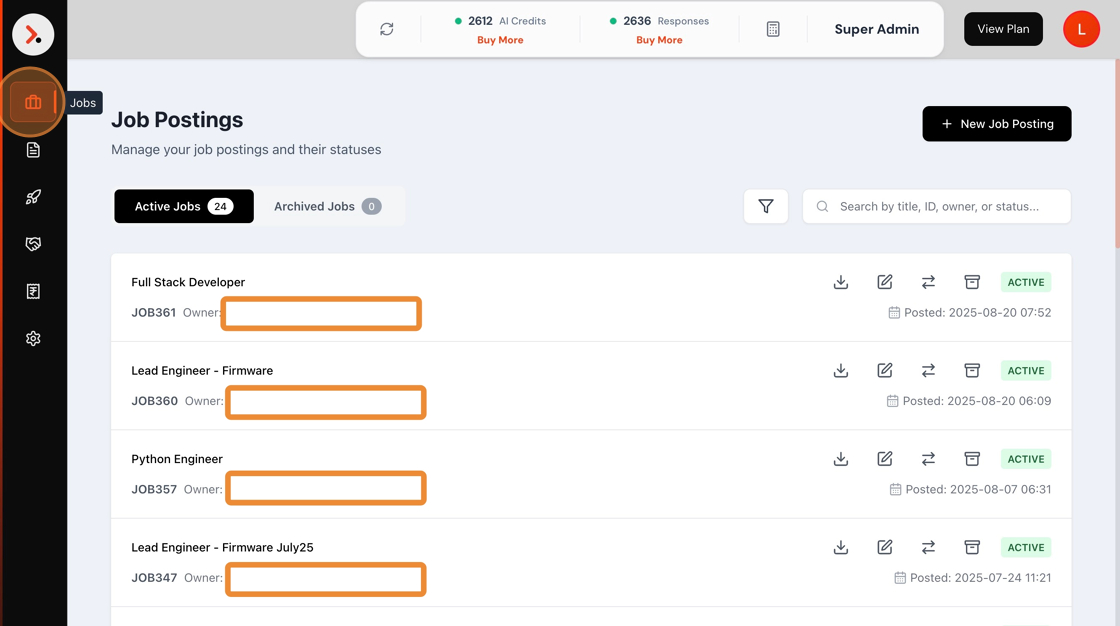
3. Jobs Management
Click on the Jobs icon in the left menu to access:
- Active Jobs: View currently open positions
- Archived Jobs: Access past job postings
- Create New Jobs: Upload JD PDF documents to create new job postings
4. Resume Parser
Click on Resume Parser in the left panel to access the candidate screening features.

5. Resume Parser Features
The Resume Parser page allows you to:
- Select Jobs: Choose your target job posting
- Parse Resumes: Upload and analyze candidate resumes
- Score Against JD: Compare candidates against job descriptions
- Sourcing Connectors: Use integrations like ContactOut to find matching candidates

6. Assessments
Click on Assessments in the left panel to access:
- SmartEval: Create AI-generated skill and knowledge tests
- Assess360: Design questionnaires for surveys and feedback collection
Team and Account Management
7. Team Management
Click on the Team icon in the left panel to:
- View current team members
- Invite new team members to your workspace
- Manage team permissions and roles

8. Billing Information
Click on Billing Info in the left panel to access:
- Credit Usage: Monitor AI and Response credit consumption
- Usage History: View detailed credit usage patterns
- Invoices: Download and view billing statements
- Payment Management: Update payment methods

Settings and Configuration
9. Settings Menu
Click on Settings in the left panel to configure:
- Distribution Lists: Set up candidate lists for assessment publishing
- System Preferences: Customize app behavior
- Integration Settings: Configure third-party connections

10. Question Bank Setup
Configure your Question Bank for:
- Importing questions into assessments
- Creating reusable question libraries
- Managing question categories and difficulty levels

11. ContactOut Integration
Set up the ContactOut Connector by:
- Entering your API license key
- Configuring search parameters
- Testing the integration

Credit Management
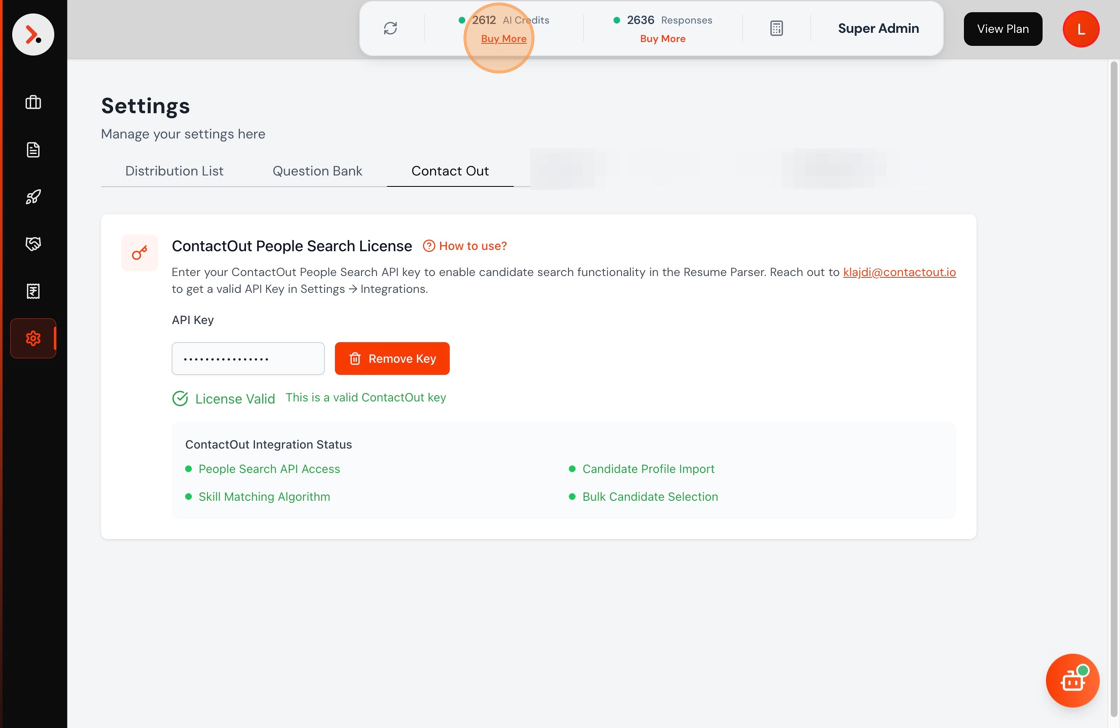
12. Buy More Credits
Click "Buy More" in the top header to purchase:
- AI Credits: Required for AI-powered features
- Response Credits: Needed for candidate assessment responses
13. AI Credits Plans
Choose from various AI Credits plans based on your usage needs:
- Different credit packages available
- Suitable for various team sizes and usage patterns

14. Response Credits Purchase
Click "Buy More" for Response Credits to:
- Accommodate more candidate responses
- Scale your assessment capacity
- Support larger recruitment campaigns

15. Response Credits Plans
Select from multiple Response Credits plans:
- Flexible options for different recruitment volumes
- Scalable pricing based on candidate response needs

16. Credits Calculator
Use the AI & Response Credits Calculator to:
- Estimate credit requirements for your projects
- Plan budget allocation for AI features
- Optimize credit usage across different features

Subscription Management
17. View Subscription Plans
Click "View Plan" to access:
- Current subscription details
- Available plan upgrades
- Plan comparison features

18. Subscription Options
Choose from flexible subscription plans:
- Monthly or Yearly: Billing cycle options
- INR and USD: Currency preferences
- Multiple Tiers: Different feature access levels

Account Management
19. My Account
Click "My Account" to:
- Edit profile information
- Update contact details
- Manage account preferences

20. Password Management
The My Account page also provides:
- Password reset functionality
- Security settings management
- Login history review

Support and Documentation
21. Help Documentation
Click "Help Docs" to access:
- Turiyaskills Documentation: Comprehensive feature guides
- Detailed Instructions: Step-by-step tutorials
- Best Practices: Optimization tips and strategies

22. App Support
Click "App Support" to:
- Raise Tickets: Submit support requests
- Track Issues: Monitor resolution progress
- Get Assistance: Direct communication with support team

23. Chat with Turi - Your AI Knowledge Assistant
Use Turi, your AI knowledge assistant, as a guide to understand how to use the Turiyaskills App Features:
- Instant Help: Get immediate answers to feature-related questions
- Feature Guidance: Learn how to use specific tools and functions
- Best Practices: Receive recommendations for optimal usage
- Troubleshooting: Get help resolving issues quickly

24. Logout
Click "Logout" to securely exit the application when your session is complete.

Quick Navigation Tips
🎯 Feature Categories
- Core Recruitment: Jobs, Resume Parser, Assessments
- Team Management: Team, Billing, Settings
- Support: Help Docs, App Support, Turi AI Assistant
- Account: My Account, Logout
💡 Pro Tips
- Bookmark Frequently Used Features: Use the left navigation panel for quick access
- Monitor Credits: Regularly check credit usage in Billing Info
- Use the Calculator: Plan your credit needs with the built-in calculator
- Leverage Integrations: Set up ContactOut for enhanced candidate sourcing
- Stay Updated: Check Help Docs for new features and best practices
📋 Best Practices
- Regular Team Reviews: Keep team permissions updated
- Credit Monitoring: Track usage patterns to optimize spending
- Documentation: Refer to Help Docs for detailed feature explanations
- Support: Use App Support for technical issues and questions
This comprehensive navigation guide ensures you can efficiently utilize all Turiyaskills features to streamline your recruitment process and maximize hiring success.