
How to create and clone a Offer Letter Template
(https://scribehow.com/shared/How_to_create_and_clone_a_Offer_Letter_Template__U0gqIHJ7S-qDh7N1BKQzjQ)
This guide provides a step-by-step process for creating a customizable offer letter template, making it easier for HR professionals to streamline their hiring process. By following these instructions, users can efficiently design, save, and activate templates tailored to their organization's needs, ensuring consistency and professionalism in job offers. Additionally, the guide includes options for importing existing templates and customizing them, enhancing usability and flexibility. Viewing this guide will empower users to enhance their recruitment efforts effectively.
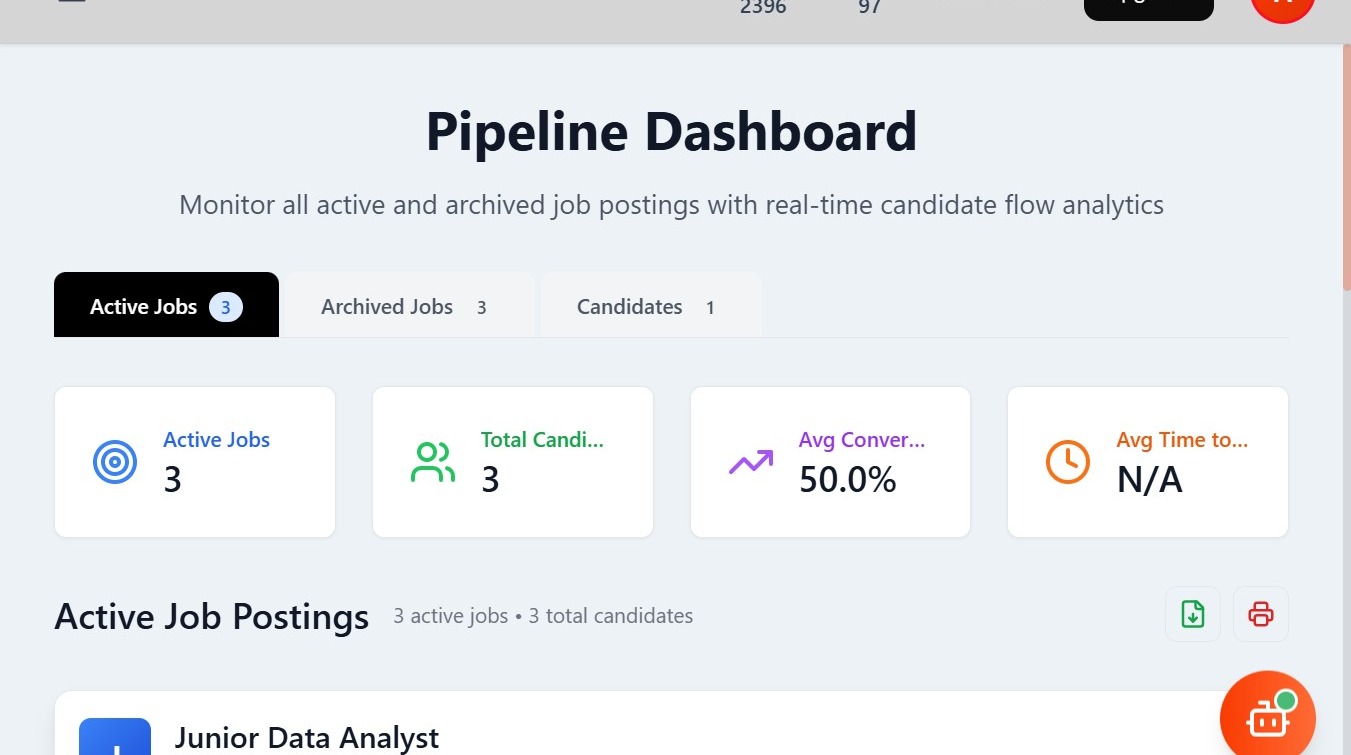
- Your Job is now Displayed under Active Jobs
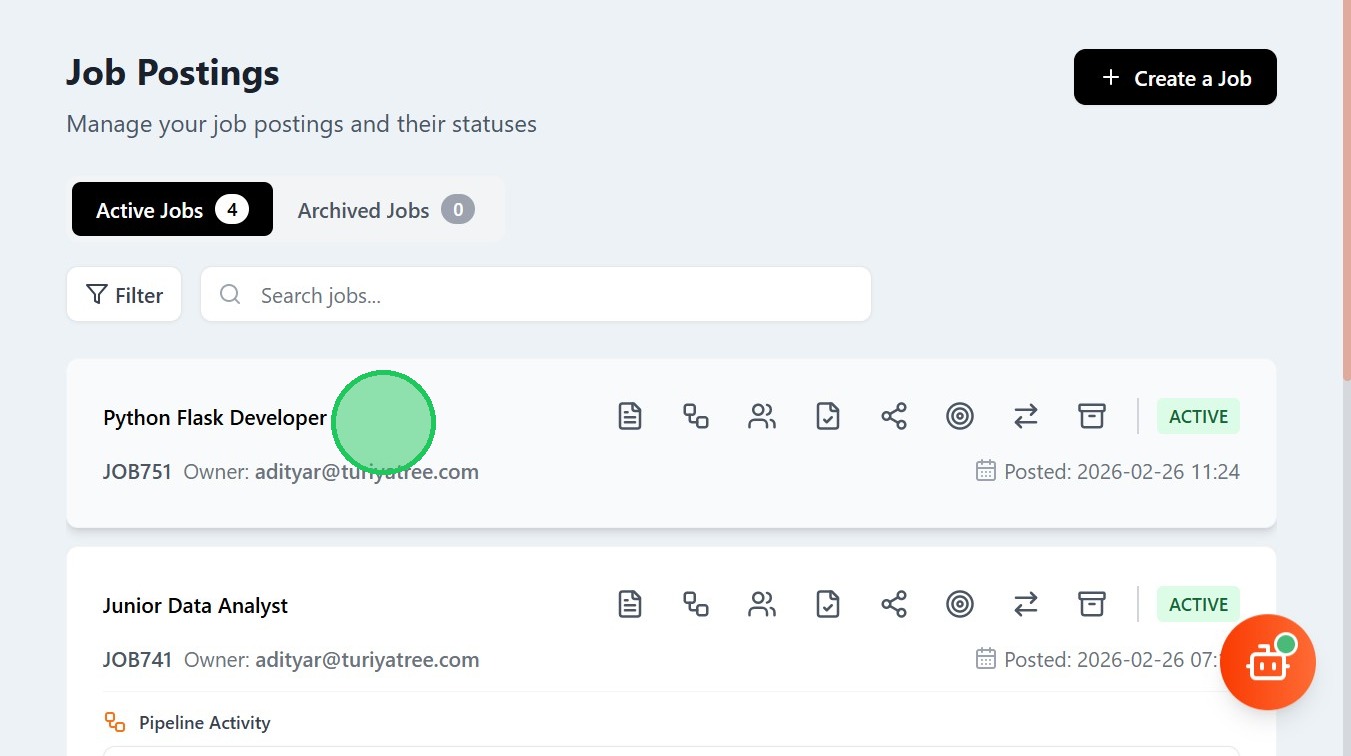
- Click the Pipeline icon
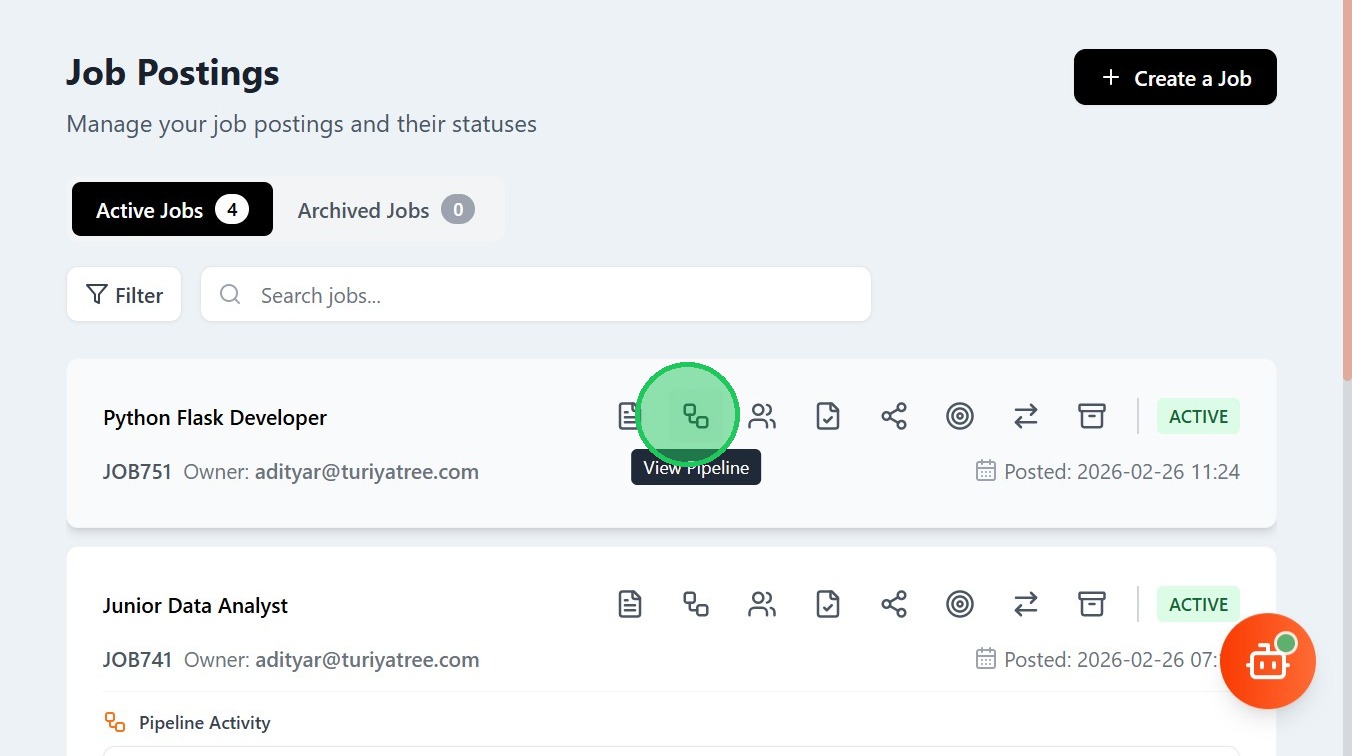
- Navigate to Offer Management module
- Here, you have the options to create or import offer templates

- To create a new offer template, Click "Create New Template"
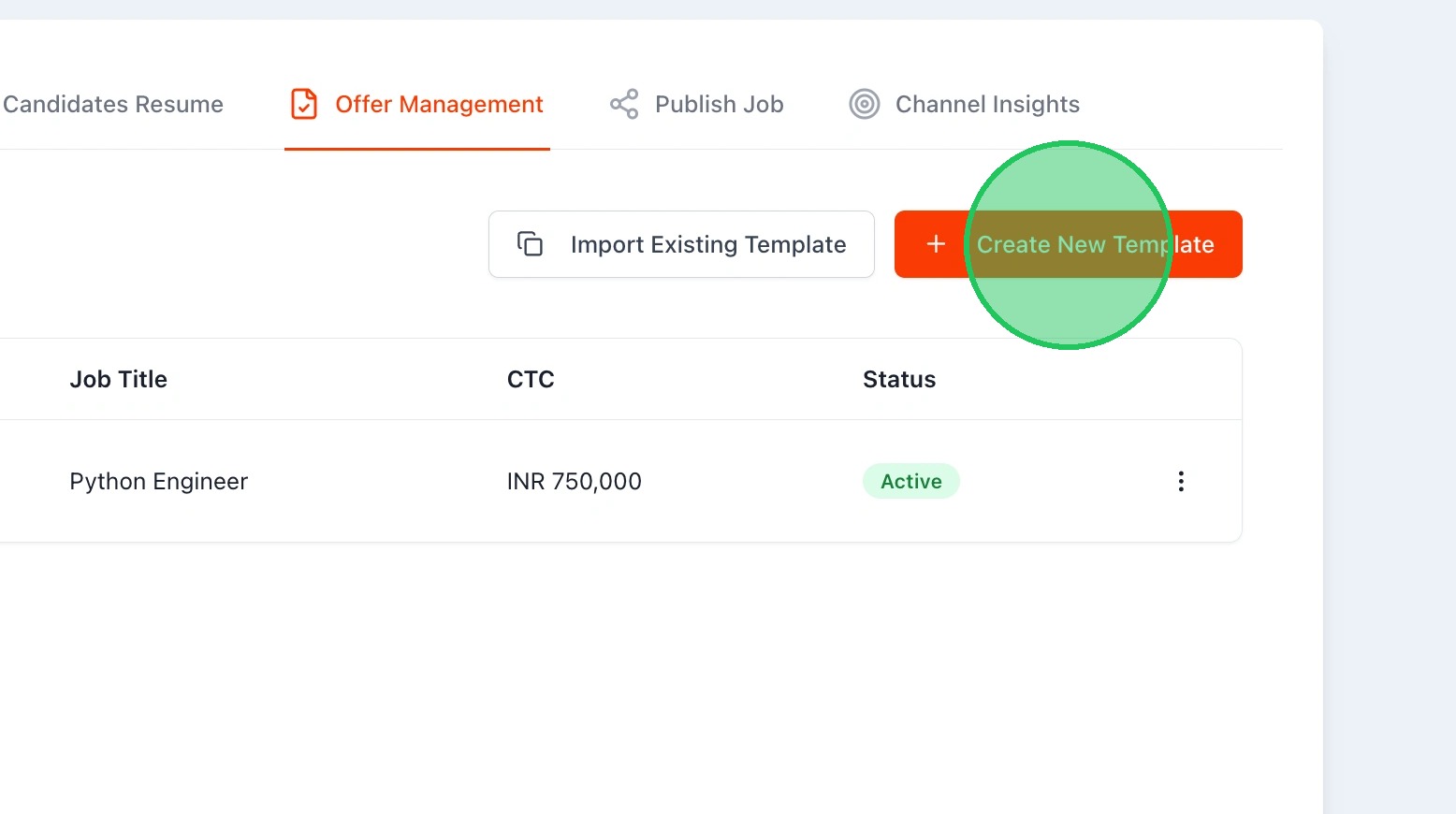
- Enter the Template Name
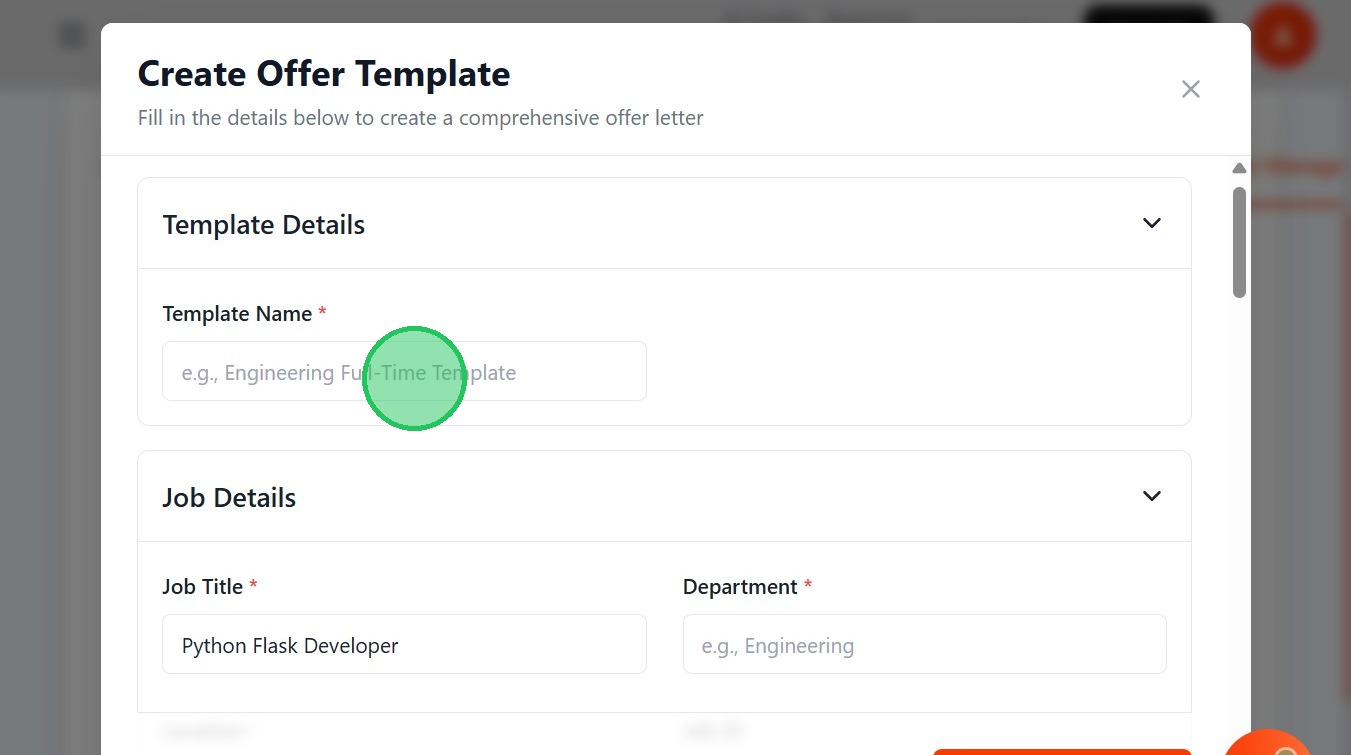
- The Job details would be automatically displayed

- Write your Department field
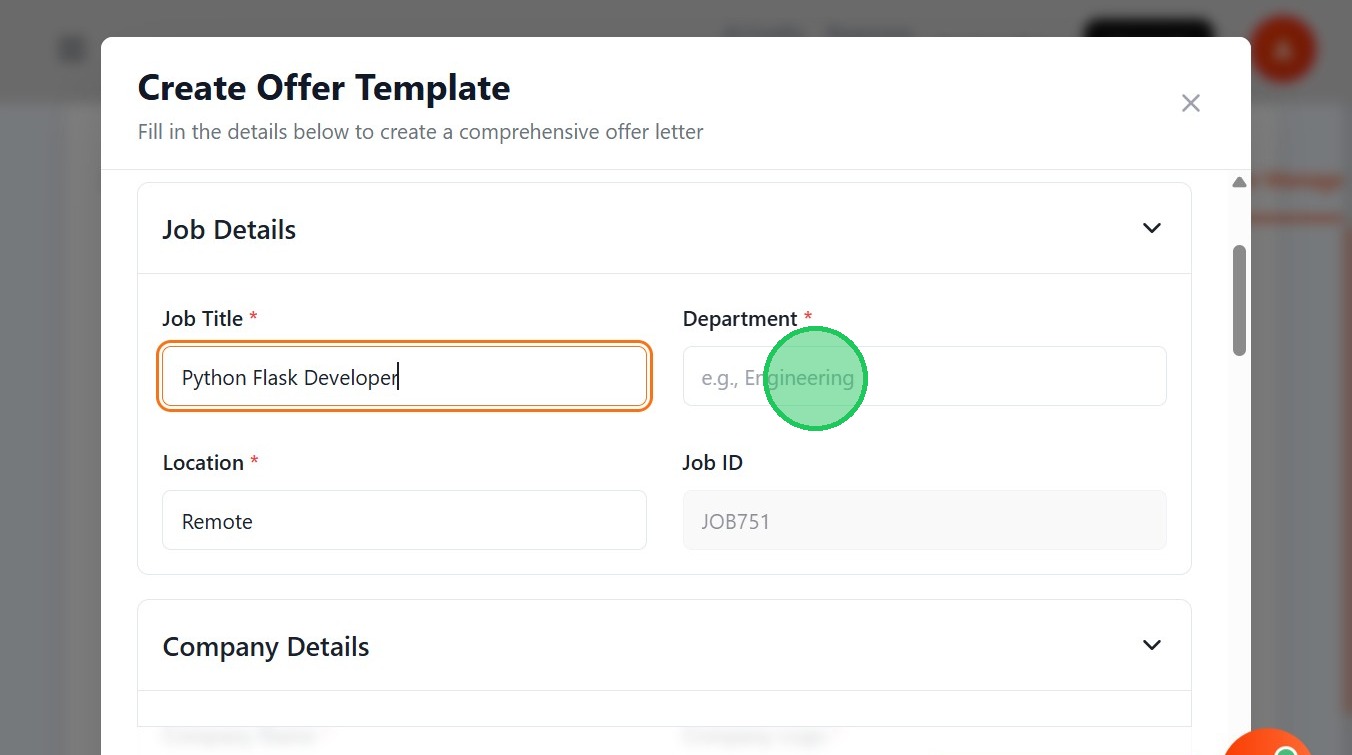
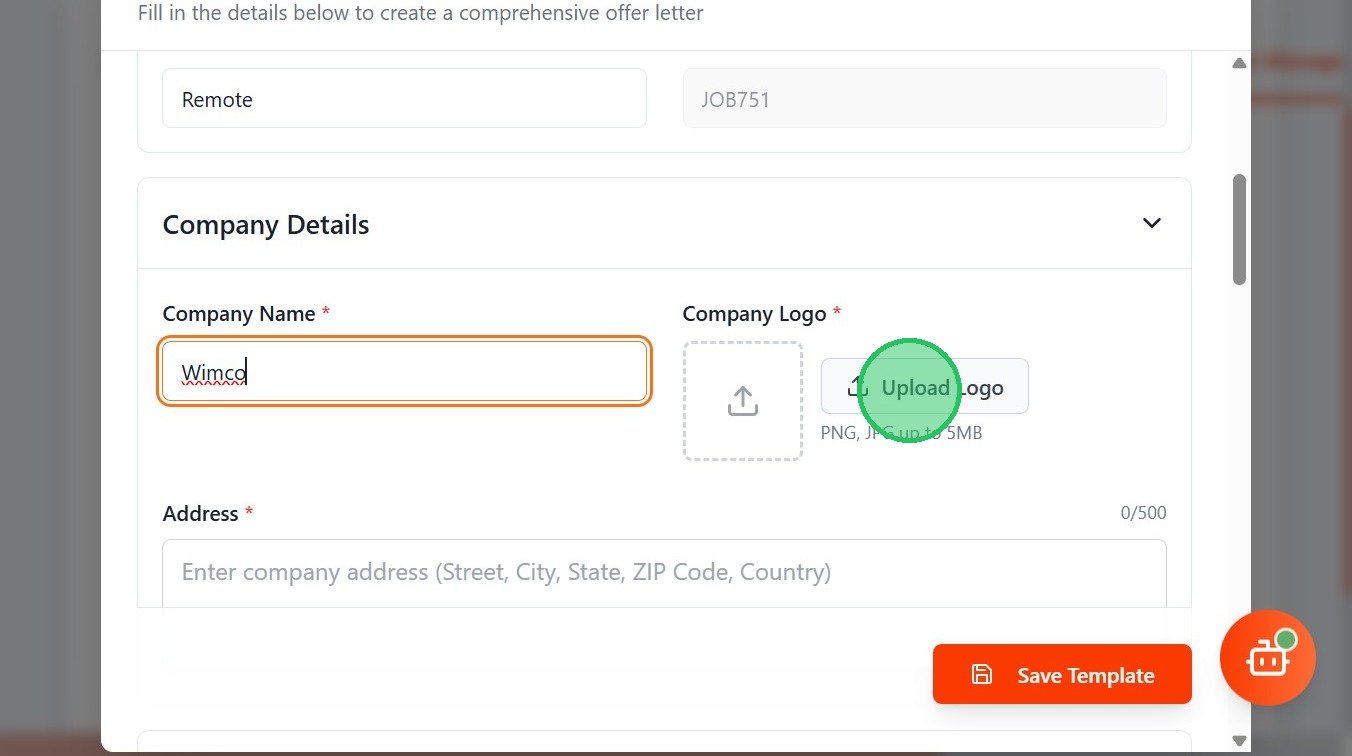
- Enter the Employer Name
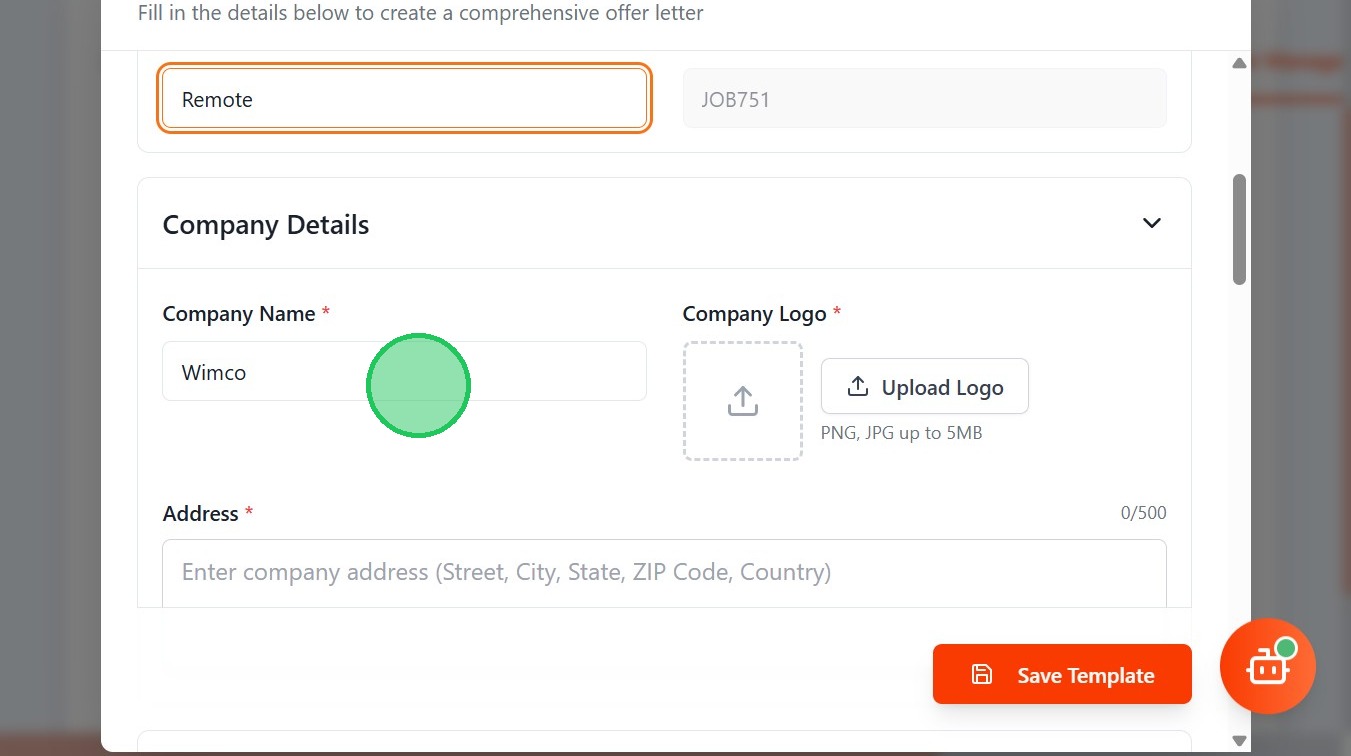
- Upload Logo of the Employer
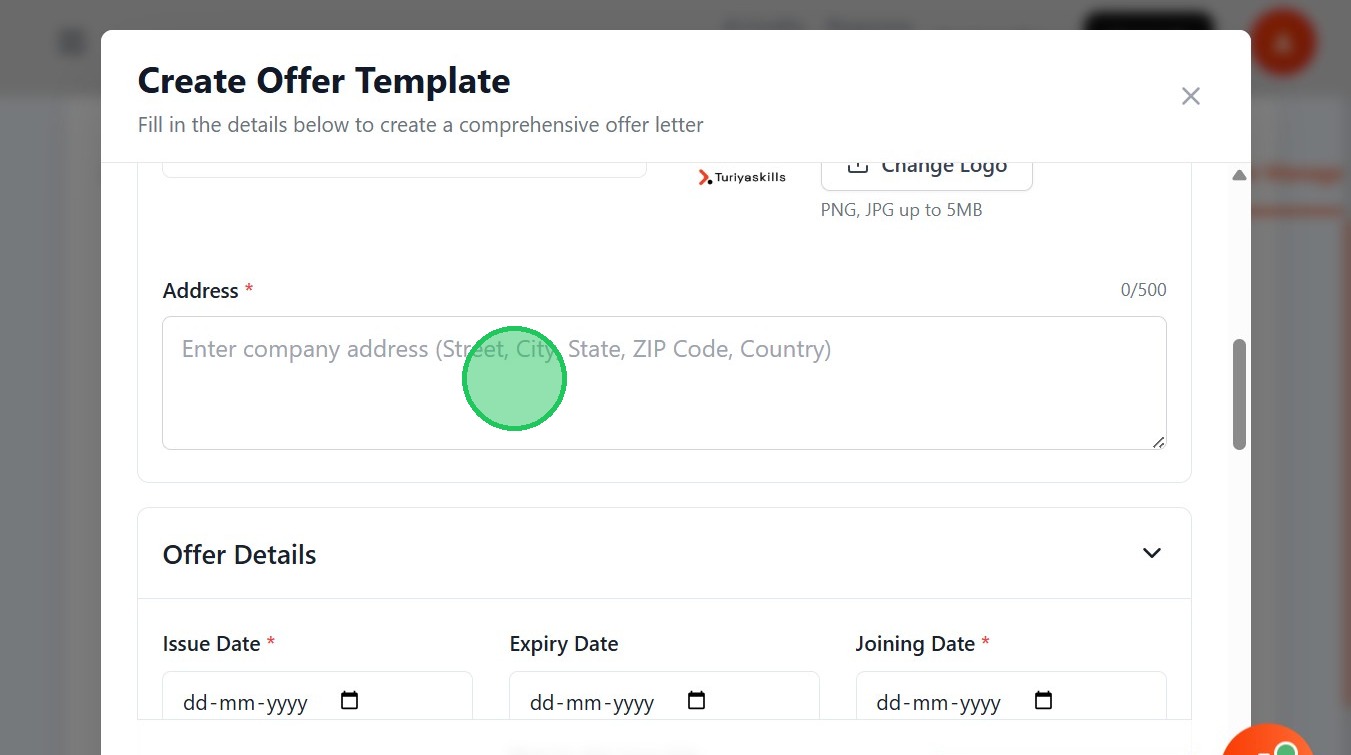
- State the Address of the Employer
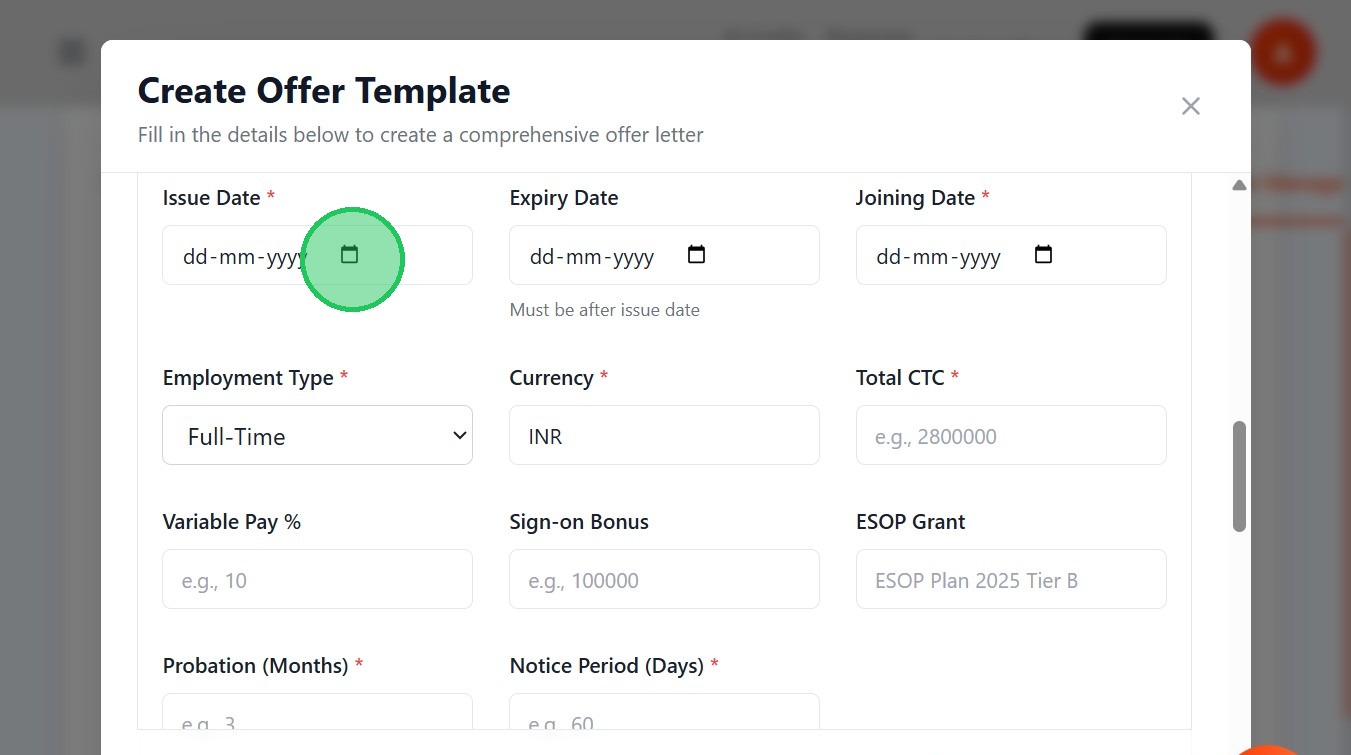
- Select the Date of Issueing Letter
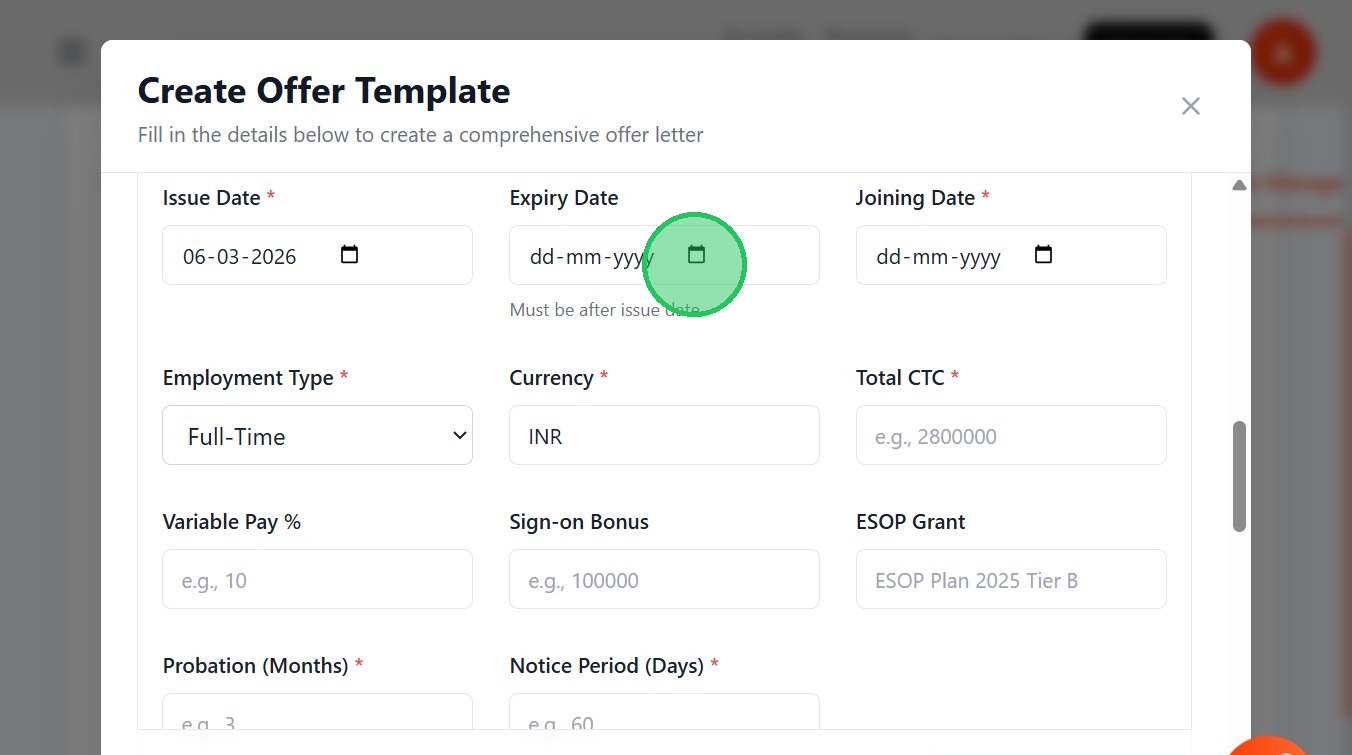
- Select the Date the letter expires
- Mention the Joining Date of the candidate

- Select the Employment Type

- Type your Currency type
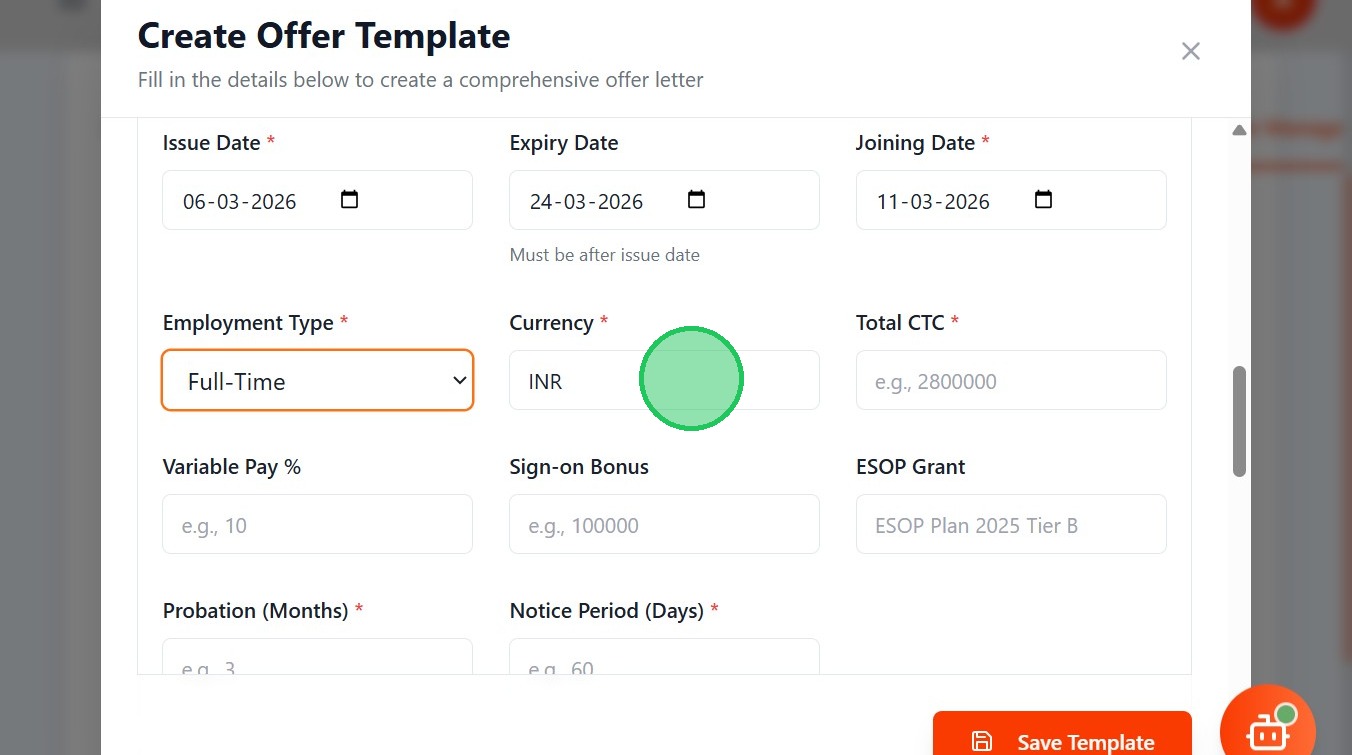
- Enter Total CTC
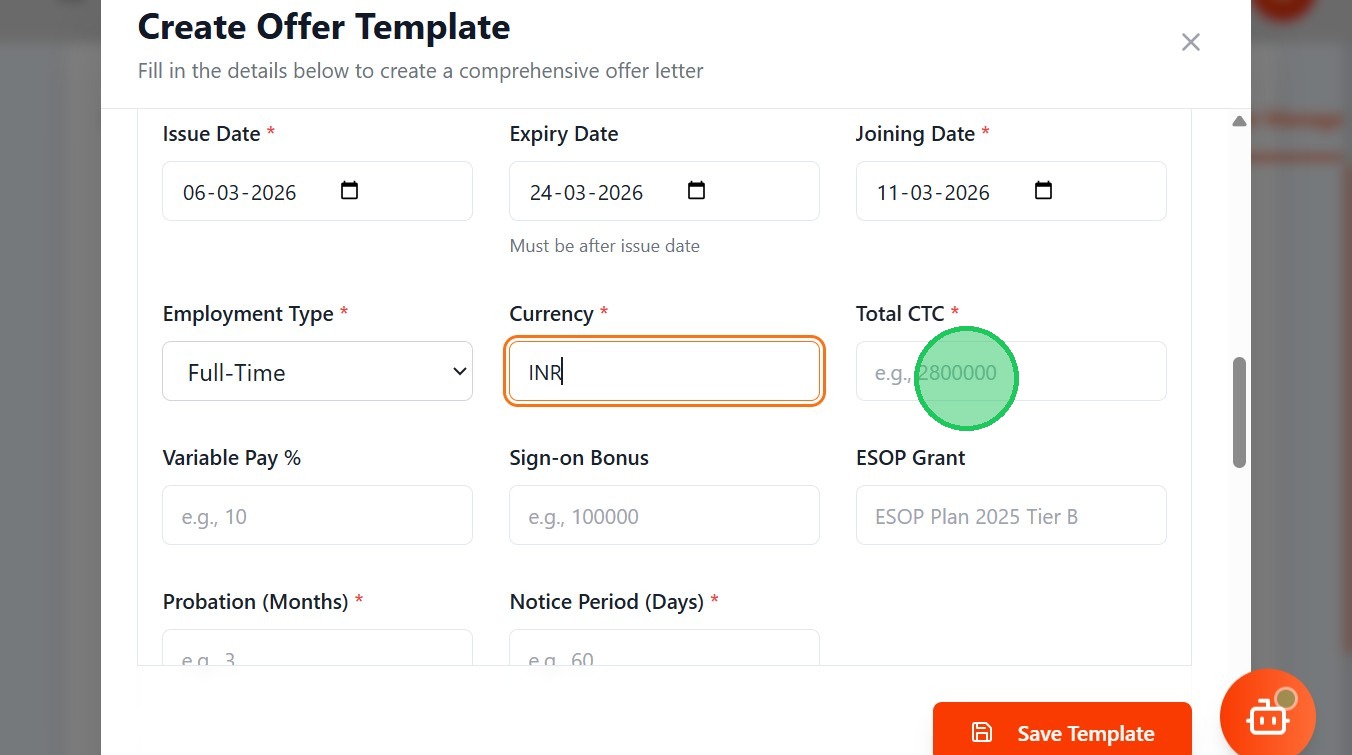
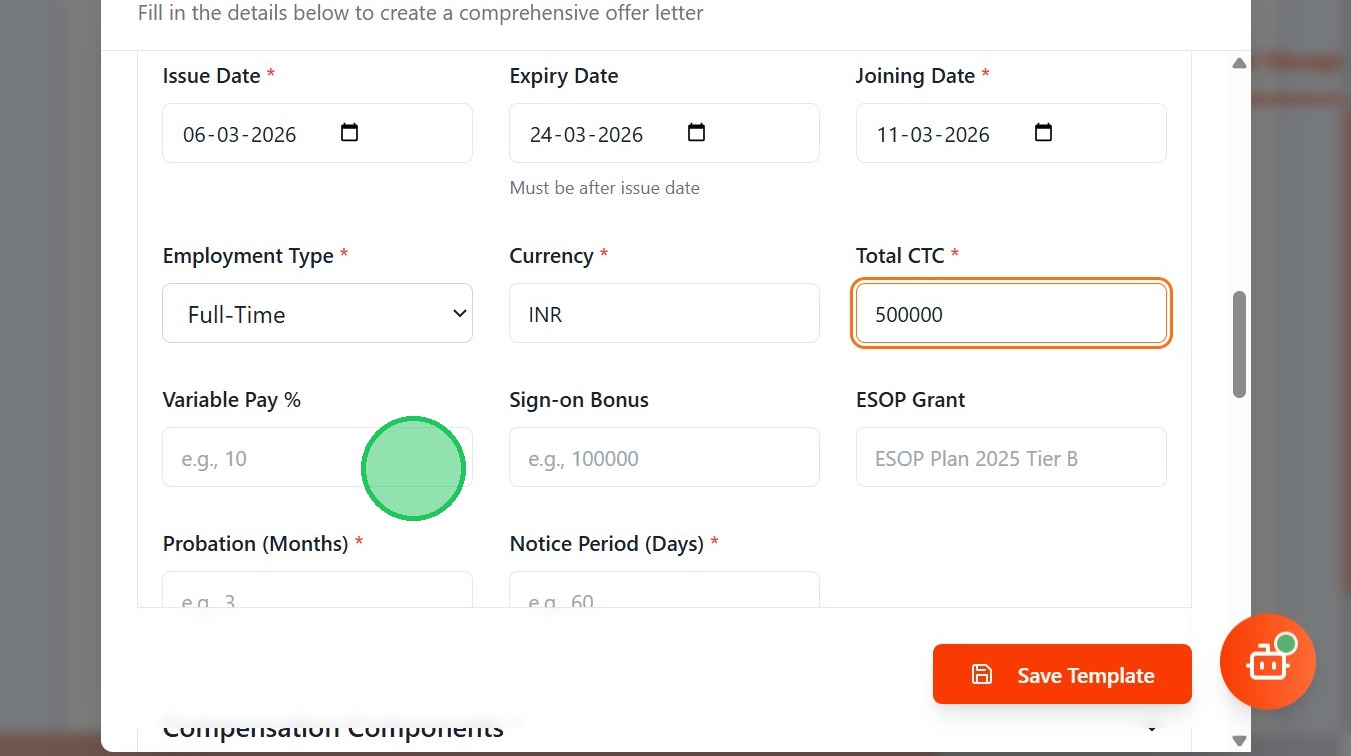
- Mention Variable Pay, Sign-on Bonus and ESOP Grant if needed
- Enter the Probation Period
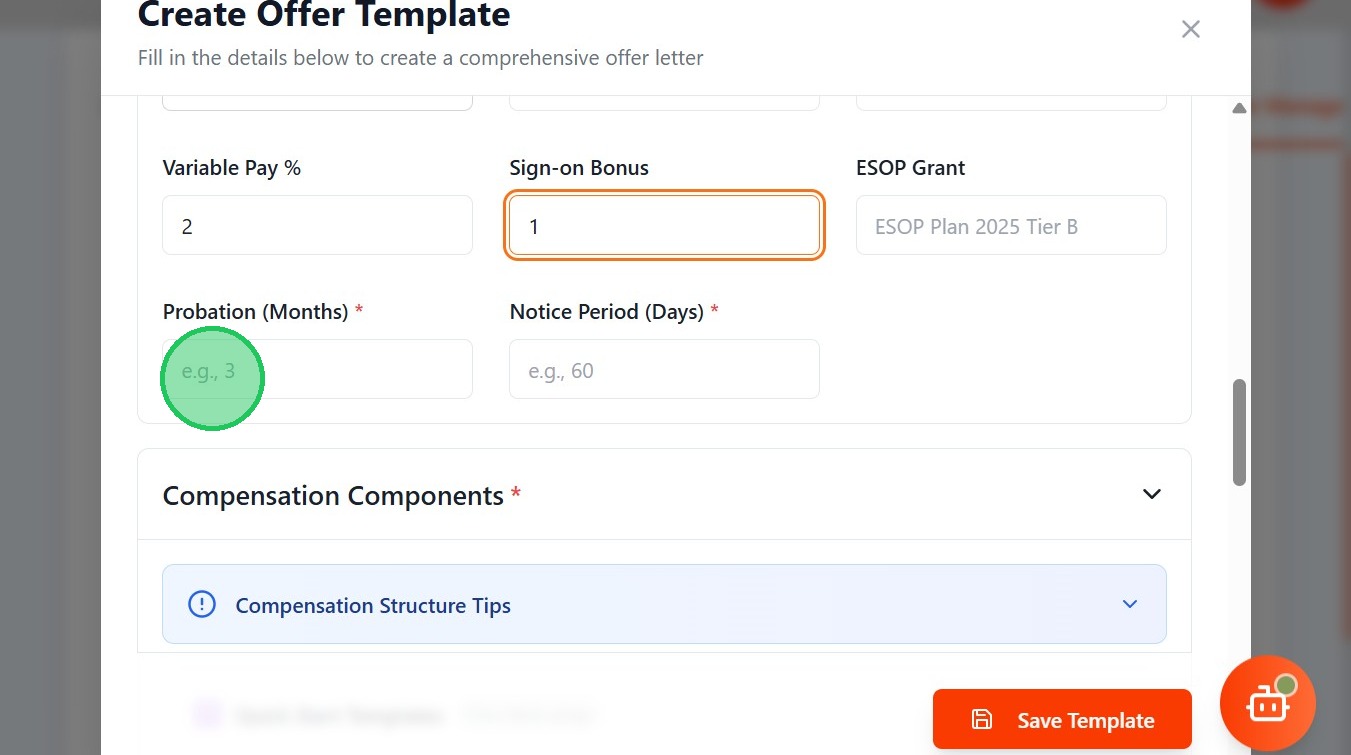
- Also give the Notice Period

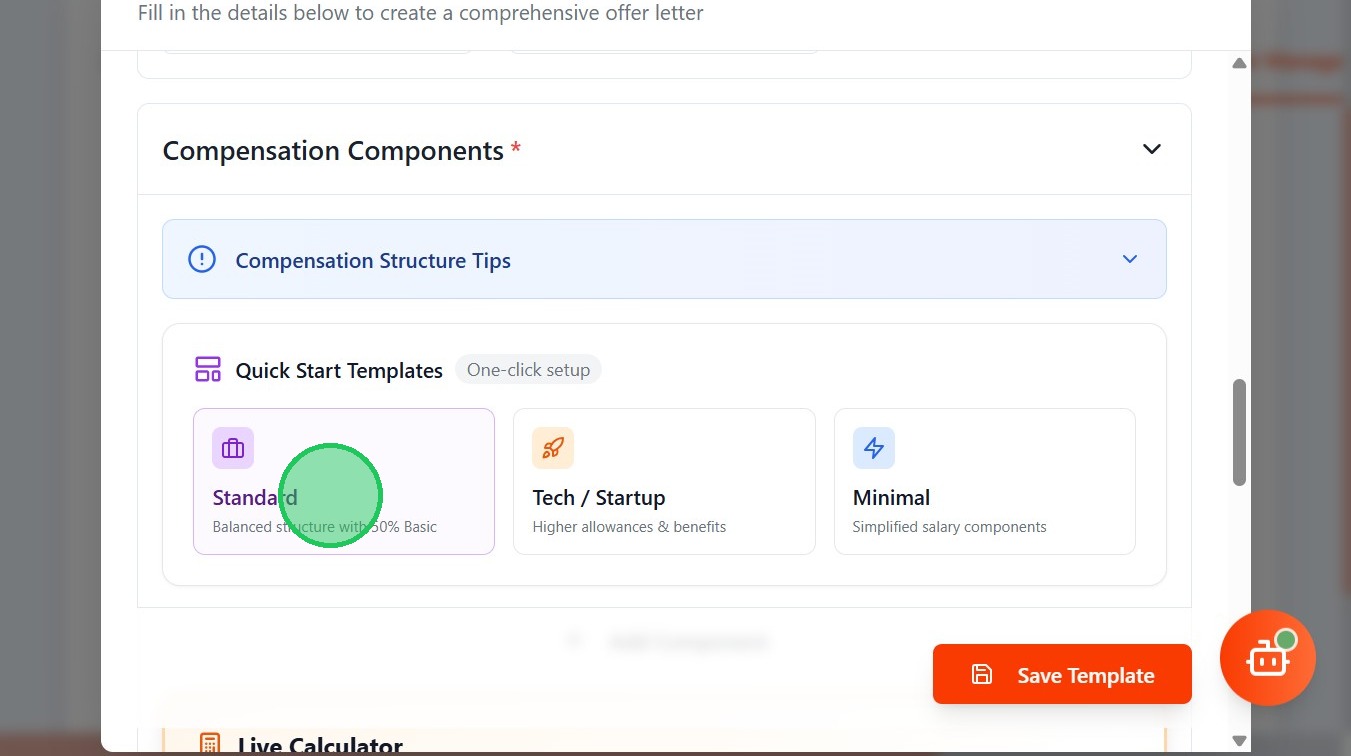
- Choose any one of the standard CTC template
- The CTC structure for the total amount is shown
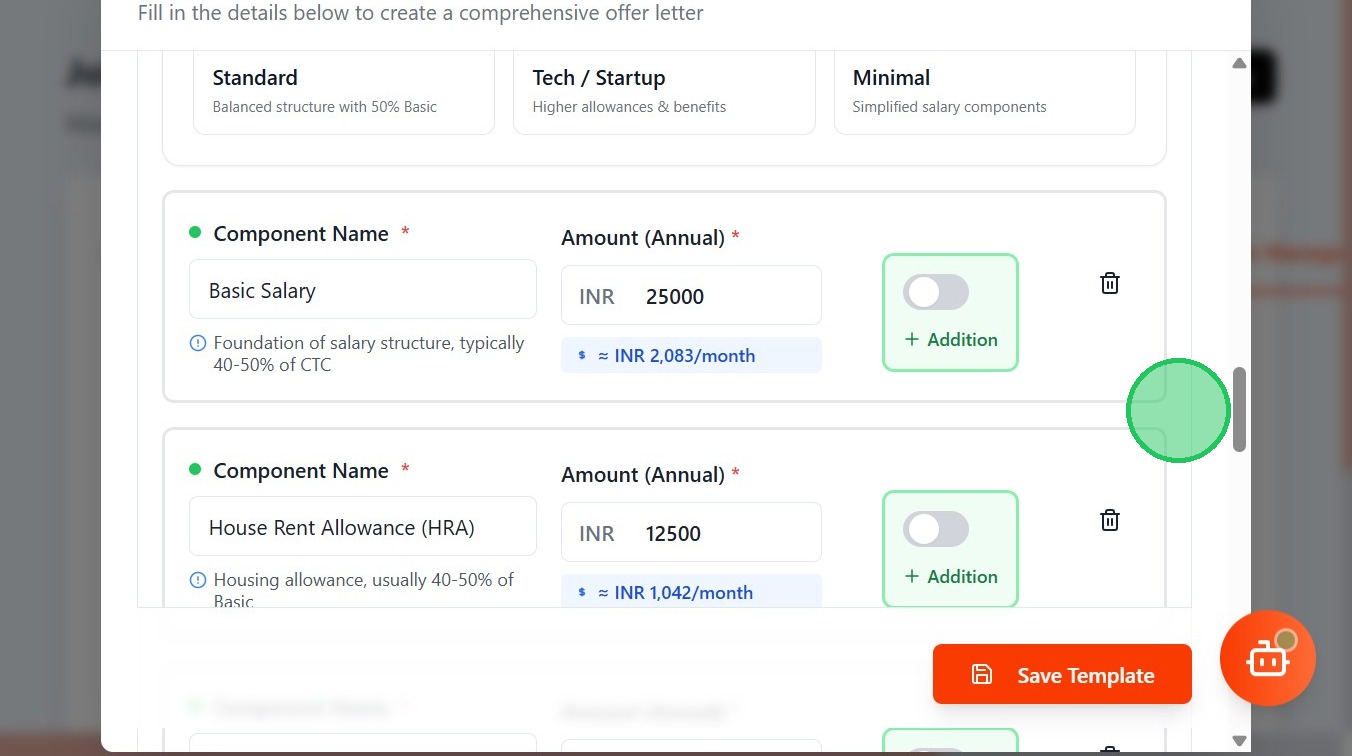
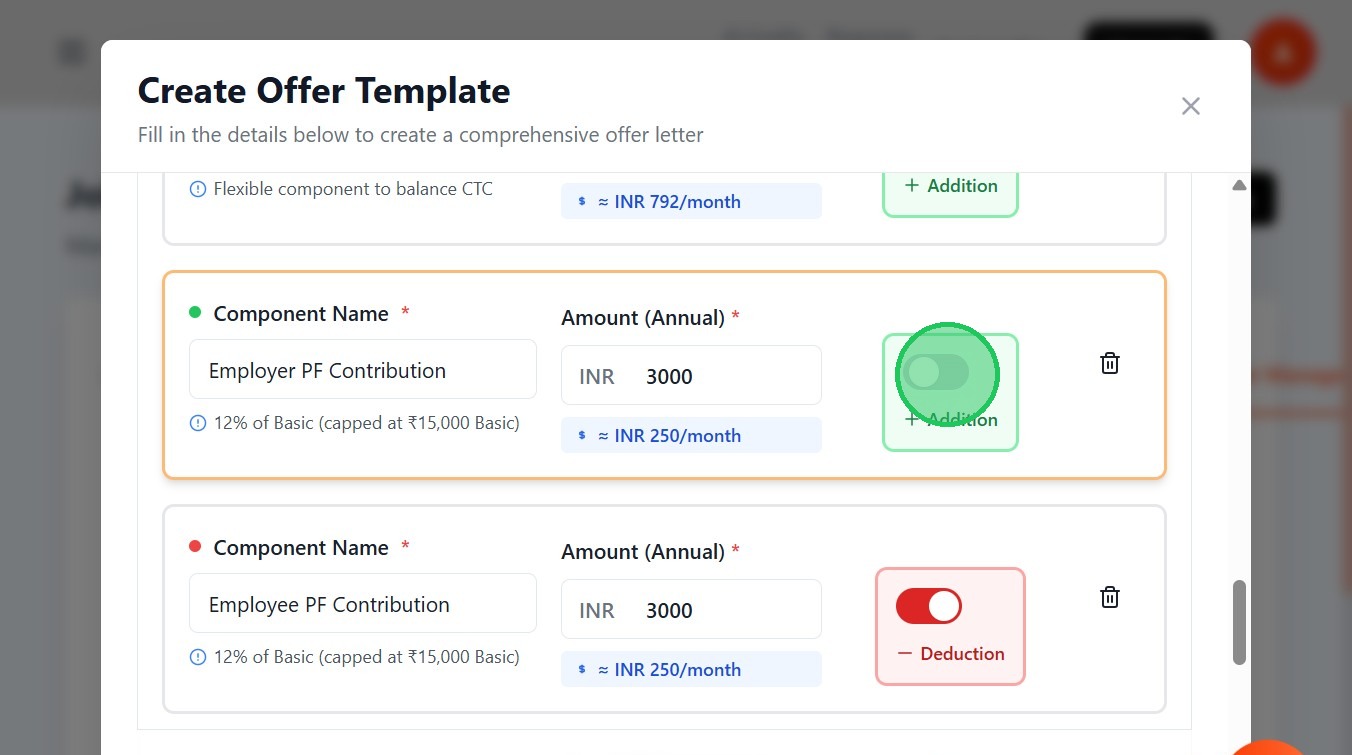
- Click the button for addition or subtraction of field amount
- To add a new Component, Click Add Component
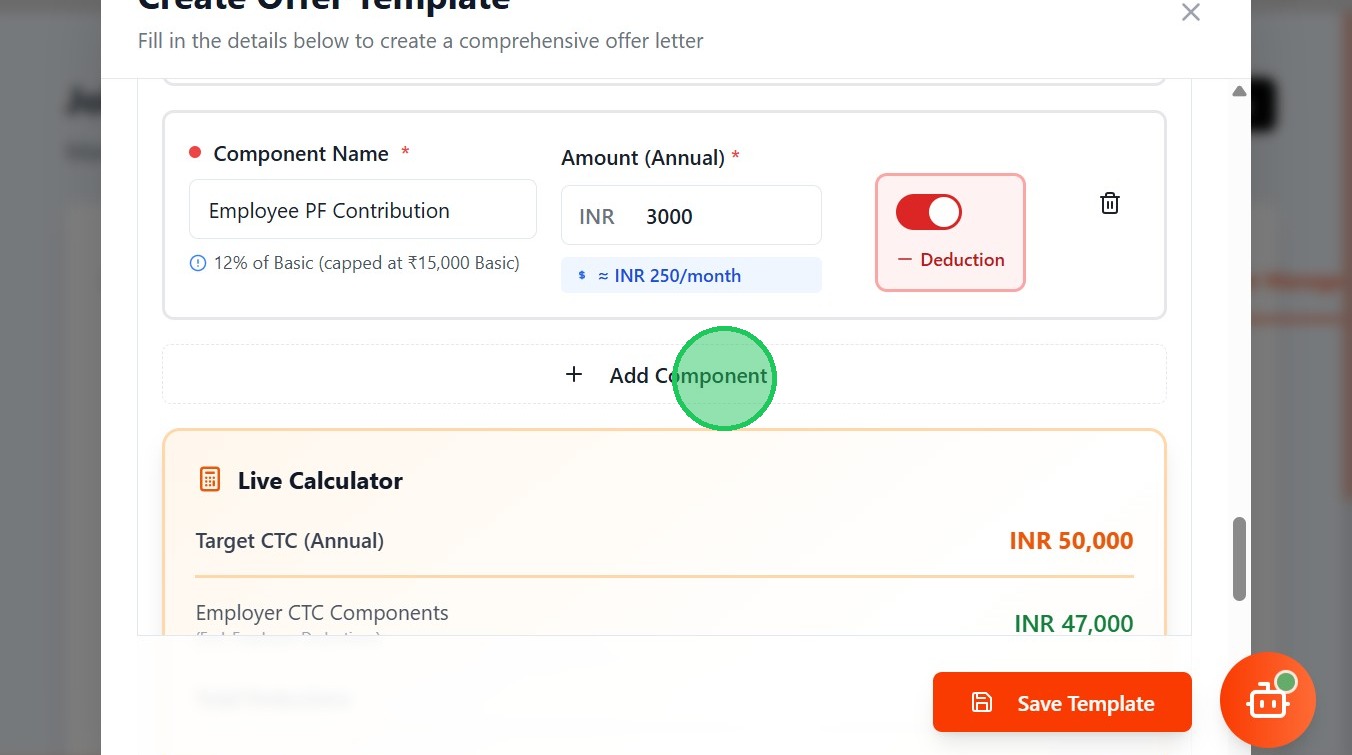
- Calculator of the Total CTC along with the breakdowns is displayed below

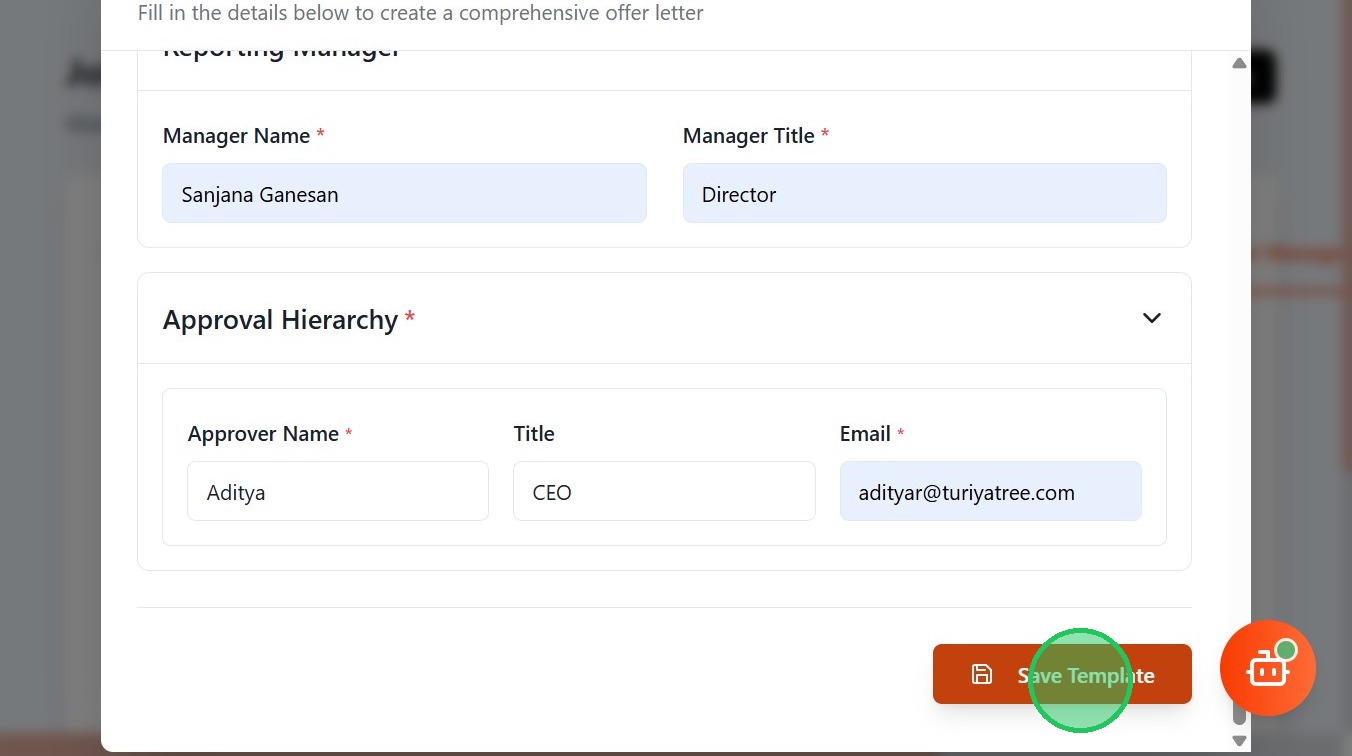
- Enter your Manager Name
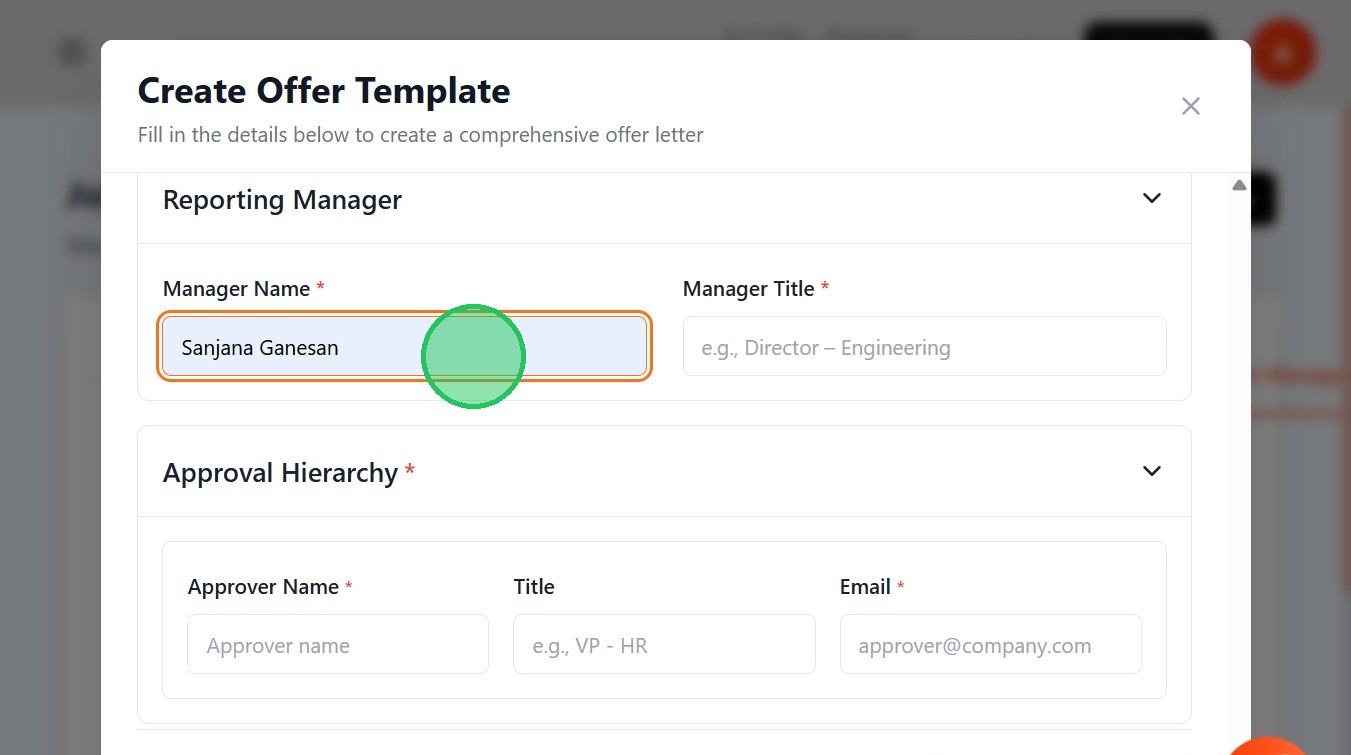
- Mention the Manager's Title
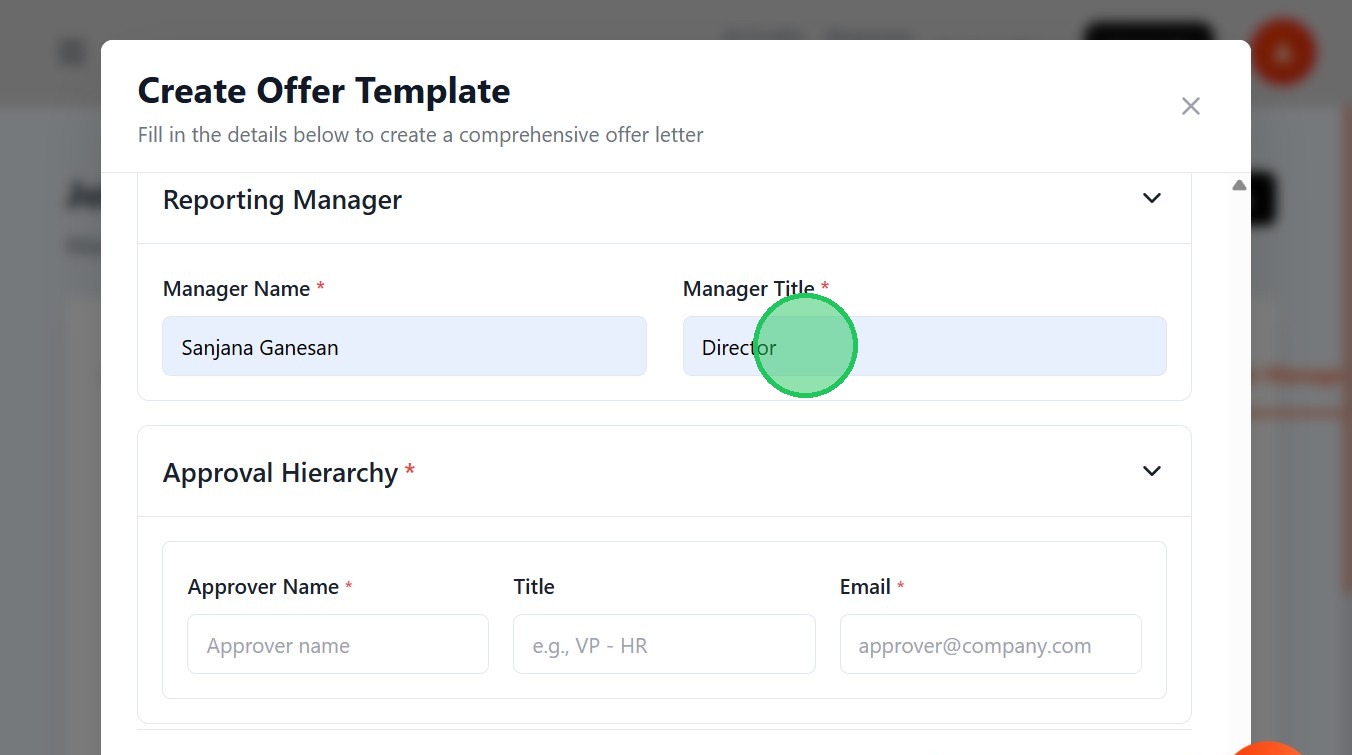
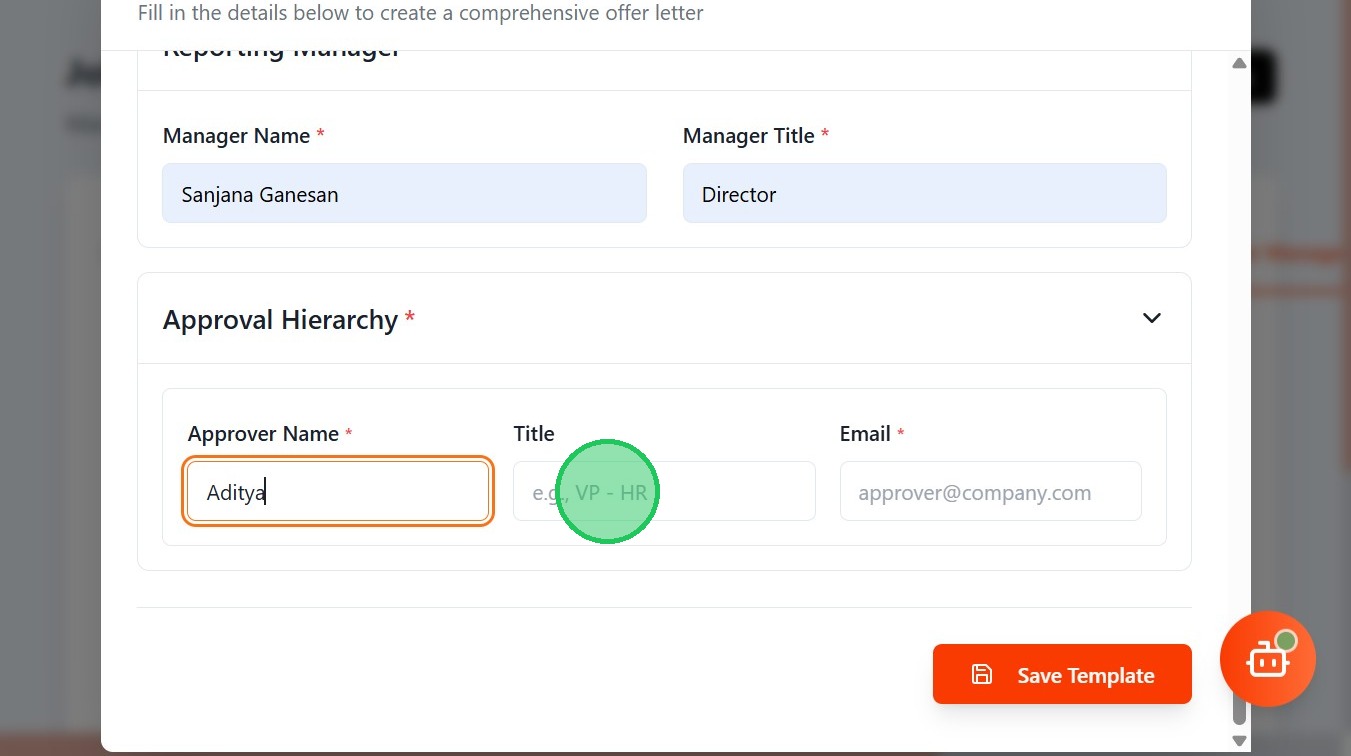
- Enter Approver's Name

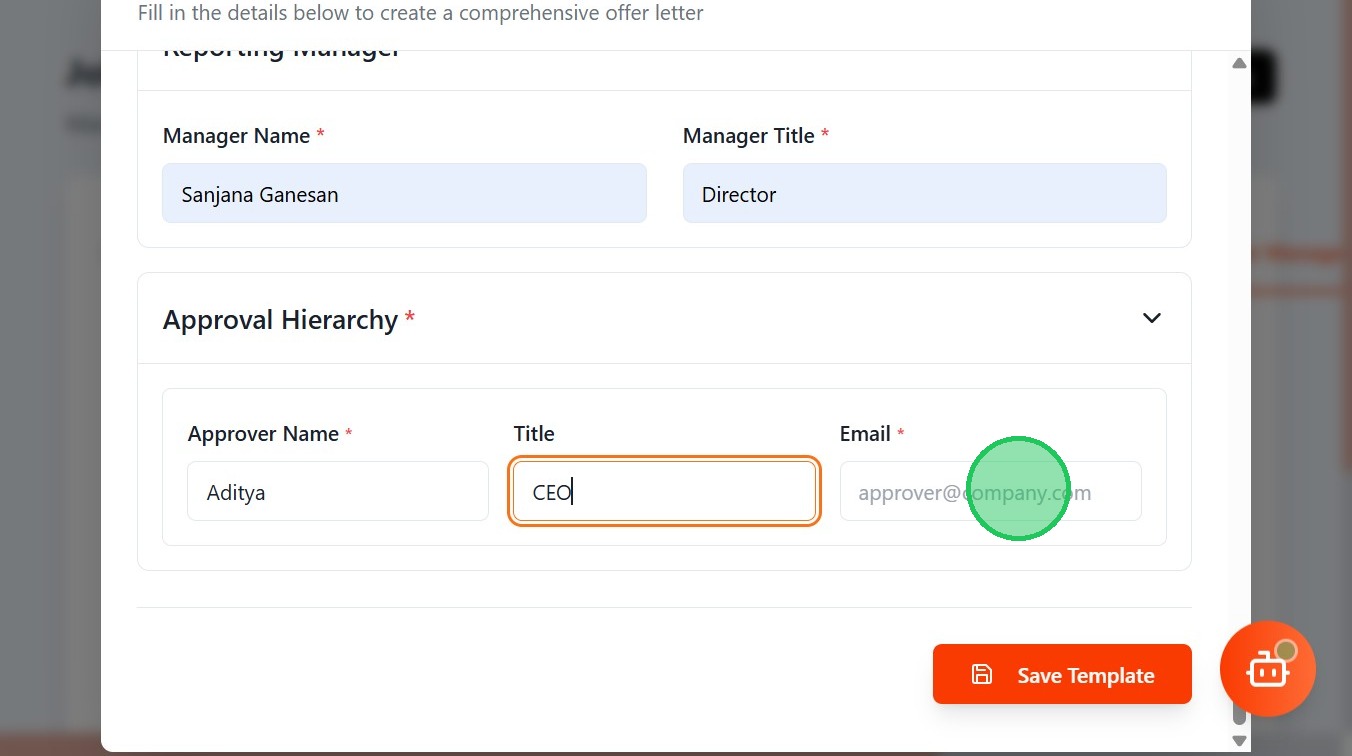
- Give the title of Approver
- Enter the approver's email
- Click Save Template
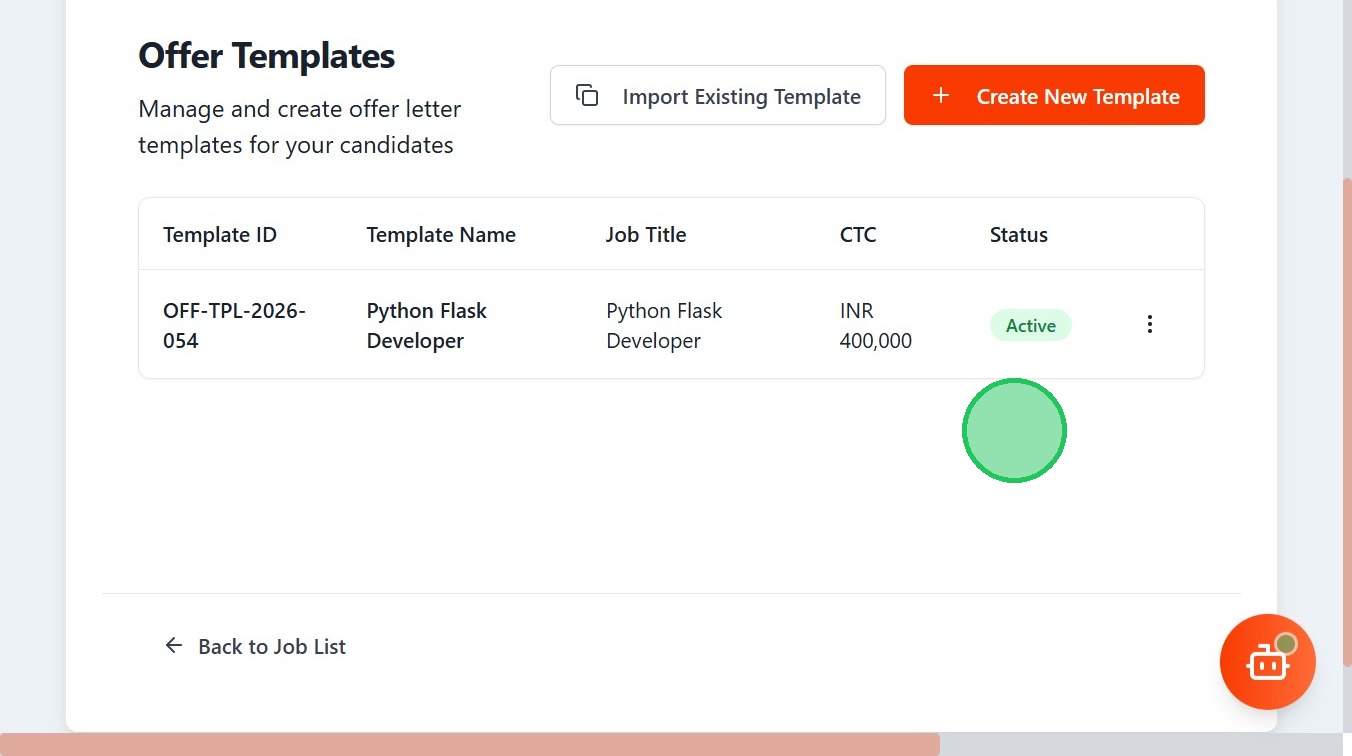
- Click "Offer TemplatesManage and create offer letter templates for your candidatesImport Existing TemplateCreate New TemplateTemplate IDTemplate NameJo..."

- Your Template is saved and displayed
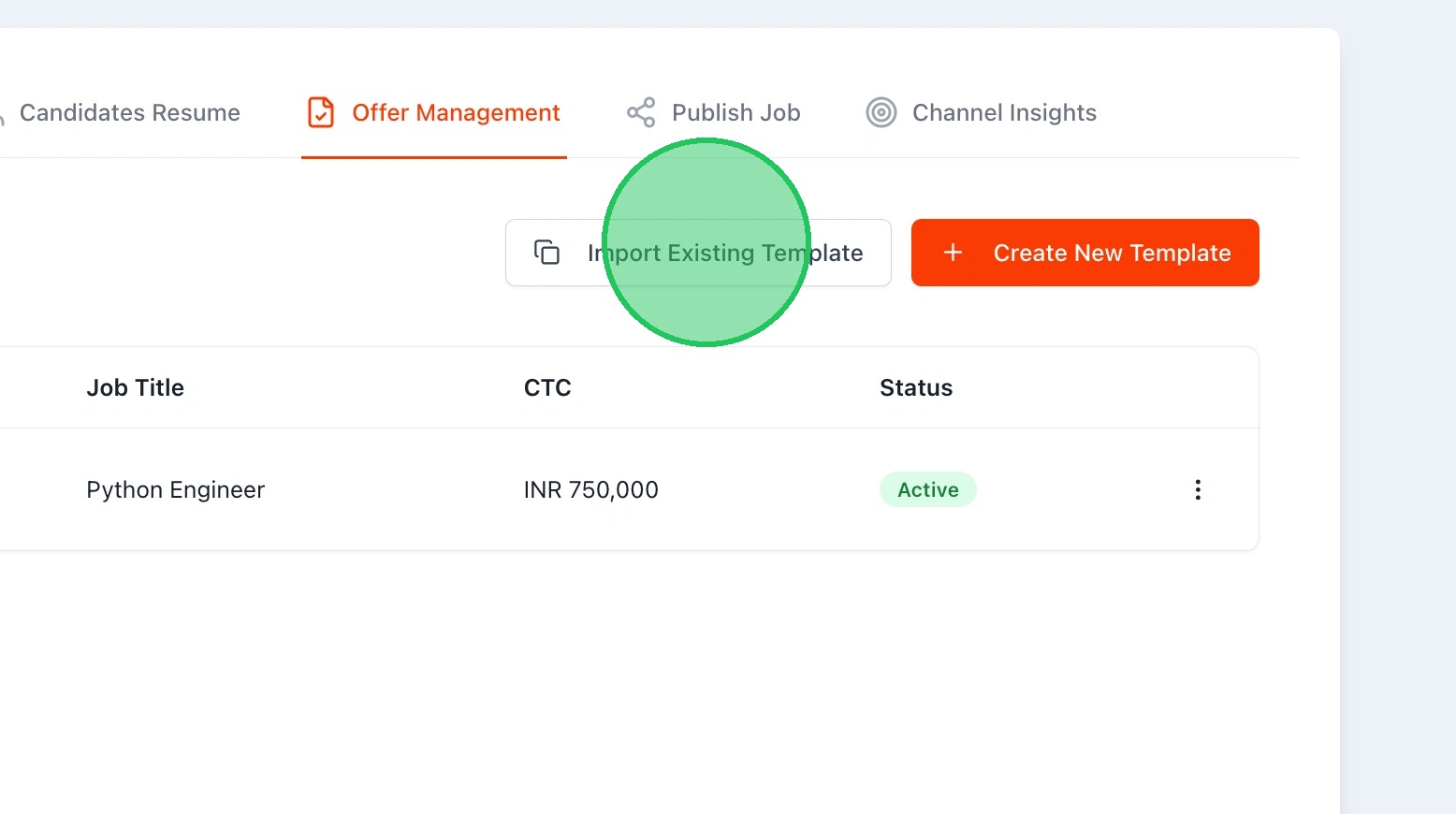
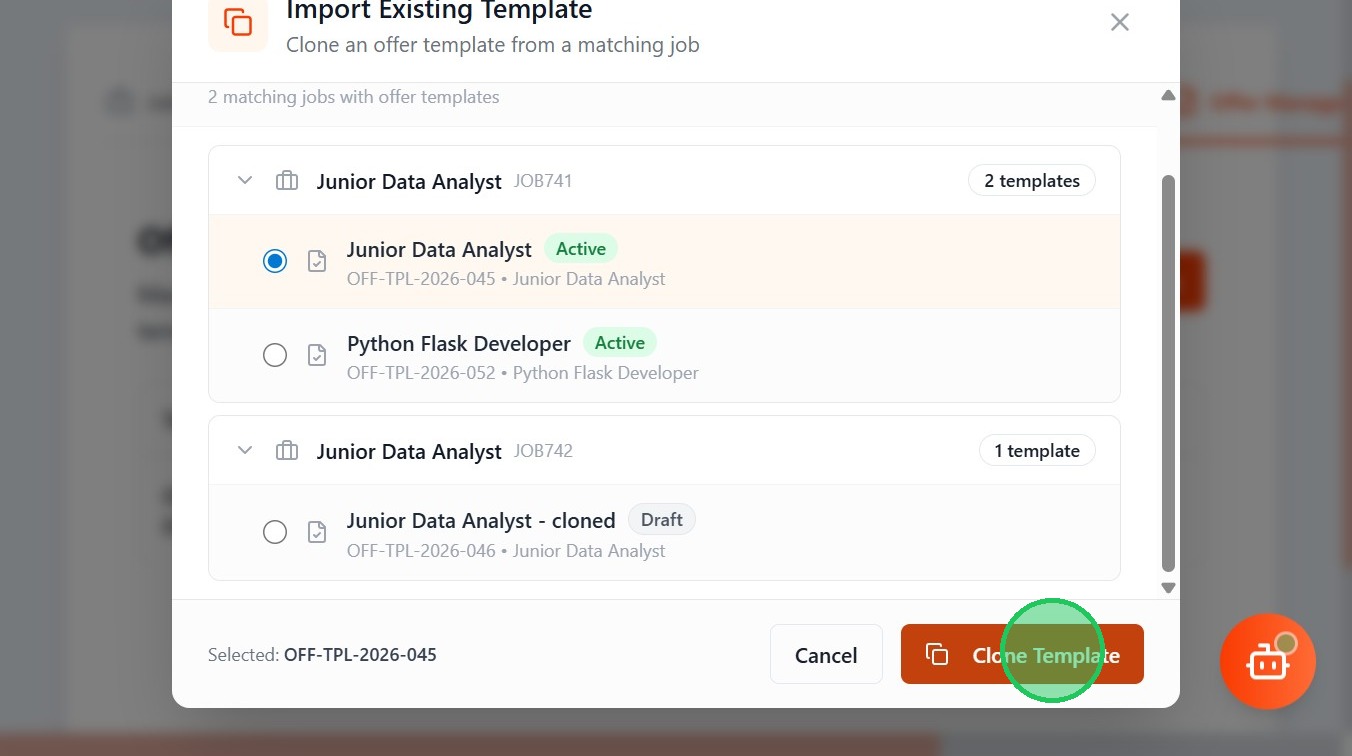
- To import a existing template, Click "Import Existing Template"
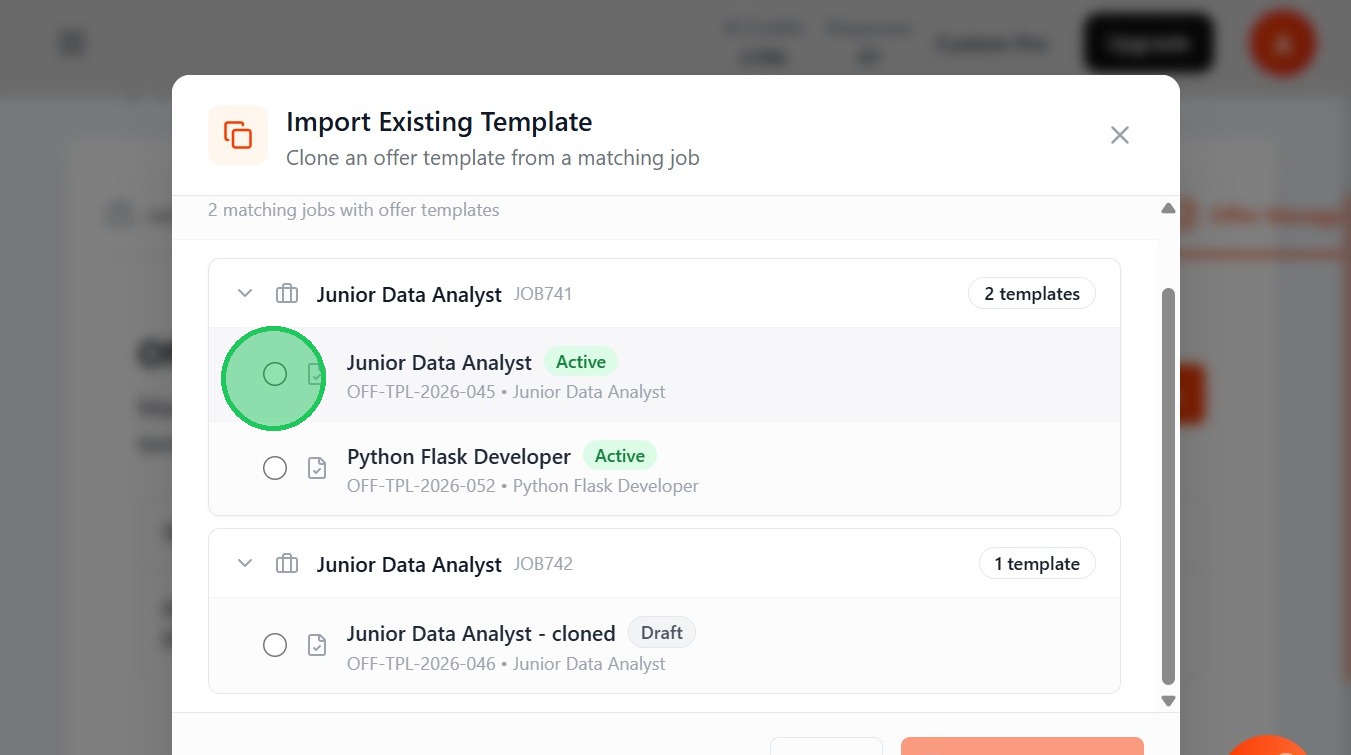
- Select your template to clone
- Click "Clone Template"
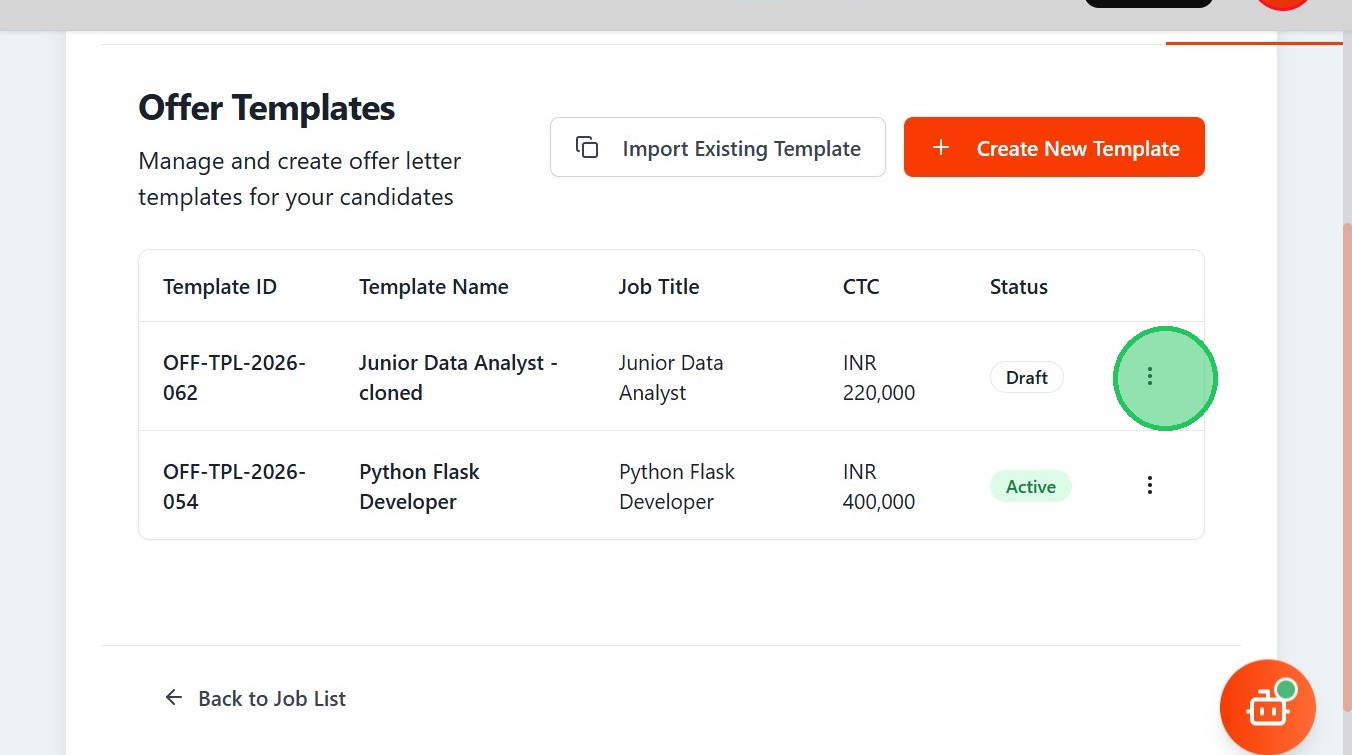
- The template is cloned , click on the settings
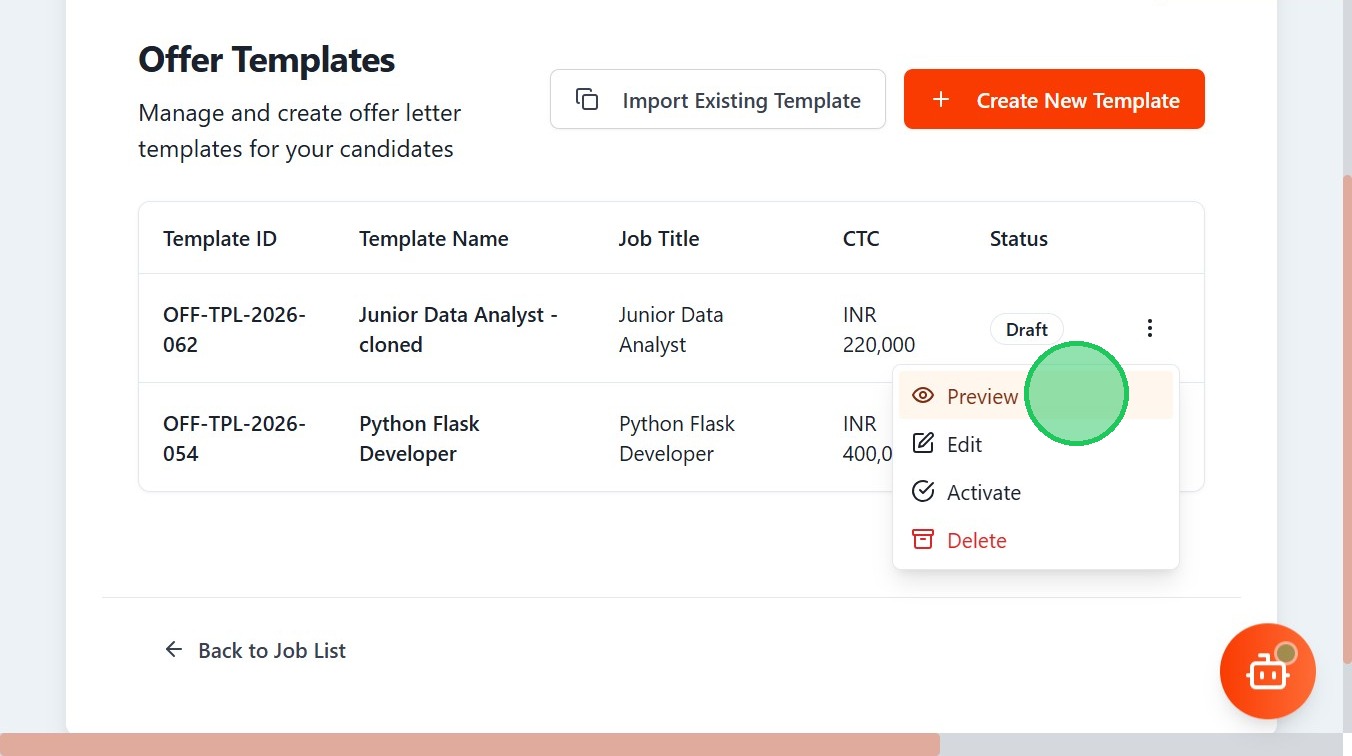
- To preview your template , Click "Preview"
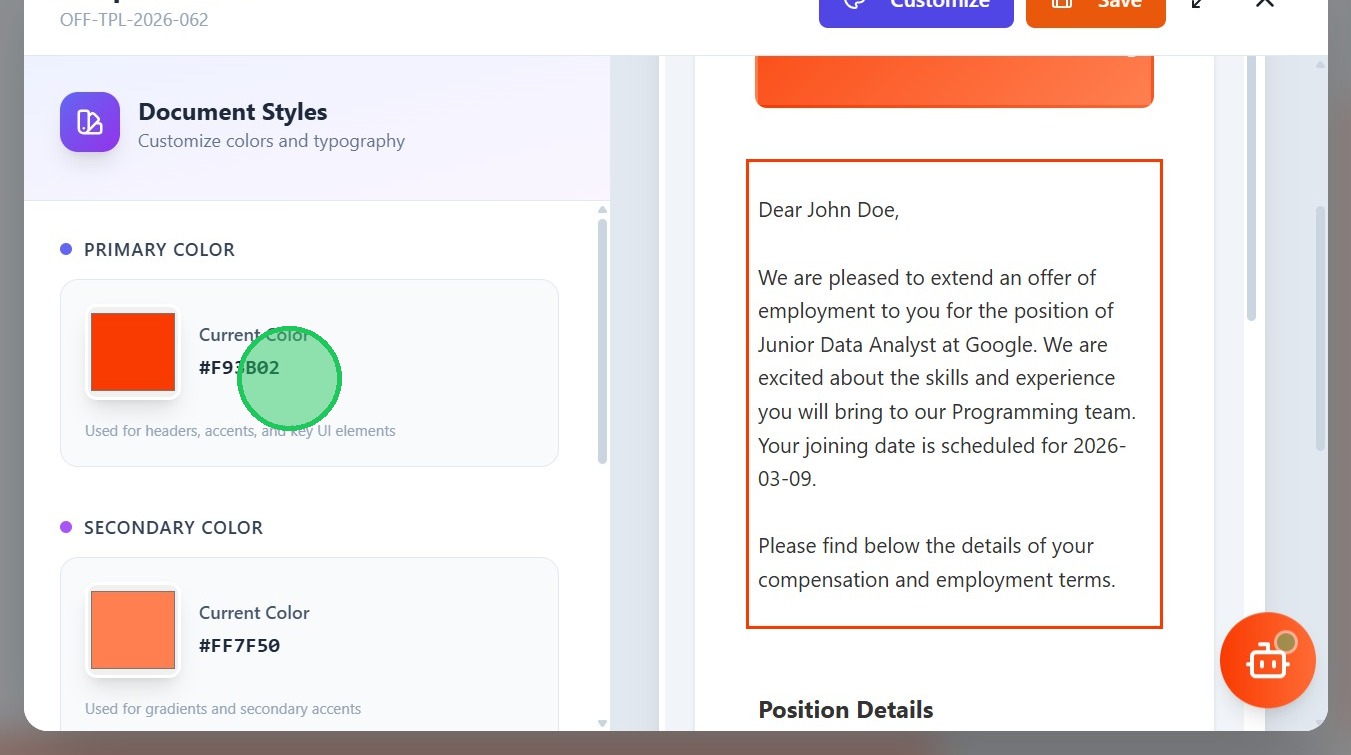
- Select any section of your template and Click "Customize"

- You can change colors for the selected section of the template
- You can also edit your template, first go to settings
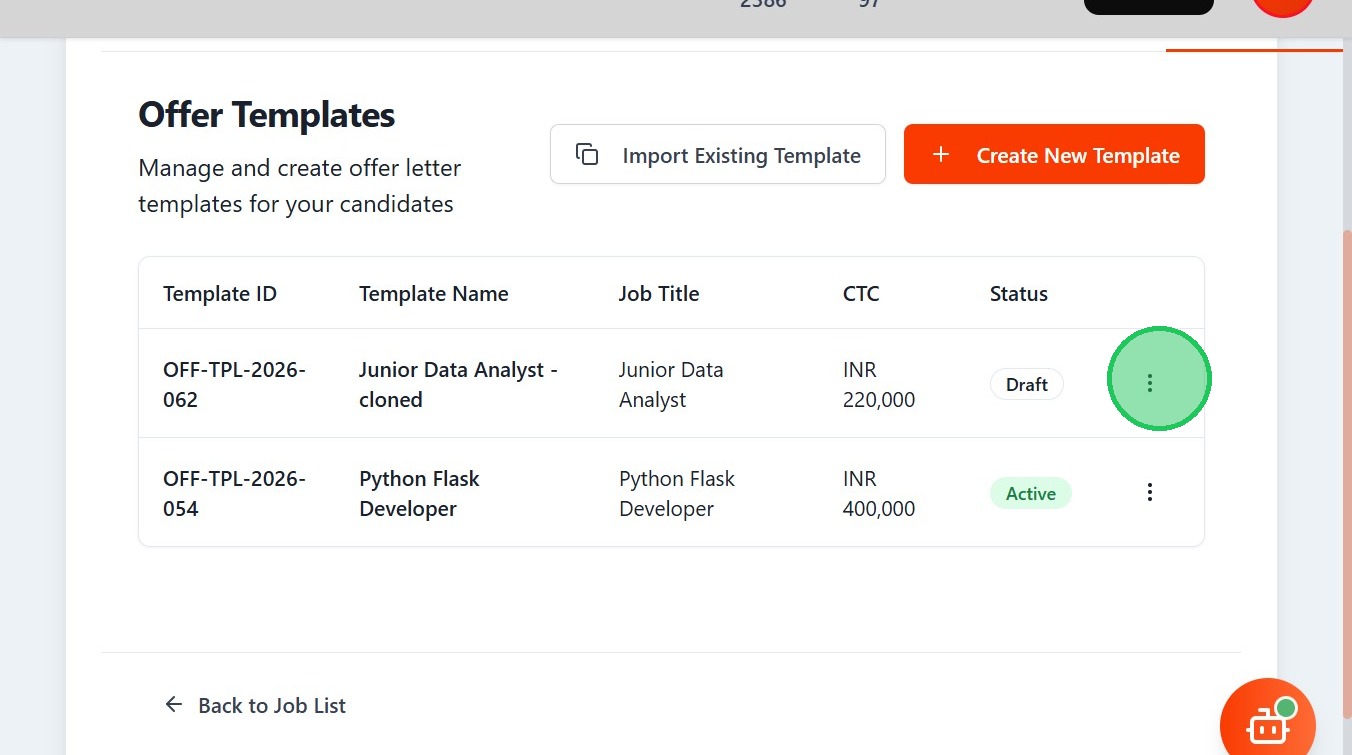
- Click "Edit"

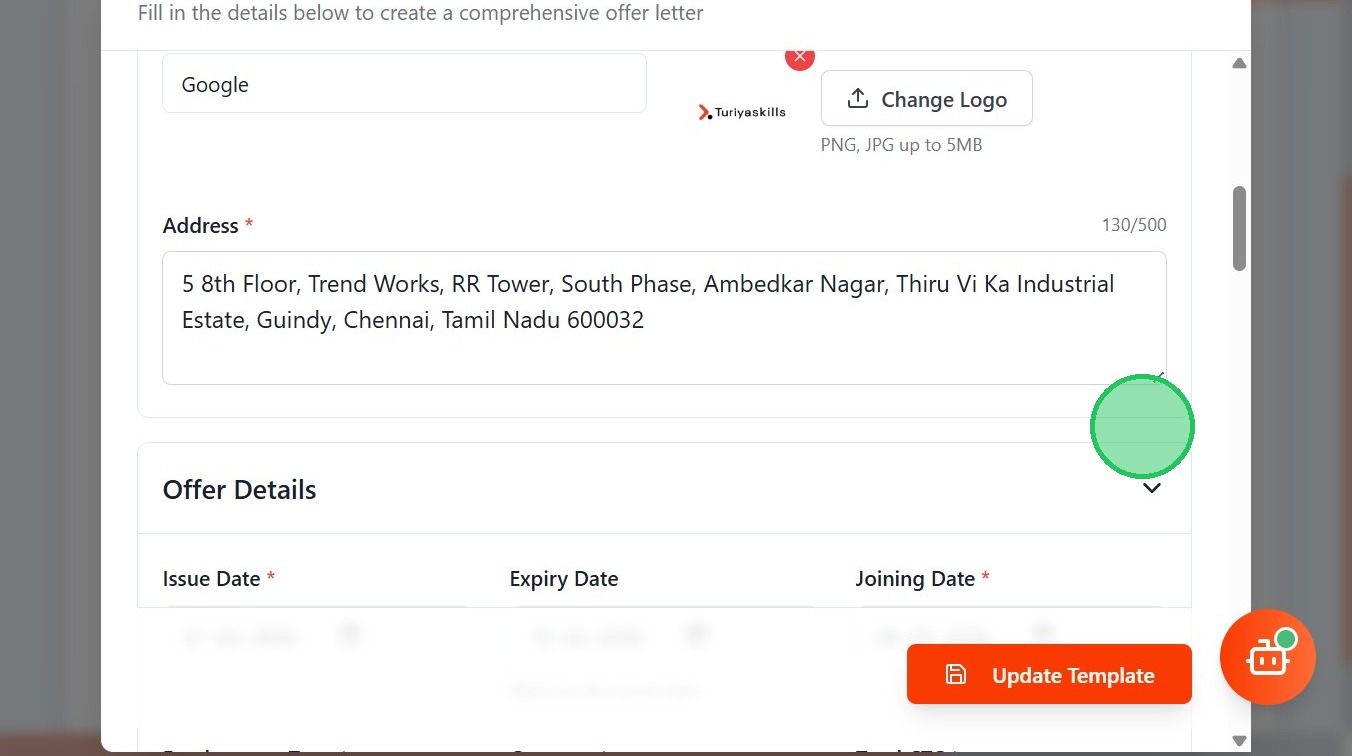
- you can modify any part of your template and click "Update Template" to save it
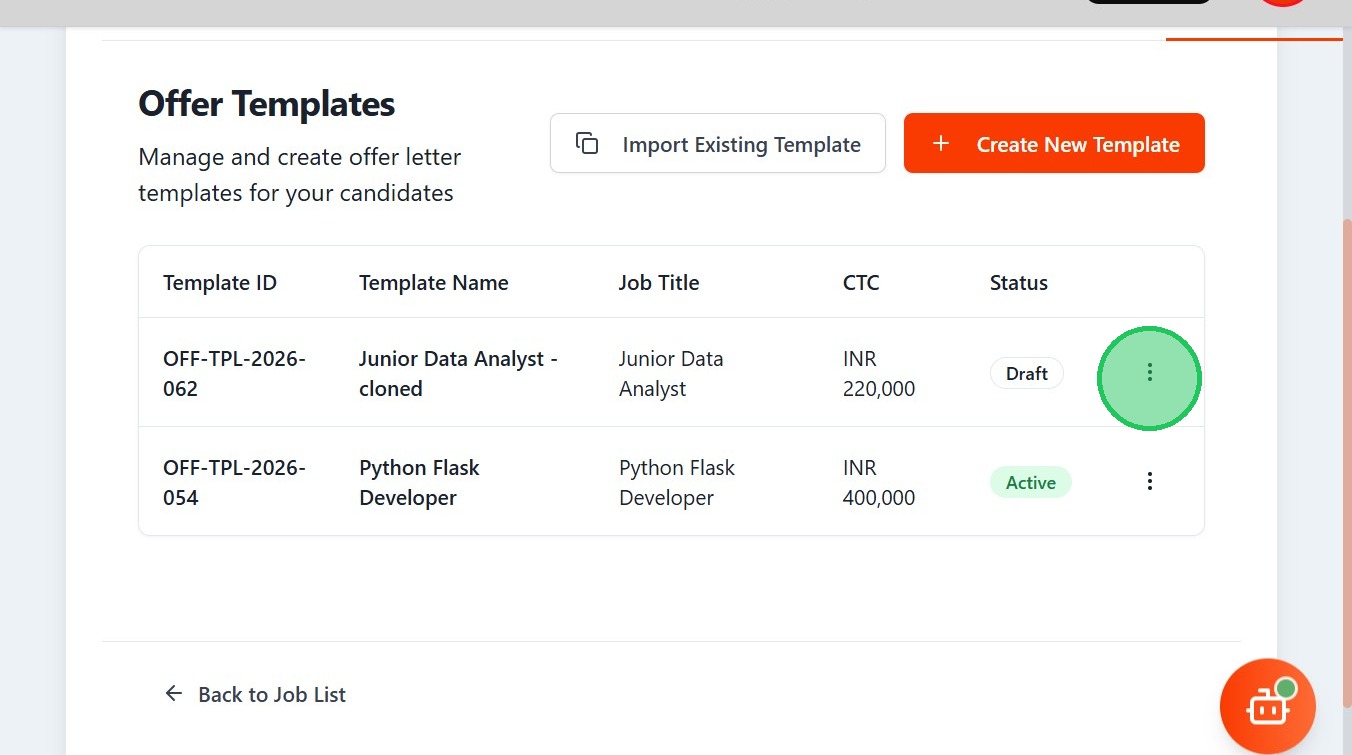
- To make your template available in pipeline, click settings
- Click Activate
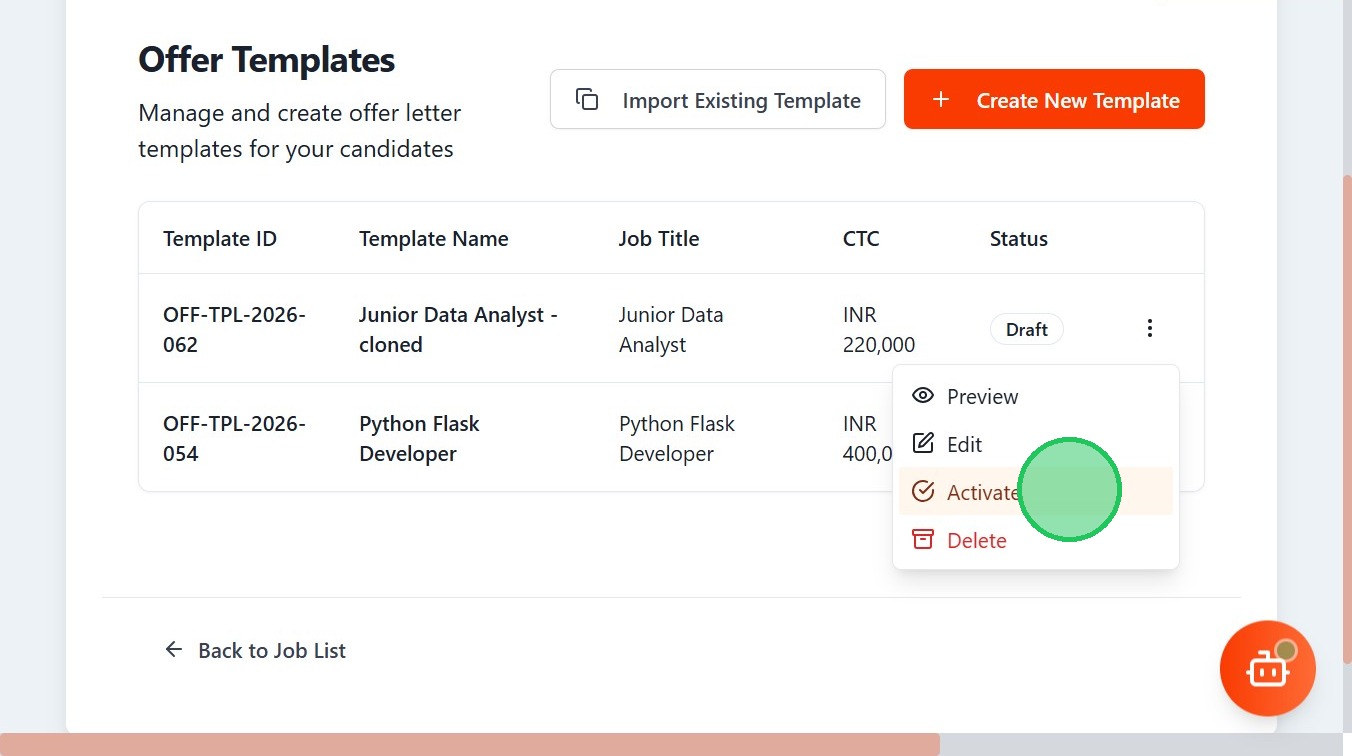
- Your Template is now Activated. This template can not be imported into other Jobs which makes it reusable
