
Question Bank Management
Here are the detailed steps to upload questions, manage the Question Bank, and import questions into the assessment editor in Turiyaskills.
✅ Step 1: Upload Questions to the Question Bank

- Navigate to the Question Bank tab
- Choose the Upload Excel or Upload JSON option
- Download the sample Excel format via the "Download Sample Excel" link if needed
- Drag and drop or browse and select your
.xlsxfile (max 5MB) - Click the Upload button to initiate the upload process
Supported Formats:
- Excel (.xlsx) - Maximum file size: 5MB
- JSON - Structured question data format
✅ Step 2: Verify Upload Status
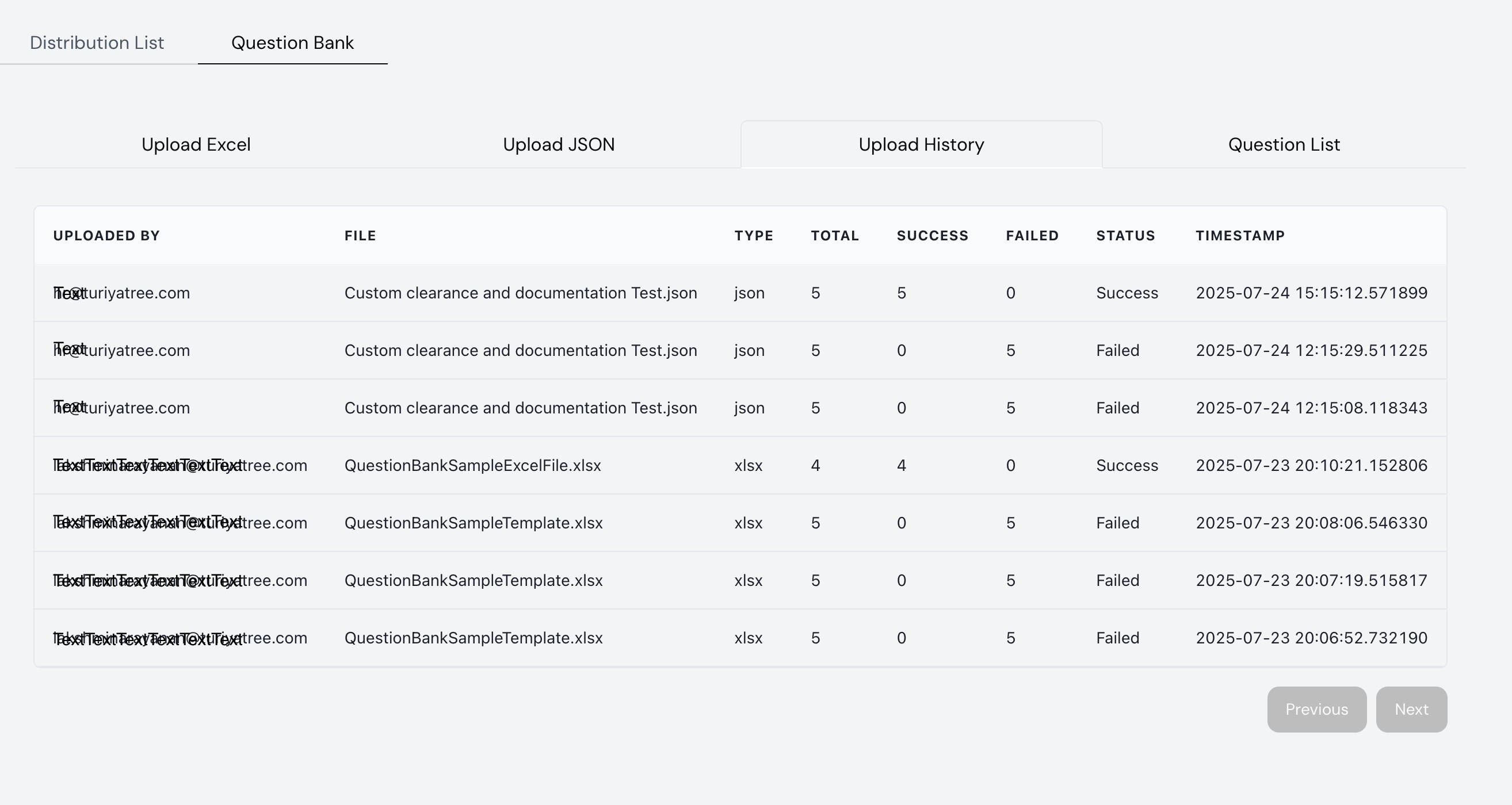
- Click on the Upload History tab to view the status of uploads
- The table displays:
- File name
- Uploaded by
- File type (xlsx or json)
- Total questions attempted
- Success and failure counts
- Upload status (Success/Failed)
- Timestamp
This helps you track all upload activities and identify any issues with question imports.
✅ Step 3: View All Uploaded Questions
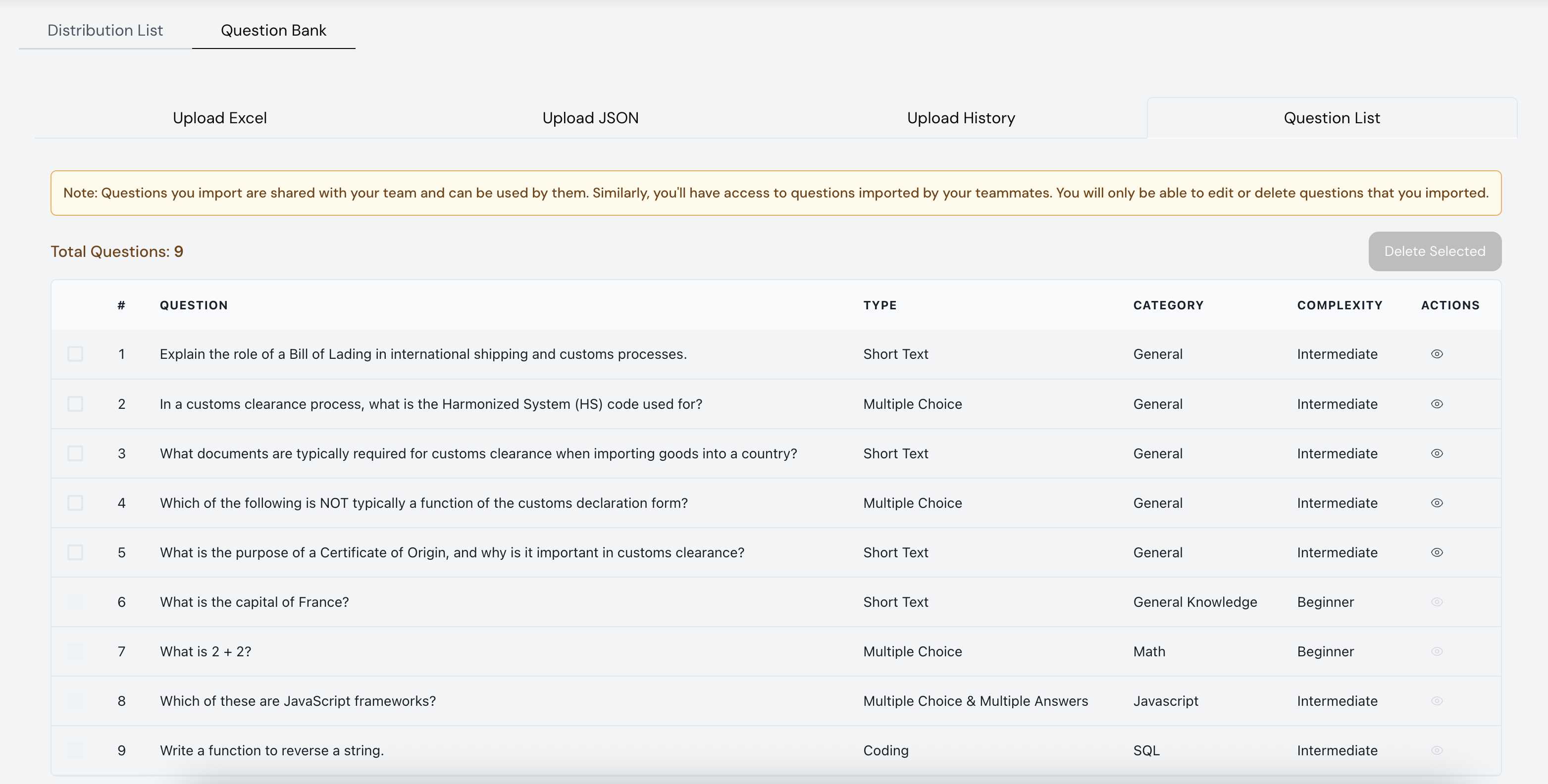
- Go to the Question List tab
- All uploaded questions will be visible here regardless of the source (Excel/JSON)
- The list includes:
- Question text
- Type (Short Text, MCQ, Coding, etc.)
- Category
- Complexity level
Team Collaboration Features:
- ⚠️ Note: If you have team members, questions imported by them will be visible and usable by you — and vice versa
- 🔒 Permissions: You will only be able to edit or delete questions imported by you
✅ Step 4: Import Questions in Assessment Editor
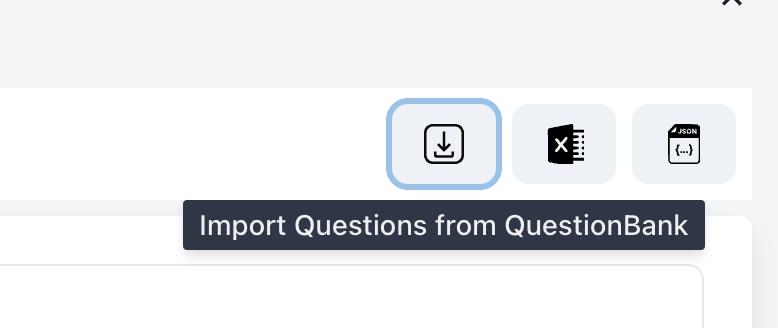
- While creating or editing an assessment, click the Import Questions from QuestionBank icon (⭳)
- A modal will open with filter options:
- Complexity level
- Question Type
- Category
This allows you to quickly find and reuse questions from your existing question bank.
✅ Step 5: Select & Import Questions
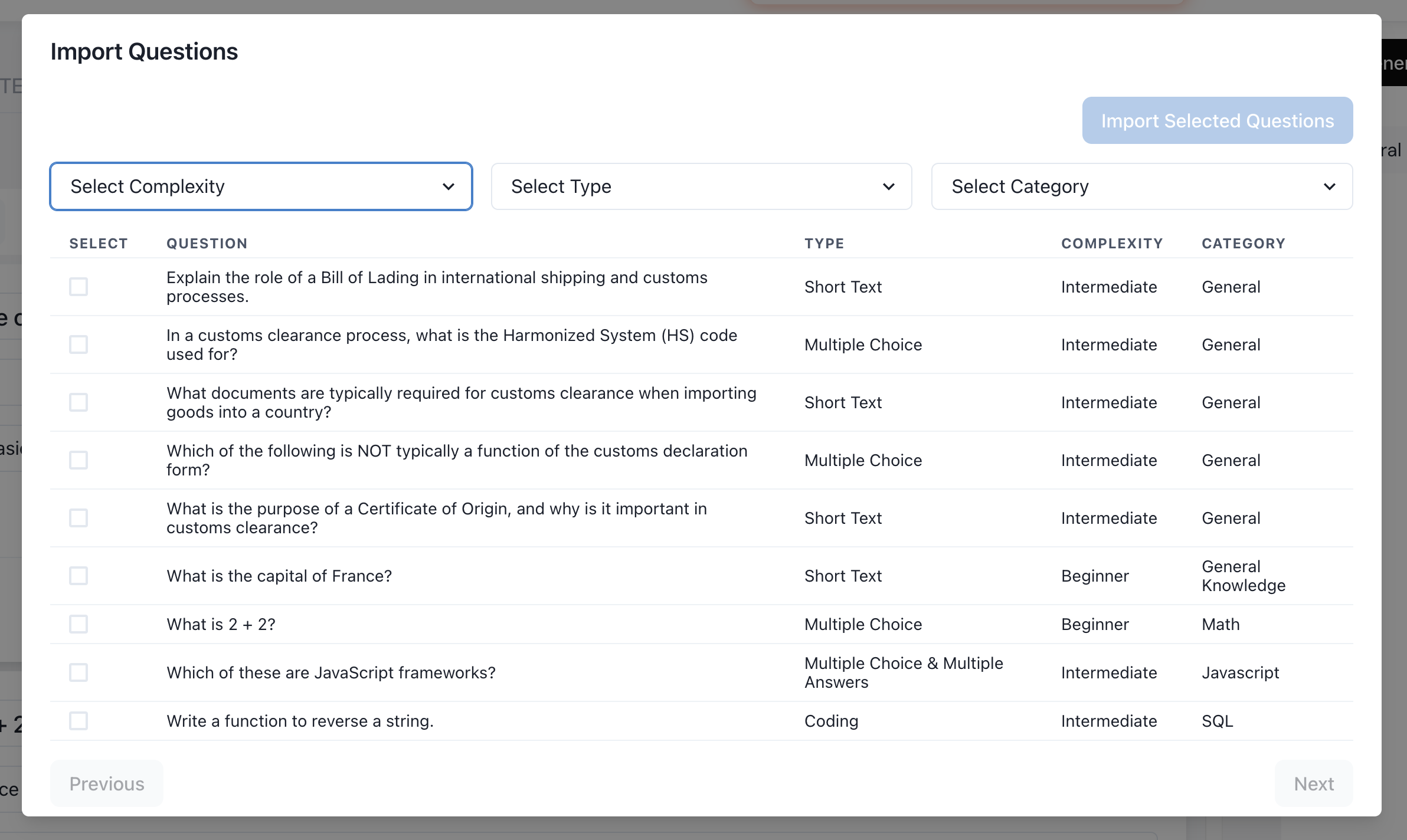
- Use filters to refine question selection based on your assessment needs
- Tick checkboxes next to questions you want to import
- Click the Import Selected Questions button (top-right) to add them to the current assessment
Selection Tips:
- Use multiple filters to narrow down relevant questions
- Preview questions before importing
- Select questions that match your assessment's complexity level
- Ensure question types align with your evaluation goals
Question Types Supported
- Short Text - Brief written responses and answers
- Coding - Programming challenges and code evaluation
- Multiple Choice (Single Answer) - Select one correct option from multiple choices
- Multiple Choice (Multiple Answers) - Select multiple correct options from the choices
- Multiple Choice with Image - Visual-based multiple choice questions with image options
- Multiple Choice with Coding - Programming-related multiple choice questions with code snippets
Best Practices
📝 Question Creation
- Use clear, concise language
- Ensure questions align with learning objectives
- Include appropriate difficulty levels
- Add relevant categories for easy filtering
📊 Organization
- Categorize questions by subject or skill area
- Use consistent complexity ratings
- Maintain a balanced mix of question types
- Regular review and update of question bank
👥 Team Management
- Establish naming conventions for uploaded files
- Regular cleanup of outdated questions
- Share best practices for question creation
- Monitor upload history for quality control
Troubleshooting
Common Upload Issues:
- File size exceeds 5MB: Compress or split the file
- Invalid format: Ensure Excel file follows the sample template
- Missing required fields: Check that all mandatory columns are filled
- Duplicate questions: Review existing questions before upload
Import Issues:
- Questions not appearing: Check category and complexity filters
- Cannot edit questions: Verify you have ownership permissions
- Import failed: Ensure assessment editor is in edit mode
For additional support with Question Bank management, please contact our support team.